How to Build a Reading Workflow with Readwise
TL;DR
Centralize articles, newsletters, RSS feeds, ebooks, PDFs, tweets, and subtitled YouTube videos in Readwise Reader, then organize them around specific projects that lead to action or content. Highlights, notes, tags, custom views, exports, and Ghostreader reduce app switching while turning collected material into searchable project resources and reusable knowledge bases.
Transcript
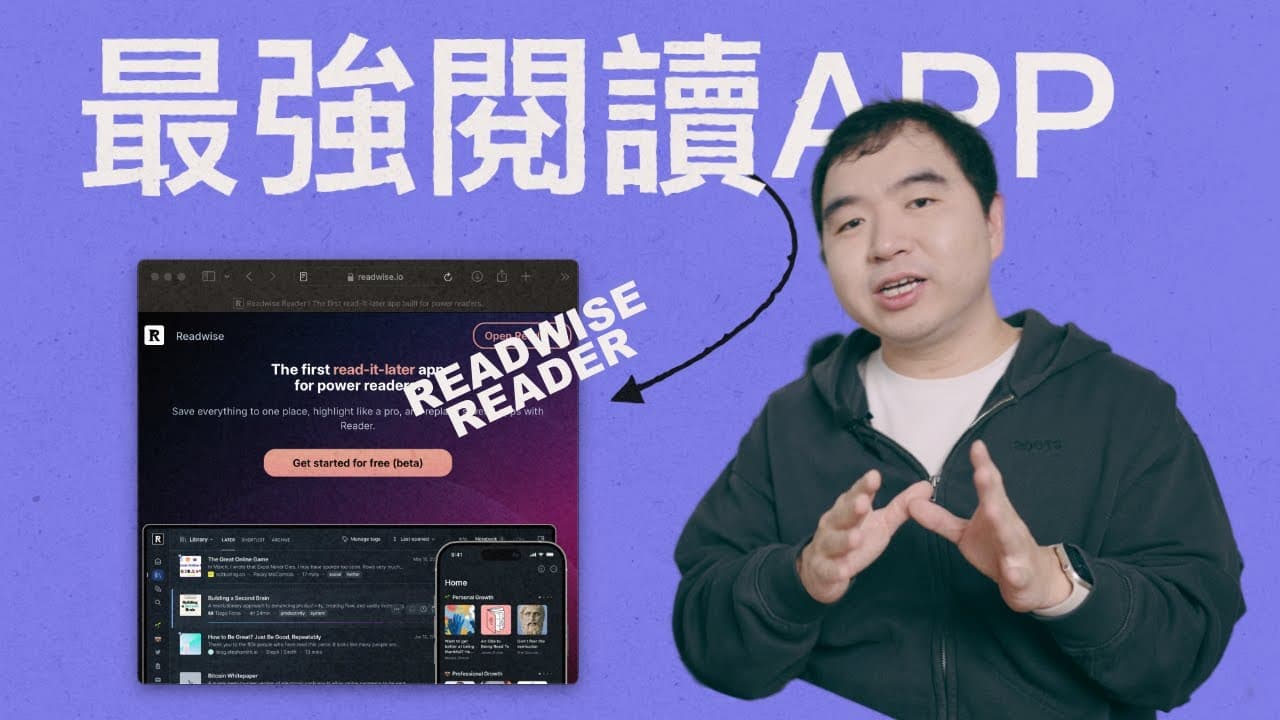
This year, I discovered the Readwise Reader software. It's revolutionary for someone like me who needs extensive reading and input. It's truly a game-changer. Ever since I started using it, I abandoned all other reading apps. I've centralized all my reading in the Reader. But if you think it's just an e-reading software, you're underestimating it. ... Read More
Key Insights
- Purpose-driven reading is organized around either content creation or problem solving. Each intended output or action becomes a project box where related information is collected, digested, and transformed, giving every saved item a defined destination instead of encouraging accumulation without use.
- Reader is an information capture system for articles, blogs, tweets, newsletters, RSS feeds, EPUB books, PDF files, and YouTube videos. Bringing these formats into one cloud-synced workspace allows reading and annotation to continue across phones, iPads, and web browsers.
- The browser plugin preserves reading flow by capturing an article and supporting highlights, notes, tags, and AI functions on the original webpage. These interactions synchronize automatically with Reader, so users can process material without repeatedly moving between the source page and a separate application.
- Reader separates newsletters from personal email through a virtual subscription address. Newsletter issues and RSS updates arrive in Reader's feed, while websites can be added by entering their addresses, helping users centralize recurring publications without adding more messages to their normal inboxes.
- YouTube subtitles become readable and annotatable text inside Reader when a saved video provides captions. The text follows playback progress and supports highlighting, notes, translation, explanation, and other AI operations, which can also assist users who are studying material in English.
- Ghostreader provides context-sensitive AI commands through an OpenAI API connection. A selected word can trigger definitions, terminology help, search, translation, or encyclopedia functions, while passages and complete documents support simplification, summaries, questions, custom prompts, and other targeted operations.
- Exported highlights and notes remain useful outside Reader because they can be imported into other note-taking applications or assembled into a knowledge base. The creator used annotations from an Elon Musk biography project to build a custom GPT for finding arguments and answering specific questions.
- Tags create reusable project boxes at both document and highlight levels. Document tags can become custom views for grouped sources, while highlight tags can collect discussion questions, referenced books, or vocabulary, although those highlight-tag collections must currently be accessed through Readwise.
Install to Summarize YouTube Videos and Get Transcripts
Explore YouTube Video Summarizer or Get YouTube Transcript Extractor
Questions & Answers
Q: How can Readwise Reader improve a reading workflow?
Readwise Reader can improve a reading workflow by centralizing capture, reading, annotation, organization, and AI assistance. Users can save text, ebooks, PDFs, newsletters, RSS feeds, tweets, and subtitled YouTube videos, then add highlights, notes, and tags. Custom views group documents by project, while exports make annotations available for other note applications or custom GPT knowledge bases.
Q: What is the project box method for purposeful reading?
The project box method assigns every saved source to a concrete output or problem. A video idea, research question, or personal issue becomes a box, and relevant material is collected there before being read, digested, and transformed into action or content. This approach treats reading as part of a defined project rather than as an activity completed for its own sake.
Q: What types of content can Readwise Reader collect?
Readwise Reader can collect articles, blogs, tweets, newsletters, RSS feeds, EPUB books, PDF files, and YouTube videos. The browser plugin captures web content, files can be uploaded directly, newsletters can use a dedicated virtual address, and website feeds can be added through their addresses. EPUB and PDF files are placed into their corresponding category views for reading and management.
Q: How does Readwise Reader manage newsletters and RSS feeds?
Reader provides a virtual email address that can be used for newsletter subscriptions, sending issues into its feed instead of mixing them with personal email. The same feed can receive RSS updates automatically. A user can add a website by choosing the feed option and entering its address, and Reader can also suggest feeds based on previously read content.
Q: How does Readwise Reader work with YouTube videos?
A YouTube video can be saved through the Reader browser plugin and placed in the video view. When subtitles are available, Reader displays their text in an article-like format that follows the playback position. Users can highlight subtitle passages, attach notes, and invoke AI functions such as translation or explanation, making video material easier to study and reuse.
Q: What can Ghostreader do with words, passages, and documents?
Ghostreader changes its available commands according to the selected material. For a word, it can offer definitions, encyclopedia information, terminology help, search, translation, and custom instructions. For a passage, it can simplify, translate, summarize, create memory cards, write a haiku, or follow a custom prompt. At document level, it can answer questions, summarize content, and generate questions from highlights.
Q: How can exported Reader highlights support content creation?
Reader allows highlights and notes to be exported, so they can be moved into other note-taking software or assembled into a project knowledge base. The creator exported annotations from research on an Elon Musk biography and used them to create a custom GPT. That GPT could then answer focused questions and help locate arguments for the planned video.
Q: What is the difference between document tags and highlight tags?
Document tags classify an entire source and can be turned into custom views in Reader's left navigation, making all documents for a project easy to retrieve. Highlight tags classify selected passages within sources. They can collect items such as discussion questions, book references, or vocabulary, but their combined collections are found through Readwise rather than directly inside Reader.
Summary & Key Takeaways
-
The creator reads for two practical purposes: producing content and solving problems. Each idea or problem becomes a project box that receives relevant material. Information is then collected, categorized, read, absorbed, and transformed into action or output, preventing reading from becoming aimless consumption or information hoarding.
-
Reader centralizes articles, blogs, tweets, newsletters, RSS feeds, EPUB books, PDF files, and subtitled YouTube videos. Its browser plugin, mobile access, cloud synchronization, virtual newsletter address, and feed subscriptions make capture convenient. YouTube subtitles can be read, highlighted, annotated, translated, and explained alongside video playback.
-
Reader supports highlights, notes, document tags, highlight tags, custom views, exports, and Ghostreader assistance. AI commands vary according to whether a word, passage, or complete document is selected. Exported annotations can move into note applications or become a custom GPT knowledge base for retrieving evidence and answering project-specific questions.
Read in Other Languages (beta)
Share This Summary 📚
Summarize YouTube Videos and Get Video Transcripts with 1-Click
Try YouTube Summary with ChatGPT & Claude or YouTube Transcript Generator
Explore More Summaries from 一口新飯 📚
Summarize YouTube Videos and Get Video Transcripts with 1-Click
Try YouTube Summary with ChatGPT & Claude or YouTube Transcript Generator