How to Set Up OBS for Effective Presentations
TL;DR
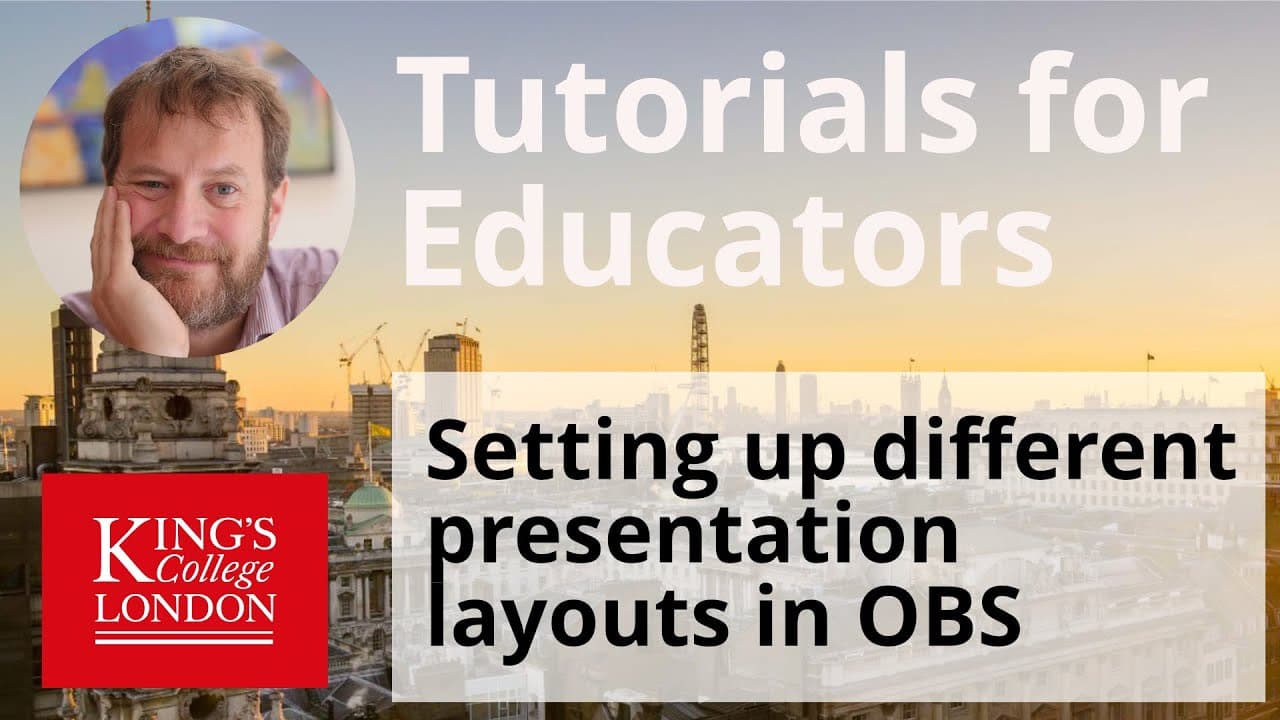
To set up OBS for effective presentations, configure key settings like recording quality and output resolution at 1920x1080. Create separate scenes for different layouts, including webcam, slides, and combinations of both, to allow smooth transitions during the presentation. Make sure to start recording before beginning your presentation for optimal results.
Transcript
hello i'm james clark from the department of physiology at king's college london and in this short presentation i'm going to go through some of the settings you might need in obs and powerpoint in order to set up your recordings for presentations we're going to start in obs and the first place to go is the settings window the settings window is whe... Read More
Key Insights
- 😭 Configuring OBS settings such as recording path, quality, and audio settings is crucial for optimal presentation recording.
- 👻 Creating separate scenes in OBS for webcam, slides, and combinations allows for versatile presentation layouts.
- 🛝 Integrating PowerPoint slides in OBS using display capture ensures a seamless transition between slides and webcam feed during presentations.
- 😭 Customizing sources like webcam and microphone in OBS scenes enhances the quality of audio and video output.
- 😒 Setting up presentation templates in OBS for future use streamlines the process and ensures consistency in recording setups.
- 😭 Properly cropping and adjusting sources in OBS scenes helps in optimizing the layout and visual appeal of presentations.
- 😭 OBS provides tools for effective presentation recording, allowing for easy switching between scenes and customization of layouts.
Install to Summarize YouTube Videos and Get Transcripts
Explore YouTube Video Summarizer or Get YouTube Transcript Extractor
Questions & Answers
Q: What are the key settings to configure in OBS for recording presentations?
In OBS, it is essential to set recording path, quality, audio settings, monitor devices, video resolution, and frame rate to ensure a smooth presentation recording.
Q: How can scenes be set up in OBS to showcase both webcam and slides during a presentation?
By creating separate scenes for webcam, slides, a combination of both, and side by side view, users can seamlessly switch between different layouts while presenting.
Q: What steps are involved in adding sources like webcam and microphone to scenes in OBS?
Adding sources involves selecting video capture devices for webcam, audio input for microphones, and display capture for slide views and then customizing properties for each source.
Q: How can PowerPoint slides be integrated into OBS for presentations?
By using display capture, users can showcase their PowerPoint slides in OBS, ensuring a clear and synchronized display alongside their webcam feed during presentations.
Summary & Key Takeaways
-
James Clark from King's College London provides a tutorial on setting up OBS for presentations.
-
He explains how to configure settings for recording quality and audio in OBS.
-
Clark demonstrates how to set up scenes with webcam and slides in PowerPoint for effective presentations.
Read in Other Languages (beta)
Share This Summary 📚
Summarize YouTube Videos and Get Video Transcripts with 1-Click
Try YouTube Summary with ChatGPT & Claude or YouTube Transcript Generator
Explore More Summaries from Dory Video 📚


Summarize YouTube Videos and Get Video Transcripts with 1-Click
Try YouTube Summary with ChatGPT & Claude or YouTube Transcript Generator