How to Use Your Phone as a Remote for Canva Presentations
TL;DR
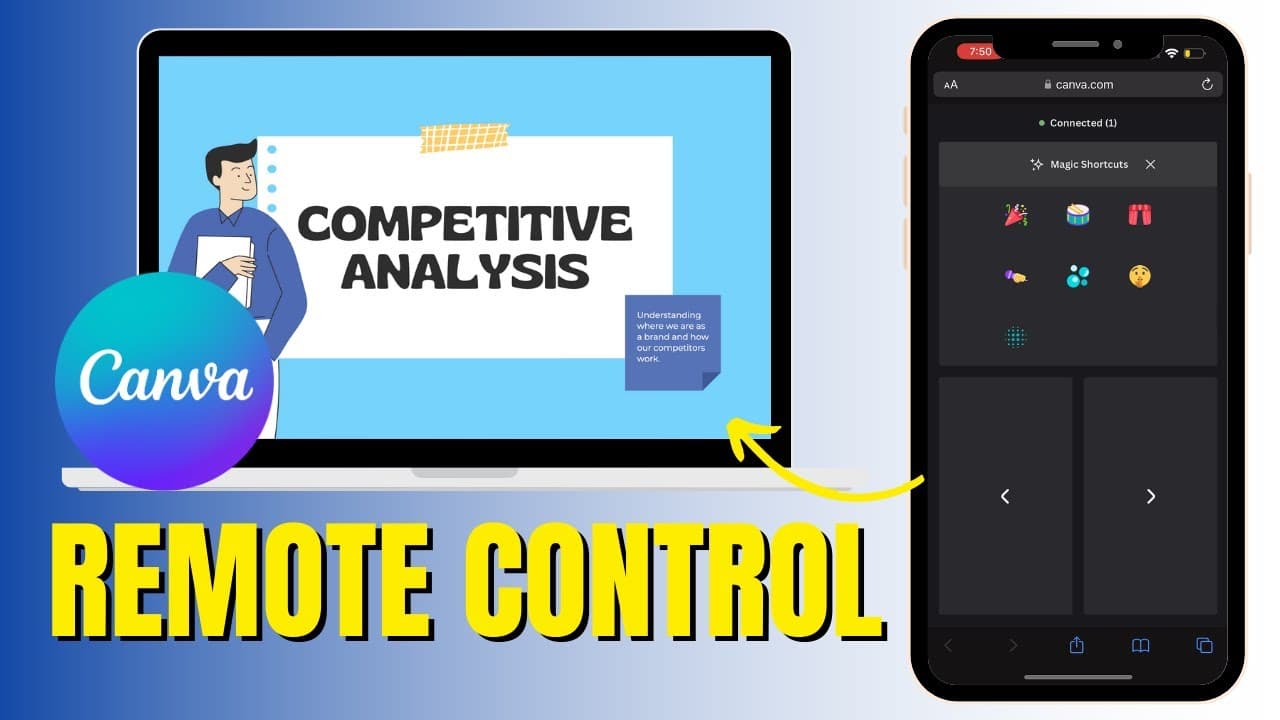
You can control your Canva presentations using your phone as a remote by selecting 'share remote control' in full-screen mode and copying the generated link. Open the link on your phone to advance slides and access fun shortcuts like confetti and drum rolls, allowing for a more interactive presentation experience.
Transcript
so in this video I'm going to show you how you can use your phone as a remote whenever you're using a presentation in canva you can do all kinds of cool things but before we do feel free to subscribe to my YouTube channel where each week I'll be uploading new videos on a variety of different topics so let's learn how to use our remote to control a ... Read More
Key Insights
- 😄 Utilize your phone as a remote for Canva presentations for ease and convenience.
- 🎮 Share a remote control link to access Canva presentation controls on your phone.
- 🤣 Enhance your Canva presentation with magic shortcuts like confetti and drum rolls.
- ❤️🩹 End the session smoothly by deactivating the remote control after your presentation.
- 📣 Increase interactivity and engagement during Canva presentations with a phone remote.
- 🛝 Simplify the process of controlling slides by using your phone as a remote.
- 🛝 Ensure a smooth transition between slides and interactive elements with a phone remote.
Install to Summarize YouTube Videos and Get Transcripts
Explore YouTube Video Summarizer or Get YouTube Transcript Extractor
Questions & Answers
Q: How can you use your phone as a remote for Canva presentations?
To use your phone as a remote for Canva presentations, create a presentation, put it in full-screen mode, share a remote control link, and access it on your phone to control slides and enhance your presentation with magic shortcuts.
Q: What are some of the magic shortcuts you can use with the remote control for Canva presentations?
Some of the magic shortcuts you can use with the remote control for Canva presentations include confetti, drum roll, curtain close, mic drop, bubbles, and screen blur to add a fun and interactive element to your presentation.
Q: How do you end the remote control session after a Canva presentation?
To end the remote control session after a Canva presentation, simply click on the three dots at the bottom of the screen and select "end presentation" to deactivate the remote and finish your presentation smoothly.
Q: What are the steps to set up remote control for Canva presentations?
To set up remote control for Canva presentations, create your presentation, put it in full screen, click on the three dots at the bottom, select "share remote control," copy the link, share it with yourself, and access the link on your phone to control your presentation remotely.
Summary & Key Takeaways
-
Learn how to use your phone as a remote for Canva presentations.
-
Create a presentation, put it in full-screen mode, and share a remote control link.
-
Access the link on your phone to control slides, use magic shortcuts, and enhance your presentation.
Read in Other Languages (beta)
Share This Summary 📚
Summarize YouTube Videos and Get Video Transcripts with 1-Click
Try YouTube Summary with ChatGPT & Claude or YouTube Transcript Generator
Explore More Summaries from EdTech Hustle 📚


Summarize YouTube Videos and Get Video Transcripts with 1-Click
Try YouTube Summary with ChatGPT & Claude or YouTube Transcript Generator