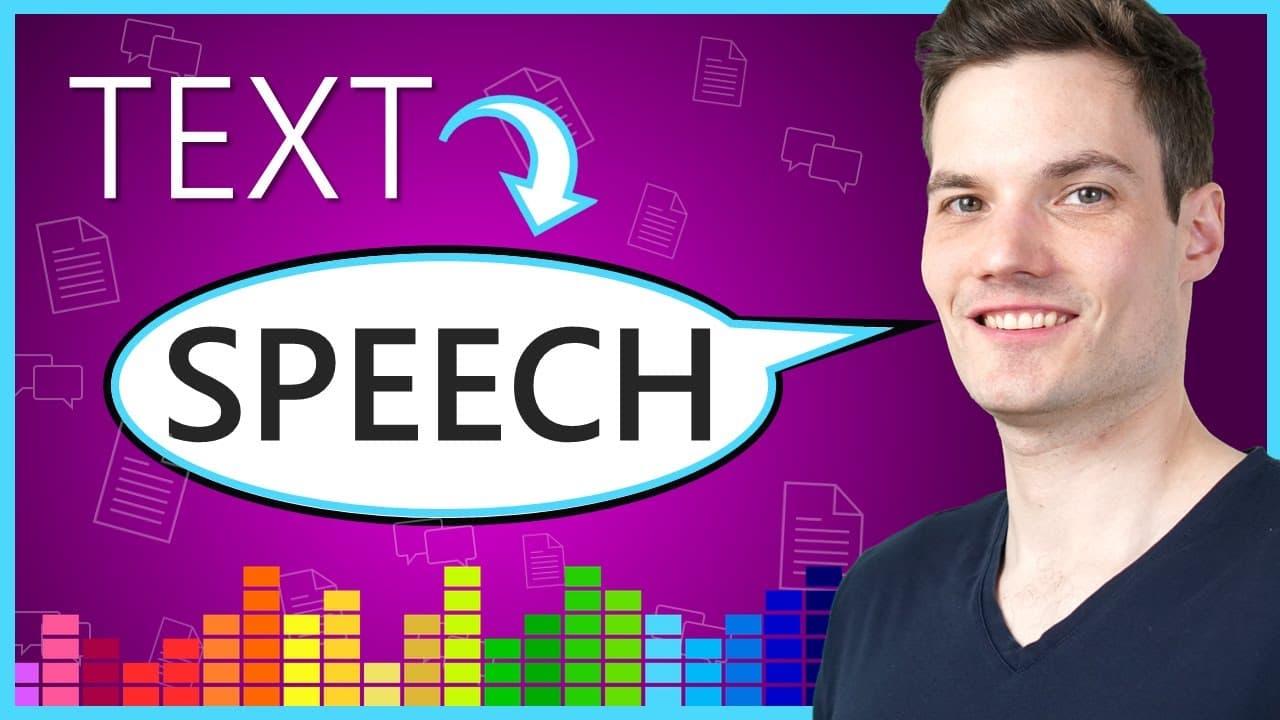
How to Convert Text to Speech for Free on Windows 10
TL;DR
You can convert text to speech for free on Windows 10 using built-in apps like OneNote and Voice Recorder. Start by using the Immersive Reader feature in OneNote to read your text aloud, then record it with Voice Recorder. For more control and voice options, consider using Audacity or the freeware app Balabolka, which allows easy export of audio files.
Transcript
Hi everyone, Kevin here. Today, I want to show you how you could take text and turn it into speech. This is also known as TTS or text to speech. So why would you ever want to do that? Well, I don't know. Maybe you want to have your computer read you a bedtime story or maybe you want to include your voice on top of a video. There are many ... Read More
Key Insights
- 😯 Text-to-speech conversion can be useful for various purposes, from entertainment to multimedia projects.
- 😯 Windows 10 offers built-in tools like OneNote and Voice Recorder for basic text-to-speech capabilities.
- 😀 Audacity is a versatile audio recording and editing app that allows more control over recording system sound.
- 😀 Balabolka is a freeware app that provides the convenience of exporting text-to-speech as audio files without the need for additional recording.
- 🧡 Online TTS services, such as IBM Watson, can be integrated with Balabolka to access a wider range of voices and accents.
- 🎮 Each method demonstrated in the video has its pros and cons, with considerations like installation, customization, and file format options.
Install to Summarize YouTube Videos and Get Transcripts
Explore YouTube Video Summarizer or Get YouTube Transcript Extractor
Questions & Answers
Q: What are some reasons for converting text to speech?
Converting text to speech can be useful for various reasons, such as having the computer read a bedtime story or adding your voice to a video.
Q: How can you convert text to speech using OneNote for Windows 10?
Open OneNote, compose the desired text, and access the Immersive Reader feature under the View tab. From there, you can customize the reading preferences and have the computer read the text.
Q: How can you use the Voice Recorder app to record computer-generated speech?
Adjust your sound settings to enable recording system sound. Open the Voice Recorder app, start recording, play the text in OneNote, and stop the recording. You can then trim and save the audio file.
Q: What is Audacity and how can you record system sound using it?
Audacity is a free audio recording and editing app. To record system sound, select "Windows WASAPI" as the input, choose "Speakers and Loopback" as the microphone, and click the record button. Play the desired text and stop the recording.
Q: How can you use Balabolka to convert text to speech and save it as an audio file?
Balabolka allows you to enter text, adjust preferences, and listen to the generated speech. You can export the speech as a WAV or an MP3 file. It also offers the option to use online TTS services for additional voices.
Key Insights:
- Text-to-speech conversion can be useful for various purposes, from entertainment to multimedia projects.
- Windows 10 offers built-in tools like OneNote and Voice Recorder for basic text-to-speech capabilities.
- Audacity is a versatile audio recording and editing app that allows more control over recording system sound.
- Balabolka is a freeware app that provides the convenience of exporting text-to-speech as audio files without the need for additional recording.
- Online TTS services, such as IBM Watson, can be integrated with Balabolka to access a wider range of voices and accents.
- Each method demonstrated in the video has its pros and cons, with considerations like installation, customization, and file format options.
- The speaker encourages viewers to choose the method that suits their needs best and provides feedback on the quality of the computer-generated speech.
Summary & Key Takeaways
-
The speaker introduces the concept of converting text to speech and explains different reasons why it might be useful.
-
The first method demonstrated is using OneNote for Windows 10, where you can input text and have it read back to you using the Immersive Reader feature.
-
The second method involves using the Voice Recorder app to record the computer-generated speech and save it as an audio file.
-
The video concludes by introducing Audacity and Balabolka for more advanced text-to-speech capabilities.
Read in Other Languages (beta)
Share This Summary 📚
Summarize YouTube Videos and Get Video Transcripts with 1-Click
Try YouTube Summary with ChatGPT & Claude or YouTube Transcript Generator
Explore More Summaries from Kevin Stratvert 📚





Summarize YouTube Videos and Get Video Transcripts with 1-Click
Try YouTube Summary with ChatGPT & Claude or YouTube Transcript Generator