How to Edit Videos Using Kaltura Video Editor
TL;DR
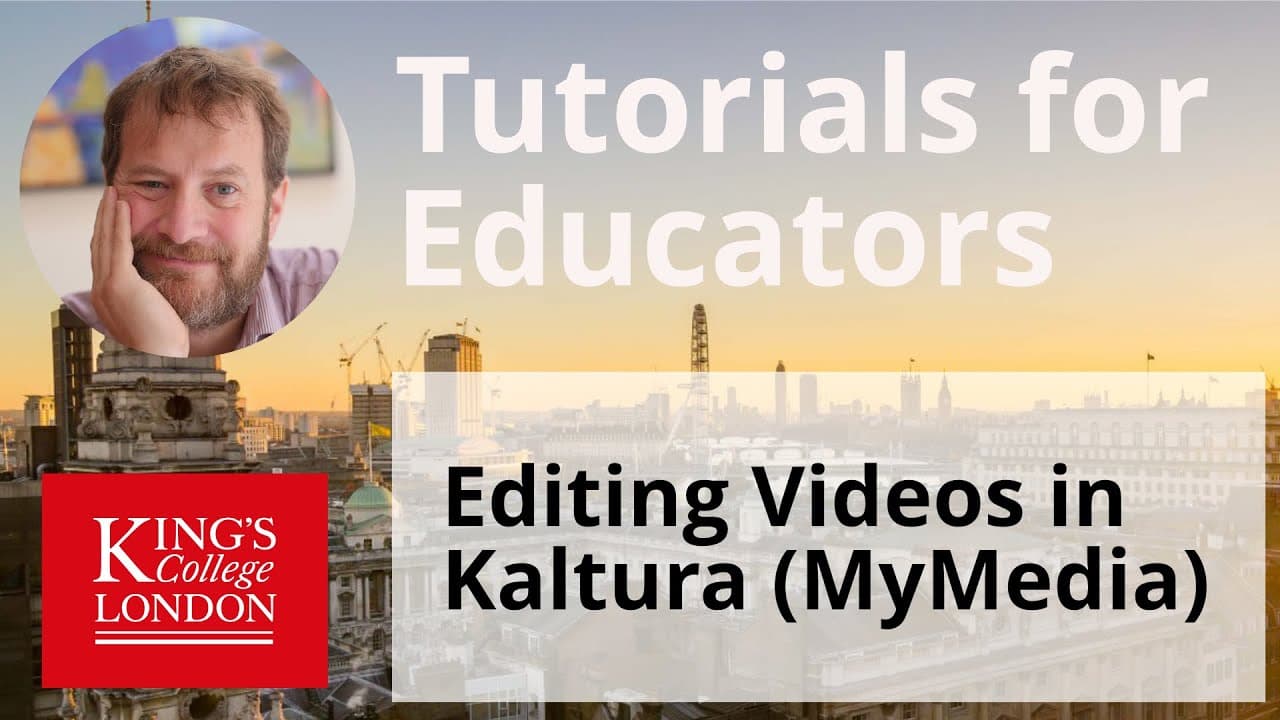
To edit videos in Kaltura, access the 'my media' section, select your video, and launch the editor. Use the 'split', 'set in', and 'set out' buttons to cut and trim your video, adjusting the timeline as needed. While Kaltura's editing tools are basic, they allow for simple modifications like removing segments and adding links.
Transcript
hello I'm James Clark from the department of physiology at King's College London and in this short video I'm going to show you what editing functions you have in Kaltura just a reminder Cal cheer is also called my media and this is part of the Keith system or Moodle system that we use at Kings for our VLE and many other universities use as well in ... Read More
Key Insights
- 🔉 Kaltura's editing functions are accessible through the "my media" section in the Kaltura platform.
- 👻 The video editor interface in Kaltura is rudimentary but functional, allowing users to perform basic cuts and trims.
- 🫵 The editing window in Kaltura displays the video timeline, audio representation, and thumbnail views of various frames.
- 📼 Users can split the video, set in and set out points, and trim the video by dragging the playhead in the timeline.
- 🧘 Kaltura's editing capabilities are limited compared to comprehensive video editing packages but are sufficient for basic edits.
- 🎮 The cutting and trimming functions in Kaltura are non-destructive and can be applied to videos without permanently altering the original file.
- 👨🦱 Kaltura enables users to add quizzes and hotspots (URLs and links) within videos.
Install to Summarize YouTube Videos and Get Transcripts
Explore YouTube Video Summarizer or Get YouTube Transcript Extractor
Questions & Answers
Q: How do I access the editing functions in Kaltura?
To access the editing functions, click on your name in the top right corner, choose the "my media" option, and select the video you want to edit. Then click on the pen icon or the video title to enter the view window.
Q: Can I change the details and description of my video in Kaltura?
Yes, in the view window, you can change the video's name, add a description, modify tags, and edit other details about the video. However, the video only demonstrates the cutting and trimming functions.
Q: Can I edit multiple sections within a single file in Kaltura?
Yes, you can perform multiple edits by choosing to delete multiple sections within a single file. However, this process would be iterative and repetitive as you would need to edit, save, and re-edit the file.
Q: Is it possible to download the edited video from Kaltura?
Yes, you can download your video from Kaltura and use it elsewhere. The video mentions that once you upload your video to Kaltura and make edits, it will re-save the edited version in Kaltura.
Summary & Key Takeaways
-
The video explains how to access the editing functions in Kaltura's my media section and provides an overview of the video editor interface.
-
The speaker demonstrates how to cut and trim a video using the split, set in, and set out buttons.
-
The video emphasizes that Kaltura's editing capabilities are basic but functional, allowing users to make simple cuts and edits.
Read in Other Languages (beta)
Share This Summary 📚
Summarize YouTube Videos and Get Video Transcripts with 1-Click
Try YouTube Summary with ChatGPT & Claude or YouTube Transcript Generator
Explore More Summaries from Dory Video 📚

Summarize YouTube Videos and Get Video Transcripts with 1-Click
Try YouTube Summary with ChatGPT & Claude or YouTube Transcript Generator