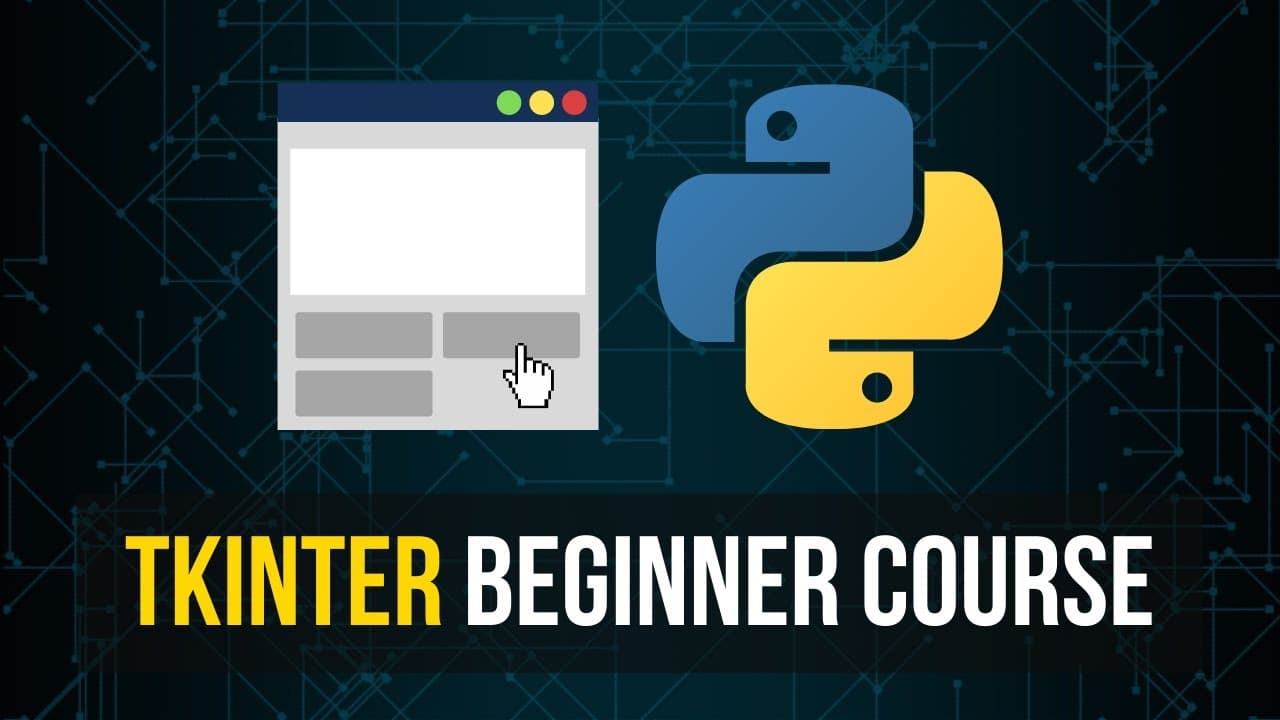
Tkinter Beginner Course: How Do You Build a Python GUI?
TL;DR
To build a Python GUI with Tkinter, import the library as tk, create the main window with tk.Tk(), configure properties such as its title and geometry, add widgets with the window as their parent, choose a layout, and call mainloop(). The course demonstrates a 500 by 500 pixel window, a Hello World label, fonts, and padding, so read on for the exact beginner setup.
Transcript
what is going on guys welcome back this video is going to be a beginner course on tk inter we have used tk inter a couple of times on this channel already to build graphical user interface applications but i never published a video tutorial or a video course on the very basics of tk inter so what is a window how do we set some basic stuff up uh wha... Read More
Key Insights
- Tkinter is a standard library in Python for creating graphical user interfaces without needing additional installations.
- To start using Tkinter, import it with 'import tkinter as tk'.
- Creating a basic window in Tkinter involves initializing Tkinter with 'tk.Tk()' and entering the main event loop with '.mainloop()'.
- Widgets like labels, buttons, and text boxes can be added to the window using Tkinter's layout managers such as 'pack', 'grid', and 'place'.
- The 'pack' layout manager organizes widgets in blocks before placing them in the parent widget.
- The 'grid' layout manager organizes widgets in a table-like structure, allowing more control over widget placement.
- The 'place' layout manager allows precise control over widget positioning by specifying x and y coordinates.
- Event handling in Tkinter is done by binding functions to widget events, such as button clicks or key presses.
Install to Summarize YouTube Videos and Get Transcripts
Explore YouTube Video Summarizer or Get YouTube Transcript Extractor
Questions & Answers
Q: What is Tkinter used for in Python?
Tkinter is a library used to build graphical user interfaces in Python. The course describes it as the default way to create Python GUIs and says it is part of the core Python stack.
Q: Do you need to install Tkinter before using it?
No, the course says Tkinter does not need to be installed because it is part of the core Python stack. By comparison, PyQt5 is presented as an option that must be installed specifically.
Q: What is the recommended way to import Tkinter?
The course uses import tkinter as tk, giving the library the alias tk. It advises against importing everything because that imports more than needed and may cause ambiguity and problems.
Q: How do you create a basic Tkinter window?
Assign tk.Tk() to a name such as root or window. Then call root.mainloop() so the graphical application runs.
Q: How do you set a Tkinter window's size and title?
Call the geometry function with a dimension string, such as 800 x 500 or 500 x 500, and call the title function with text such as My First GUI. The demonstrated 800 x 500 setting creates a window 800 pixels wide and 500 pixels high.
Q: How do you add a label to a Tkinter window?
Create the label with tk.Label and pass the root window as its parent object. Set named parameters such as text and font, then use a layout method such as pack to place the label in the interface.
Q: What Tkinter layout options does the beginner course cover?
The course covers pack, grid, and place. Pack and grid are described as the layouts usually used, while place lets you choose coordinates.
Q: How do you add padding around a Tkinter widget?
Pass pad x and pad y values when placing the widget, with x controlling horizontal padding and y controlling vertical padding. The label example uses 20 for each value to create more distance around it.
Summary & Key Takeaways
-
Definition: Tkinter is a Python library for building graphical user interfaces.
-
Definition: Tkinter is part of the core Python stack, so it does not require a separate installation.
-
Compare: PyQt5 requires a specific installation, while Tkinter is already part of the core Python stack.
-
Step 1: Import Tkinter with the alias tk instead of importing everything.
-
Step 2: Create the main window by assigning tk.Tk() to a name such as root.
-
Step 3: Set window geometry with dimensions such as 800 x 500 or 500 x 500.
-
Number: The 800 x 500 geometry produces a window 800 pixels wide and 500 pixels high.
-
Step 4: Set the window title with root.title(), using text such as My First GUI.
-
Step 5: Create widgets such as a label or text box, passing root as the parent object.
-
Tool: Pack and grid arrange widgets, while place lets you choose coordinates.
-
Number: The label example uses Arial at 18 points and padding values of 20 horizontally and vertically.
-
Step 6: Call root.mainloop() to run the graphical application.
Read in Other Languages (beta)
Share This Summary 📚
Summarize YouTube Videos and Get Video Transcripts with 1-Click
Try YouTube Summary with ChatGPT & Claude or YouTube Transcript Generator
Explore More Summaries from NeuralNine 📚


Summarize YouTube Videos and Get Video Transcripts with 1-Click
Try YouTube Summary with ChatGPT & Claude or YouTube Transcript Generator