How to Connect to a Raspberry Pi Using SSH and VNC
TL;DR
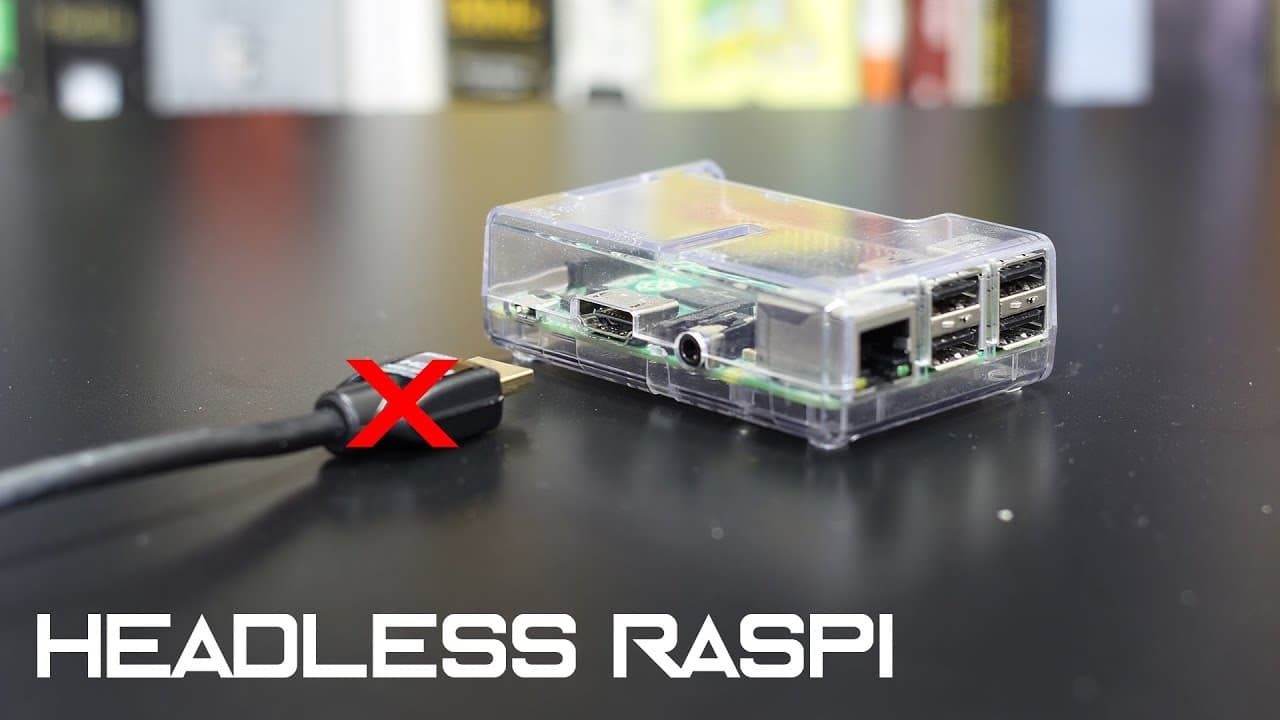
To connect to a Raspberry Pi, you can use SSH by adding a file to the boot directory for headless setups, enabling access without peripherals. Alternatively, enable VNC for a graphical interface, making sure to adjust the frame buffer settings if no HDMI is connected. Another option is using SSH with X forwarding for GUI applications, offering a lightweight solution.
Transcript
hey guys what's going on it's dawn here from Nova spirit Tech and today I will be showing you different ways to connect to your pi so let's get started so for awhile now I always thought that if you're starting to play with raspberry pi it was pretty much common knowledge knowing how to connect your raspberry pi but yeah I actually got quite a few ... Read More
Key Insights
- ♓ Beginners often struggle with connecting to Raspberry Pi; clarity and guidance are essential.
- ♿ SSH and VNC are the most effective methods to access Raspberry Pi, especially for headless configurations.
- 📁 Creating a file in the boot directory streamlines SSH activation without needing peripherals.
- 🖼️ Frame buffer adjustments in the config file are crucial for successful VNC connections without an HDMI display.
- 🏃 X forwarding via SSH provides a lighter alternative to VNC for running GUI applications.
- ♿ Any remote access method requires network configuration, including knowing the Raspberry Pi's IP address.
- 👥 Community engagement through groups can enhance learning and sharing of techniques related to Raspberry Pi usage.
Install to Summarize YouTube Videos and Get Transcripts
Explore YouTube Video Summarizer or Get YouTube Transcript Extractor
Questions & Answers
Q: What is the purpose of SSH in Raspberry Pi connections?
SSH, or Secure Shell, is a protocol used to remotely access and manage devices like the Raspberry Pi without a monitor or keyboard. It allows users to execute commands and run programs from another computer over a network, making it ideal for headless setups where physical interfacing is not possible. By following specific setup steps, users can easily establish a secure connection and control their Raspberry Pi remotely.
Q: How can I enable SSH on my Raspberry Pi without a monitor?
You can enable SSH on your Raspberry Pi without a monitor by creating an empty file named 'SSH' in the boot directory of the SD card before inserting it into the Pi. Once the Raspberry Pi boots with this file present, it automatically activates the SSH protocol, granting you remote access through SSH software like PuTTY, using your device's IP address.
Q: Why might VNC fail to start without HDMI connected?
VNC may fail to start without an HDMI connection because it requires display settings to be configured correctly. Without an HDMI connection, the Raspberry Pi cannot detect the resolution or display properties, leading to issues with the VNC server not starting. To resolve this, you can set the frame buffer mode in the config.txt file to a specific resolution, ensuring VNC launches properly as a service.
Q: What is the advantage of using SSH with X forwarding?
SSH with X forwarding allows users to run graphical user interface (GUI) applications installed on the Raspberry Pi but displayed on their local machine. This method saves bandwidth compared to remote desktop solutions like VNC while still providing access to GUI applications such as web browsers. Users can enable X forwarding through SSH clients like PuTTY, with optional compression for improved speed at the cost of CPU resources.
Summary & Key Takeaways
-
The tutorial explains the various methods for connecting to a Raspberry Pi, focusing on using SSH for headless setups. The video aims to clarify common misconceptions for beginners.
-
One of the methods discussed is enabling SSH by adding a specific file to the boot directory, allowing access without a monitor or keyboard.
-
The tutorial also covers VNC setup, including frame buffer adjustments to ensure successful connection without an HDMI display. Additional tips for using SSH with X forwarding are provided.
Read in Other Languages (beta)
Share This Summary 📚
Summarize YouTube Videos and Get Video Transcripts with 1-Click
Try YouTube Summary with ChatGPT & Claude or YouTube Transcript Generator
Explore More Summaries from Novaspirit Tech 📚





Summarize YouTube Videos and Get Video Transcripts with 1-Click
Try YouTube Summary with ChatGPT & Claude or YouTube Transcript Generator