How to Sell Event Tickets With Custom Forms
TL;DR
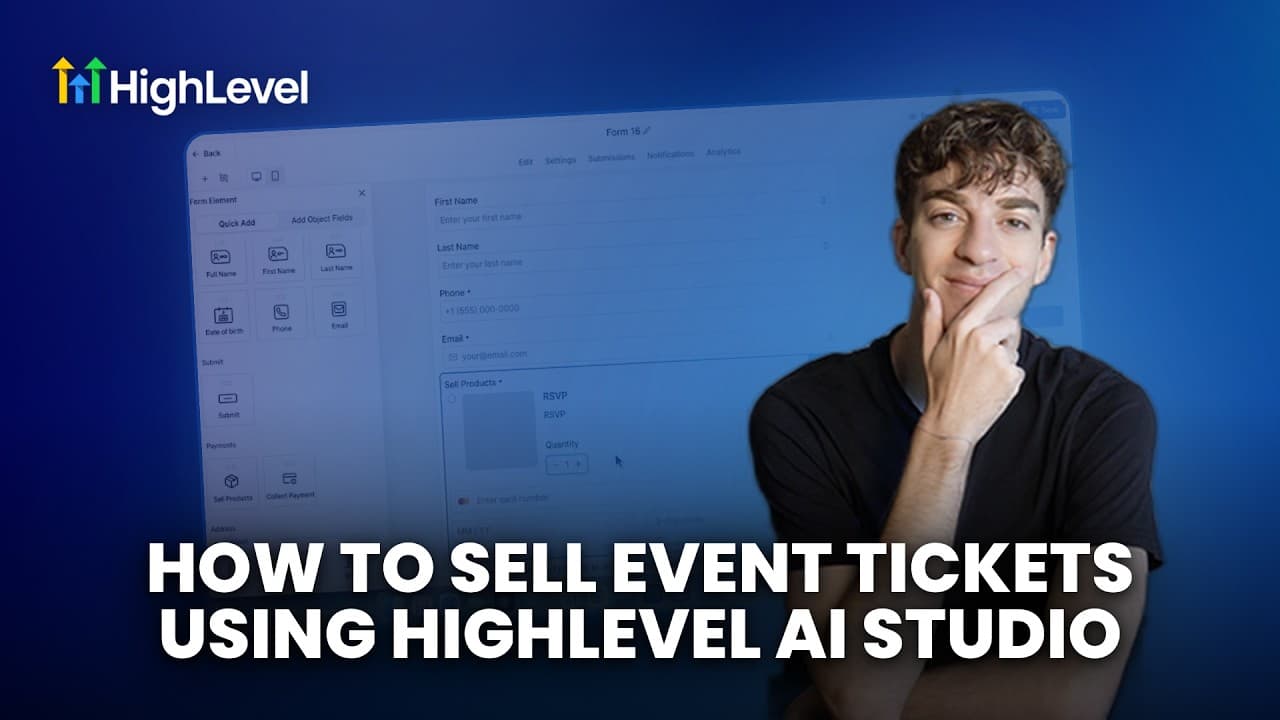
Create an event in HighLevel, define paid or free ticket tiers, then connect it to a custom registration form through the Sell Products element. Embed the form in a branded landing page or AI Studio site, test the checkout, and monitor registrations in the event dashboard. For closed registration periods, manually hide or unpublish embedded forms because event deadlines are not automatically enforced.
Transcript
In this video, we're going to look at how to use custom forms with highle events. Instead of sending people to the default event registration page, you can build your own fully branded landing page, AI generated website, or funnel while still allowing visitors to register for your event. We'll walk you through creating an event, connecting it to yo... Read More
Key Insights
- HighLevel events support both ticketed and RSVP registration models. Ticketed events can include multiple pricing tiers, while RSVP events let guests confirm attendance without purchasing admission, allowing organizers to choose a registration structure that matches the event.
- The event creation process collects the event name, description, short summary, date, time, location, and organizer information. The finished event workspace provides sections for details, tickets, schedules, pages and design, registrations, check-in, settings, and live analytics.
- Ticket tiers are configured with a name, payment status, price, and quantity. The example creates one general admission ticket priced at $50 with a quantity of 100 and one free admission ticket with a quantity of 100.
- The Sell Products element connects a custom HighLevel form to an event. After the event is selected as the product, its ticket pricing options are added automatically, and unwanted ticket choices can be removed before the form is saved.
- A two-step order form can produce the same event-registration outcome as the Sell Products element. Either option allows organizers to collect attendee information and offer the event's configured tickets through a custom form instead of the default registration page.
- AI Studio can build a branded event landing page from a prompt that includes the custom form's embed code. After CRM tracking is connected, the generated page can display event information and place the registration form directly within the page.
- Free registration can work without card details by offering only the free ticket and disabling Require Card for $0 Orders. Visitors can then provide their contact information, accept the consent options, submit the form, and receive a thank-you message.
- Ticket quantity limits are automatically respected by embedded custom forms, but registration deadlines and event-level ticket sale dates are not. When registration closes, the organizer must manually hide or unpublish the form from the website or funnel.
Install to Summarize YouTube Videos and Get Transcripts
Explore YouTube Video Summarizer or Get YouTube Transcript Extractor
Questions & Answers
Q: How do you create an event in HighLevel?
Open the relevant HighLevel sub-account, select Memberships from the left menu, and go to Events. Choose Create Event, then select either a ticketed event for selling tickets at different prices or an RSVP event for attendance confirmation. Enter the event details, date, time, location, and organizer information, then select Create Event to open its management workspace.
Q: How do you create paid and free event tickets in HighLevel?
Open the event and select Tickets, then choose the option to create a ticket. Enter a ticket name, decide whether it is paid or free, provide its price when applicable, and set the available quantity. In the demonstrated setup, general admission costs $50 and has 100 available tickets, while free admission also has a quantity of 100.
Q: How do you connect a custom form to a HighLevel event?
Go to Sites, open Forms, and create or edit a registration form. Add the attendee information fields you want to collect, then drag the Sell Products element into the form. Under its Products settings, select Add Product and choose the event. The event's configured ticket options appear automatically, and you can remove unwanted options before saving the form.
Q: How do you embed a HighLevel event form on a landing page?
Open the completed form, select Integrate, and copy its embed code. You can then add that code to a HighLevel website or funnel. The demonstrated workflow pastes it into an AI Studio prompt requesting an event landing page with the embedded form as its call to action, connects the form to CRM tracking, and publishes the generated page.
Q: How can attendees choose between paid and free tickets?
When both ticket tiers are attached to the custom form, visitors can select the event and choose either free admission or general admission. Selecting general admission changes the displayed price to $50, while selecting free admission changes it to $0. Visitors then complete the requested information, accept the consent options, and submit their registration through the landing page.
Q: How do you accept a free RSVP without requesting card information?
Edit the registration form under Sites and Forms, select the Sell Products element, and open its product settings. Remove the paid general admission option so only free admission remains. Then scroll to the relevant setting and disable Require Card for $0 Orders. After saving and refreshing the landing page, attendees can register without entering card information.
Q: Where can you view and manage event registrations in HighLevel?
Return to Memberships, open Events, and select the relevant event. Recent submissions appear on the overview dashboard and in the Registrations section, where you can review attendee information, ticket quantities, and registration status. The available controls also let you check attendees in, view their details, obtain a QR code, or access the PDF ticket they receive.
Q: Do registration deadlines apply automatically to embedded HighLevel forms?
No. Embedded custom forms automatically respect the quantity limits configured for each ticket, but they do not automatically enforce registration deadlines or ticket sale dates configured at the event level. When the registration period closes, the organizer must manually unpublish the embedded form or hide it from the website or funnel to prevent additional submissions.
Summary & Key Takeaways
-
Create a ticketed or RSVP event from Memberships, Events, then enter its description, summary, date, time, location, and organizer information. After creating it, use the event workspace to manage details, tickets, schedules, page design, registrations, attendee check-in, settings, and analytics from a single area inside the HighLevel sub-account.
-
Define each ticket tier by entering its name, price, and available quantity. Next, create a custom form under Sites, Forms, add the attendee fields you need, and insert the Sell Products element. Select the event as the product so its paid and free ticket options appear automatically within the registration form.
-
Copy the form's embed code and place it in a website, funnel, or AI Studio landing page. Connect the form to CRM tracking, publish the page, and submit a test registration. Free events can avoid card collection, while event registrations, attendee details, ticket PDFs, QR codes, and check-in controls remain accessible.
Read in Other Languages (beta)
Share This Summary 📚
Summarize YouTube Videos and Get Video Transcripts with 1-Click
Try YouTube Summary with ChatGPT & Claude or YouTube Transcript Generator
Explore More Summaries from HighLevel 📚



Summarize YouTube Videos and Get Video Transcripts with 1-Click
Try YouTube Summary with ChatGPT & Claude or YouTube Transcript Generator