How Do You Theme Raspberry Pi OS for a Better Look?
TL;DR
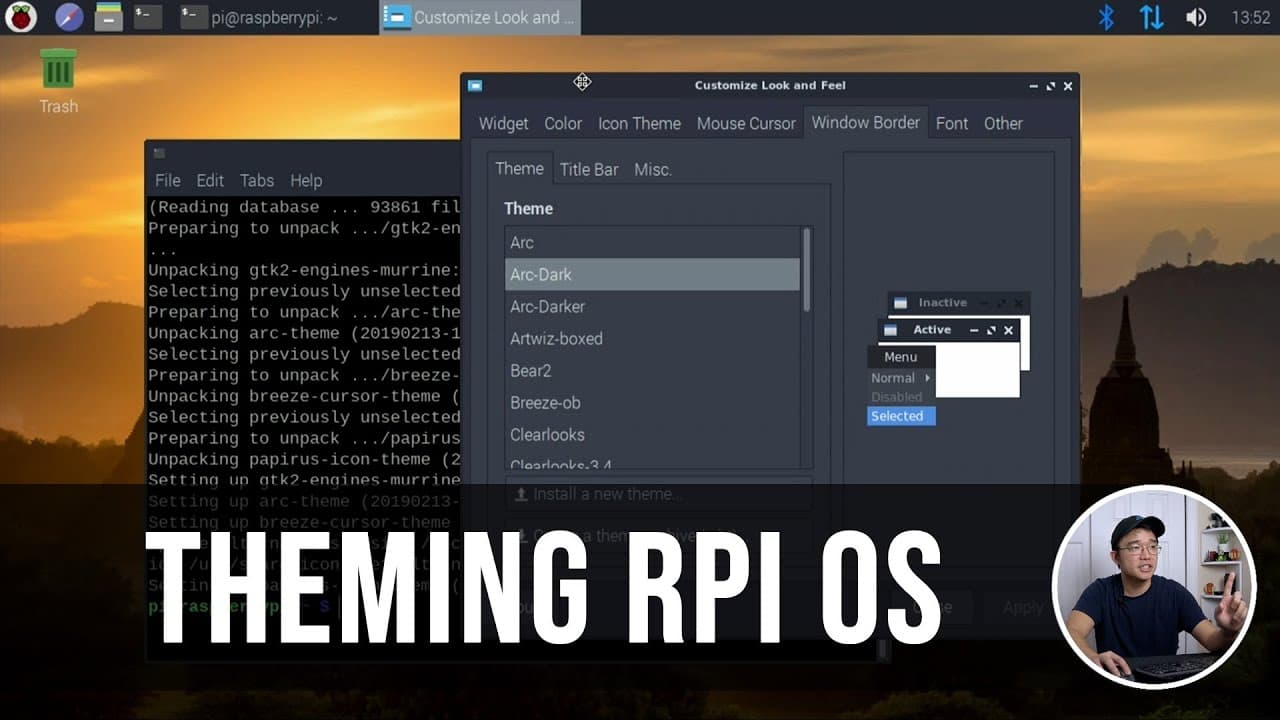
To theme Raspberry Pi OS, use the 'lxappearance' terminal command to access extensive customization options like the Arc and Papyrus themes. Installing custom wallpapers also enhances the aesthetic; however, these must be correctly placed in the system directories. For changes to take full effect, a restart of the desktop session is recommended.
Transcript
hey guys what's going on it's don here from nova spare tech and welcome back to the channel and today i'm going to show you guys how i set up my raspberry pi os so let's get started now a bunch of you guys always ask me how i theme it or what i should do in theming i actually don't touch too much of the raspberry pi os i do theme it though but it's... Read More
Key Insights
- 😚 The default Raspberry Pi OS limits theme customization options, requiring users to utilize terminal commands for deeper access.
- 😫 The program "lxappearance" allows comprehensive adjustments to themes, icon sets, and mouse cursor designs that are hidden from the default interface.
- 👤 Theme combinations like Arc Theme and Papyrus are popular among users for achieving a modern and dark aesthetic while remaining visually appealing.
- 🙂 Wallpapers play a significant role in desktop customization; using lighter wallpapers alongside dark themes can enhance the visual contrast effectively.
- 📁 Custom wallpapers must be placed in specific system directories for them to be applicable in Raspberry Pi OS, as the system restricts access to certain files.
- 👤 Tailoring the desktop's visual style can influence the user experience by making the interface feel snappier and more inviting.
- 💻 Restarting the desktop session is necessary for the complete application of visual modifications, ensuring that all changes are reflected consistently.
Install to Summarize YouTube Videos and Get Transcripts
Explore YouTube Video Summarizer or Get YouTube Transcript Extractor
Questions & Answers
Q: What is the first step in theming Raspberry Pi OS discussed in the video?
The video begins with updating to the latest version of Raspberry Pi OS and highlighting the limitations of the default appearance settings. Users can access deeper customization options by using the terminal command "lxappearance," which opens a comprehensive theming program not present in the main menu.
Q: How can users change the icon theme on their Raspberry Pi OS?
Users can install a preferred icon theme, such as Papyrus, by using the command line with “sudo apt install papyrus-icon-theme”. After installation, they can return to the lxappearance program to select their new icon theme as part of customizing their desktop environment.
Q: What is the recommended wallpaper approach for a dark theme setup?
The presenter suggests pairing a dark theme with a lighter wallpaper for contrast. He provides a method to obtain wallpapers from his GitHub repository, emphasizing how to save and copy them to the correct directory for them to be recognized by the system’s wallpaper settings.
Q: Why does the presenter advise restarting the system after the changes?
The presenter recommends logging off and back in after applying theme changes to ensure that all new icon settings take effect and are displayed correctly. This step is crucial for integrating the new appearance properly throughout the operating system.
Q: What software installation does the creator emphasize to enhance the desktop’s aesthetic?
The video highlights the installation of three specific themes: Arc Theme, Papyrus icon theme, and Breeze cursor theme. This combination results in a visually cohesive and modern look for the Raspberry Pi desktop environment, which is easy to apply through the terminal.
Q: Does the video address performance improvements along with aesthetic changes?
While the primary focus is on aesthetic customization, the presenter remarks that these visual tweaks can also give a sense of improved speed or responsiveness, likening it to the psychological boost one feels after cleaning a car, even if actual performance enhancements aren’t a part of the changes discussed.
Summary & Key Takeaways
-
The video explains how to begin theming Raspberry Pi OS, focusing on the limited options provided in the standard interface and revealing more extensive customization capabilities through the terminal.
-
Key tools discussed include the ‘lxappearance’ program for changing themes, icons, and mouse cursors, along with the installation of preferred themes like Arc and Papyrus for a more appealing desktop.
-
The tutorial highlights the importance of wallpaper in overall desktop appearance and provides instructions on how to add custom wallpapers, emphasizing their role in enhancing the aesthetic feel of the system.
Read in Other Languages (beta)
Share This Summary 📚
Summarize YouTube Videos and Get Video Transcripts with 1-Click
Try YouTube Summary with ChatGPT & Claude or YouTube Transcript Generator
Explore More Summaries from Novaspirit Tech 📚






Summarize YouTube Videos and Get Video Transcripts with 1-Click
Try YouTube Summary with ChatGPT & Claude or YouTube Transcript Generator