How to Connect Claude MCP to n8n and Build Agents
TL;DR
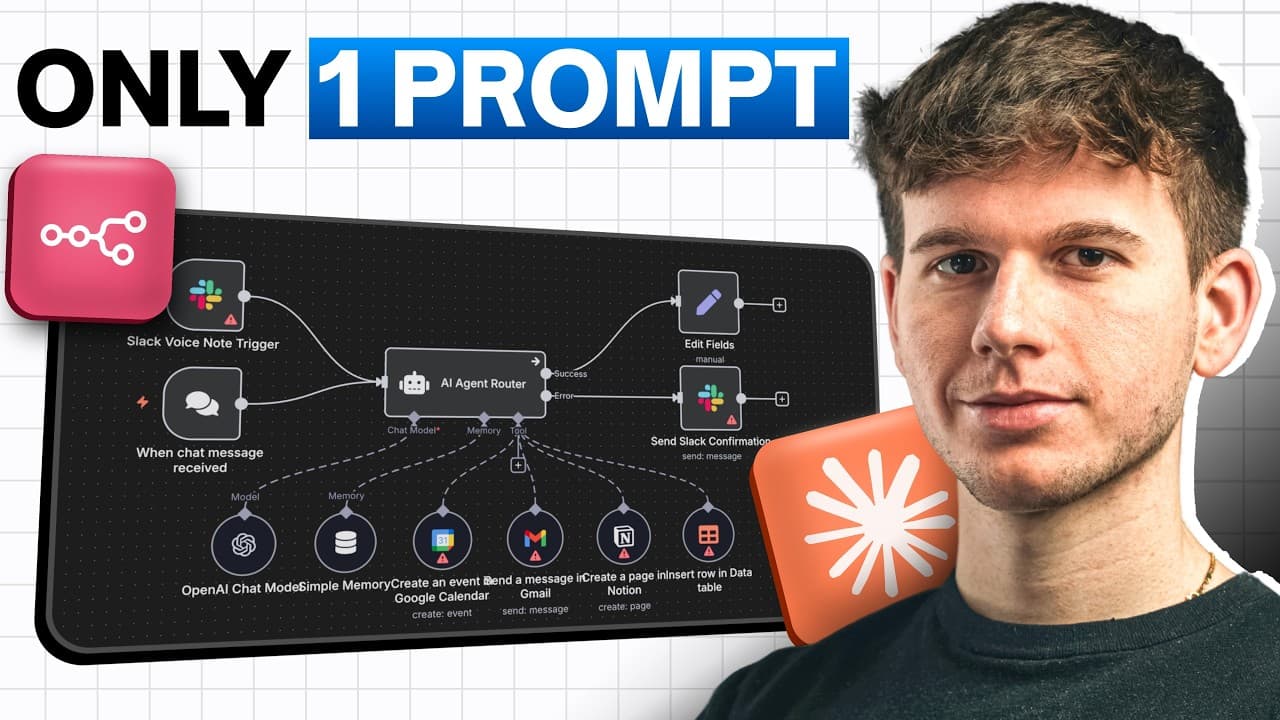
Claude's MCP feature lets you build end-to-end n8n workflows and AI agents from a single natural-language prompt. Setup takes six steps: install Claude Desktop and Node.js, run the n8n-mcp server, edit Claude's JSON config with your n8n API URL and API key, enable the tools, then create a project with an optimized prompt.
Transcript
Claude just released their new MCP feature that allows you to create end to-end workflows and AI agents from scratch using a single prompt. And honestly, it still blows my mind. So, in this video, I'm going to show you exactly how it works, but also how you can set it up step by step within your own claude and niten so you can start building AI age... Read More
Key Insights
- MCP (Model Context Protocol) works as a hub connecting Claude to external tools like Gmail, calendar, Slack, documents, and n8n, so a single prompt to Claude can trigger real actions in those apps without opening them manually.
- The full setup requires six steps: install Claude Desktop, install Node.js, run the n8n MCP server, edit the Claude desktop JSON config, add the n8n management tools, and create a Claude project.
- Node.js is required because it is the runtime that allows the MCP server to run on your computer; without it the copied server command will not execute.
- The n8n MCP server is started by copying a command from GitHub, pasting it into terminal (or command line on Windows), entering Y on first run, and confirming the documentation MCP server is running.
- The full configuration with the n8n management tool is preferred over basic configuration because it outputs a clickable link to an installed n8n workflow instead of requiring you to copy JSON and import it manually.
- Connecting Claude to n8n requires two values in the JSON config: the n8n API URL (the first part of your n8n workflows URL, without the slash) and the n8n API key from settings.
- The n8n API key is described as the most important key because anyone with access to it has access to your whole account, so setting an expiration date is recommended for safety.
- Claude projects are a paid-only feature that store an optimized workflow-building prompt plus growing context, making agent creation one click instead of pasting the same prompt into a new chat each time.
Install to Summarize YouTube Videos and Get Transcripts
Explore YouTube Video Summarizer or Get YouTube Transcript Extractor
Questions & Answers
Q: What is the Model Context Protocol (MCP)?
MCP is explained as a hub that connects the Claude assistant to different tools such as Gmail, calendar, Slack, documents, and n8n. When you give Claude an input like 'send an email' or 'create an n8n workflow', it sends a request to the MCP hub, which is connected to those apps, and the hub takes the requested action, for example sending an email directly through Gmail without you opening Gmail yourself.
Q: How do you set up Claude MCP for n8n step by step?
There are six steps outlined in the video. First install Claude on your desktop and sign in. Second install Node.js for your operating system. Third set up the n8n MCP server by copying a command from GitHub and running it in terminal. Fourth configure the Claude desktop by editing the JSON config file. Fifth add the n8n management tools and enable all tools. Sixth create and configure a Claude project with an optimized prompt.
Q: Why do you need to install Node.js for the MCP setup?
Node.js is described as the thing that allows you to run the MCP. After installing Claude Desktop, you install Node.js by pressing 'get NodeJS', choosing your operating system such as Mac OS, downloading the installer, and following the prompts to install. Node.js must be installed on your system before you paste and run the n8n MCP server command, otherwise the command will not be able to run.
Q: How do you configure the Claude desktop JSON config file?
In the Claude desktop app, go up to Settings, then Developer, then press 'Edit config'. This opens a configuration file that you open in a plain text editor. You delete the existing content and paste the code copied from GitHub. You then fill in two required values, the n8n API URL and the n8n API key, and save the file with Command S so Claude can connect to your n8n account.
Q: Where do you find your n8n API URL and API key?
The n8n API URL is the first part of the URL shown when you go to your n8n workflows page; you copy it and paste it into the config without the trailing slash. The API key is found by going to Settings, then n8n API, then pressing 'create an API key', naming it, and setting an expiration date. You then copy the key and paste it into the JSON config file.
Q: What is the difference between basic and full configuration?
With basic configuration, you ask Claude to make an AI agent and it returns code that you must copy, then go into n8n and import manually. With the full configuration using the n8n management tool, you ask Claude to make an AI agent and it returns a clickable link to an n8n workflow that is automatically installed to your n8n. The full configuration is preferred because it is much more convenient.
Q: Why is setting an expiration date on the n8n API key important?
The n8n API key is described as one of the most important keys, if not the most important, because anyone who has access to it has access to your whole n8n account. Setting an expiration date, such as 30, 60, or 90 days, is a safety measure so the key does not remain valid indefinitely. In the video the presenter blurs out the key for this reason and recommends updating a 30-day expiration to something longer like 60 or 90 days.
Q: Do you need a paid plan to use Claude projects for n8n agents?
Yes, the final step of creating a Claude project is only available for paid members. Free plan users will not have access to projects. If you are on a paid plan, you create a new project, name it something like 'n8n mcp', and paste an optimized prompt into the instructions. The benefit is that the project retains context over time and lets you build agents and workflows in one click instead of starting a new conversation and pasting the prompt each time.
Summary & Key Takeaways
-
Claude's new MCP feature creates a single smart connection between the Claude desktop app and external tools, letting users build end-to-end n8n workflows and AI agents from scratch using one natural-language prompt instead of manually configuring automations.
-
The walkthrough uses a Notion document to guide six setup steps: installing Claude Desktop, installing Node.js as the runtime, running the n8n MCP server from a copied GitHub command in terminal, and confirming the server is running.
-
Users then edit Claude's JSON config via Settings then Developer then Edit config, pasting code with their n8n API URL and API key, reloading Claude to load the tools, and optionally creating a paid Claude project with an optimized prompt.
Read in Other Languages (beta)
Share This Summary 📚
Summarize YouTube Videos and Get Video Transcripts with 1-Click
Try YouTube Summary with ChatGPT & Claude or YouTube Transcript Generator
Explore More Summaries from Michele Torti 📚
Summarize YouTube Videos and Get Video Transcripts with 1-Click
Try YouTube Summary with ChatGPT & Claude or YouTube Transcript Generator