How to Insert Microscopy Images into Microsoft Word
TL;DR
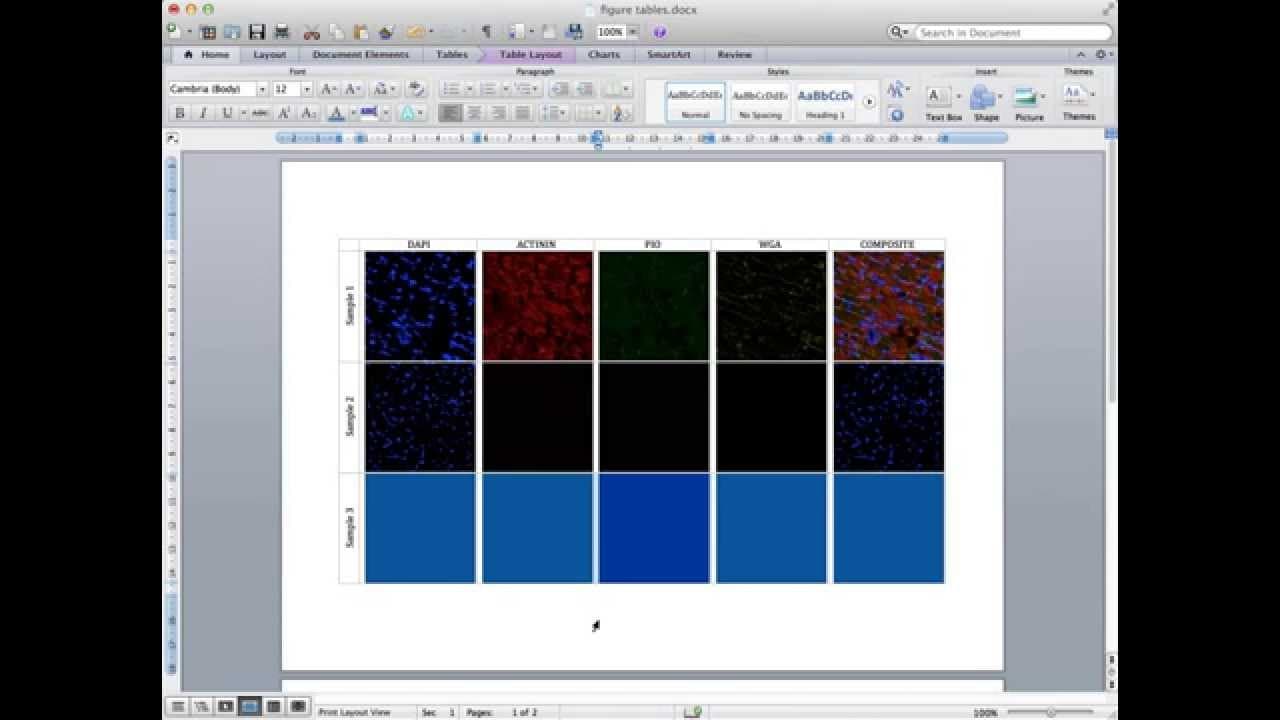
To insert microscopy images into a Word document, create a table to organize your images and use a low-resolution 'holder image' for consistent sizing. Replace the holder image with high-resolution images once the layout is set. This method improves efficiency and ensures your figures are neatly arranged.
Transcript
hello this is a very quick tutorial which demonstrates how to efficiently add images from histology or confocal microscopy into a Microsoft Word document for use in a report or thesis or a paper so we're starting with a page in Microsoft Word which at the moment is blank and in the background I have a Finder window I'm using a Mac but you can do th... Read More
Key Insights
- 💨 Using tables in Microsoft Word is an efficient way to organize and manage images in a document.
- 💁 Labeling each cell with relevant information helps provide context for the images.
- 😘 Using a low-resolution "holder image" as a reference ensures consistency in the table layout.
- 🦮 The tutorial recommends resizing the images using the holder image as a guide for uniformity.
- 📜 Removing gridlines and adjusting text orientation can improve the aesthetics of the final document.
- 🍱 This method is more efficient than copying and pasting images from PowerPoint or using picture boxes in Word.
- 💦 The process demonstrated in the tutorial works for both Mac and Windows versions of Microsoft Word.
Install to Summarize YouTube Videos and Get Transcripts
Explore YouTube Video Summarizer or Get YouTube Transcript Extractor
Questions & Answers
Q: What is the benefit of using tables to add images to a Word document?
Tables help keep all the figures together and make them easy to manage within the document. They also provide structure and organization to the images.
Q: Can this method be used on both Mac and PC?
Yes, the process demonstrated in the tutorial can be applied to both Mac and Windows versions of Microsoft Word.
Q: How can I resize the images to fit nicely into the table?
The tutorial suggests using a low-resolution "holder image" as a reference to determine the desired size for the images. By copying and pasting the holder image into each cell and adjusting its dimensions, you can ensure that all images will have the same size.
Q: Is it possible to add more images to the table later?
Yes, you can easily insert more images by clicking on a cell, right-clicking, and selecting "Change Picture." This allows you to replace the holder image with the actual confocal image.
Summary & Key Takeaways
-
This tutorial demonstrates how to add images from histology or confocal microscopy into a Microsoft Word document.
-
The process involves creating a table in Word to organize the images and labeling each cell with the corresponding stain or image type.
-
Instead of inserting the actual images directly, a low-resolution "holder image" is used to maintain consistency in the table layout. The holder image is then replaced with the high-resolution confocal images.
Read in Other Languages (beta)
Share This Summary 📚
Summarize YouTube Videos and Get Video Transcripts with 1-Click
Try YouTube Summary with ChatGPT & Claude or YouTube Transcript Generator
Explore More Summaries from Dory Video 📚






Summarize YouTube Videos and Get Video Transcripts with 1-Click
Try YouTube Summary with ChatGPT & Claude or YouTube Transcript Generator