How to automate lead nurturing with no code in n8n
TL;DR
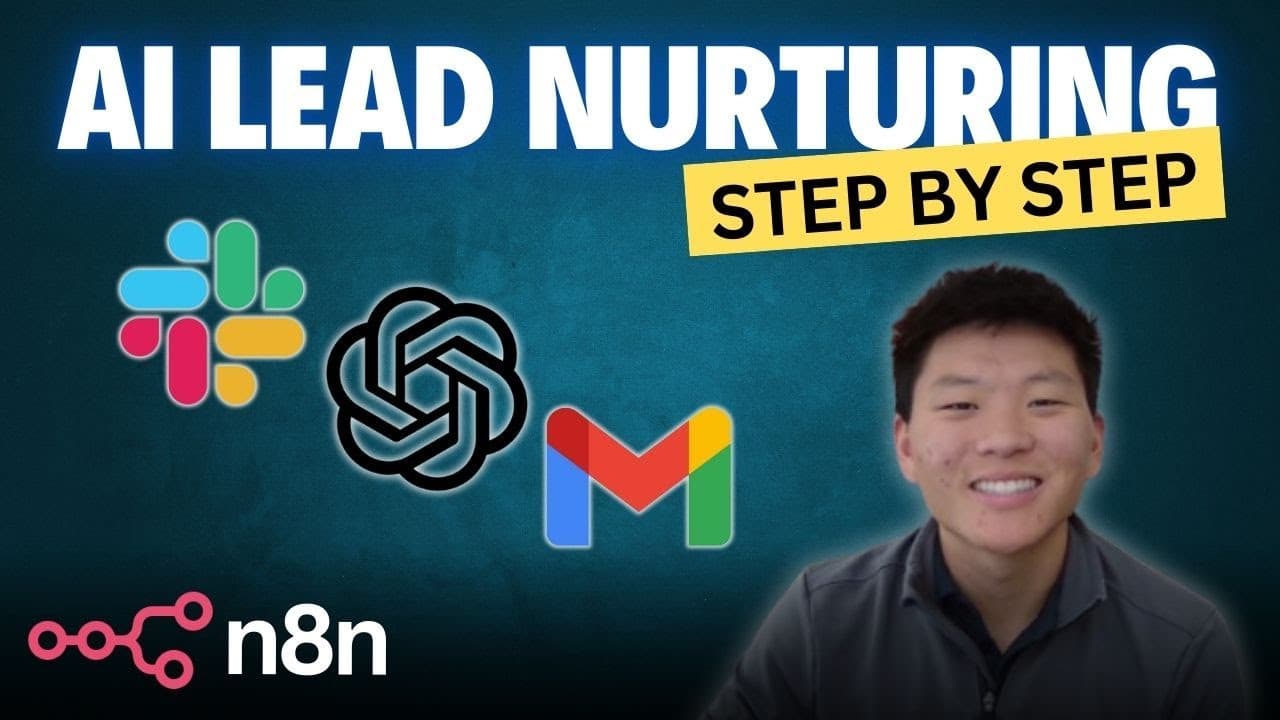
The video demonstrates a no code workflow in n8n that triggers from Google Sheets when a new form response is added, waits briefly, generates a personalized email with OpenAI, updates the lead status and tags in a Google Sheet, and notifies the team in Slack.
Transcript
today I'm going to be walking through step by step how to build this super simple workflow that's going to capture leads information and then automatically email them update in the CRM and then notify your team about this new lead this workflow uses absolutely no code and by the end of this video you'll have it up and running for yourself and I als... Read More
Key Insights
- The workflow uses a Google Sheets trigger to run every time a new row is added to capture fresh lead data.
- A brief wait step is included to delay emails, making the response feel less robotic and more human.
- OpenAI GPT-4o is wired to generate a personalized outreach email based on the submitted lead details.
- Leads are categorized by value with a hot lead tag to prioritize follow ups in the CRM and reporting tools.
- The email is crafted with a system prompt to ensure the message is friendly and professional and includes a proper sign off.
- Lead status is updated in the Google Sheet to reflect outreach timing and completion of the email step.
- A Slack notification summarizes the new lead, its value, and basic details to alert the team.
- The video provides concrete steps for credential setup, especially Google Sheets API access and Google Cloud configuration
- More videos from this channel:
- More from this channel: Nate Herk | AI Automation
Install to Summarize YouTube Videos and Get Transcripts
Explore YouTube Video Summarizer or Get YouTube Transcript Extractor
Questions & Answers
Q: How can I trigger a workflow in n8n from a Google Form submission without coding?
The video shows using a Google Sheets trigger that activates when a new row is added to the sheet, which is fed by a Google Form response. You configure credentials for Google Sheets, select the specific document and form response sheet, and set the trigger to poll at a chosen interval. This creates a no code flow that starts with new form data and proceeds to subsequent steps.
Q: What is the purpose of the wait step in the lead nurturing workflow?
The wait step delays the next action to prevent immediate automated responses. In the example, a one second wait is used to make the process feel more human, but the duration can be extended to five, ten, or fifteen minutes to better simulate a realistic outreach timeline before sending the email.
Q: How does the OpenAI node contribute to the workflow?
The OpenAI node generates the outreach email text based on the lead information submitted in the form. It uses a model selection (GPT-4o in the example) and a system prompt that defines the agent as a lead nurturing assistant named Pam. The result is a personalized email that references the lead details and is suitable for sending to the lead.
Q: How are leads tagged and categorized in the workflow?
After the email is generated, the workflow tags the lead as hot or high value to indicate prioritization. This tag, along with the email and lead details, is used to update the CRM or Google Sheet, ensuring the team can quickly identify which leads require immediate follow up.
Q: What happens after the lead is contacted via email in the workflow?
Once the email is sent, the status and tag on the lead are updated in the Google Sheet, reflecting that the lead has been contacted and indicating the lead’s value. A Slack notification is then sent to the team with the key details for awareness and follow up.
Q: How is the team notified about new leads in this setup?
The workflow includes a Slack node that posts a new lead alert to a designated Slack channel. The alert includes the lead’s name, interest, budget, and other relevant details so the team can take immediate action and track the lead in the project channel.
Q: What credentials are needed to configure the Google Sheets part of the workflow?
You need to create Google API credentials, including a client ID and client secret, by enabling the Google Sheets API in Google Cloud and creating OAuth 2.0 credentials. These credentials are entered into the n8n Google Sheets node to authorize access to the lead form responses sheet.
Q: What is the role of the description in the prompt used for the email generation?
The system prompt for the OpenAI model defines the agent as a lead nurturing assistant, specifies the sender’s name and company, and instructs the model to write a friendly, professional email without placeholders. This guidance ensures consistent tone and proper sign off while addressing the new lead’s details.
Summary & Key Takeaways
-
The workflow starts with a Google Sheets trigger that watches for new rows from a Google form and then waits a short period before proceeding. It uses an OpenAI model to craft a personalized email and tags the lead as hot before updating the CRM sheet and sending a Slack notification.
-
The tutorial provides step by step guidance on configuring Google Sheets credentials, selecting the proper document and sheet, and testing the trigger. It emphasizes using a delay to simulate human response and ensure a natural flow.
-
The final parts of the video show how the email is generated, how the lead is tagged and updated in the sheet, and how Slack alerts summarize the new hot lead for the team to act on
Read in Other Languages (beta)
Share This Summary 📚
Summarize YouTube Videos and Get Video Transcripts with 1-Click
Try YouTube Summary with ChatGPT & Claude or YouTube Transcript Generator
Explore More Summaries from Nate Herk | AI Automation 📚


Summarize YouTube Videos and Get Video Transcripts with 1-Click
Try YouTube Summary with ChatGPT & Claude or YouTube Transcript Generator