How to Use a DSLR or Mirrorless Camera as a Webcam
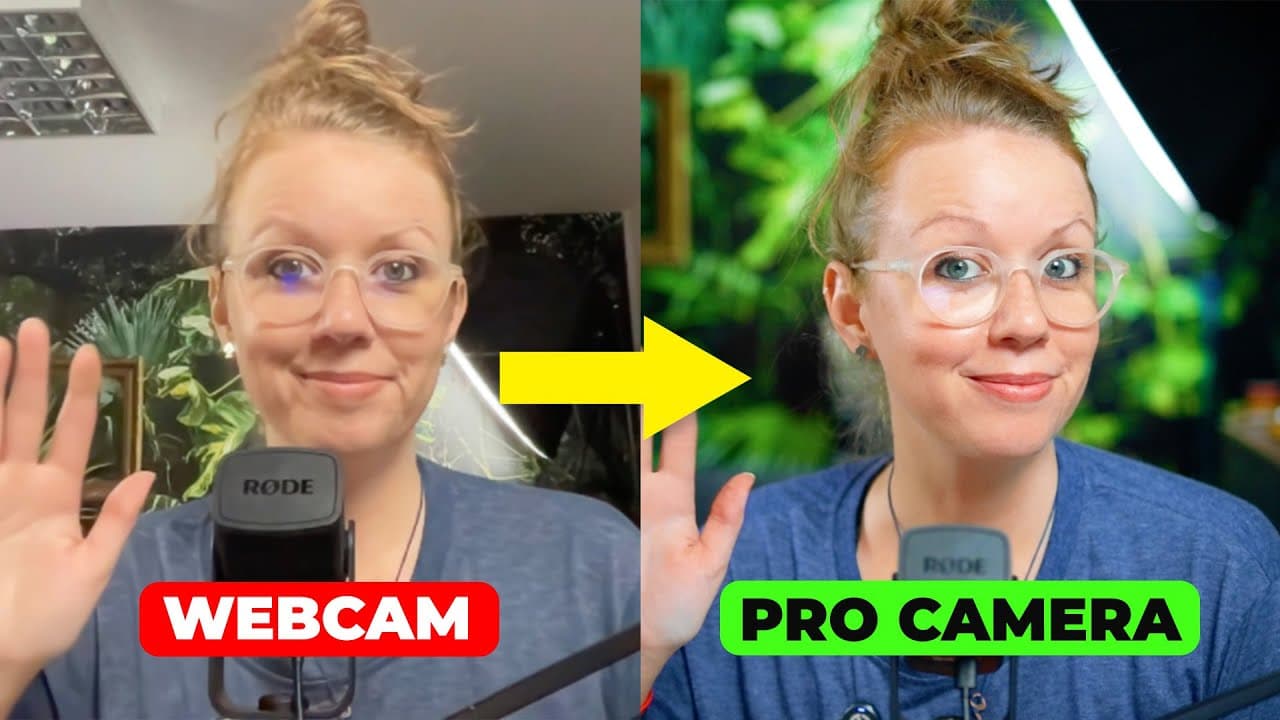
TL;DR
Connect a DSLR or mirrorless camera to a computer through a capture card, then select that card as the camera source in Riverside. A professional stream also depends on a wide-angle lens, continuous power, a separate USB microphone, effective lighting, and appropriate camera settings. Riverside can record the production, host guests, share screens, and stream to multiple connected platforms simultaneously.
Transcript
when live streaming first started on YouTube and twitch the webcams weren't that great but with the proper gear you can convert your highquality cameras and stream to your favorite platforms heck even some streamers will stream their entire production even if that's not going to live online forever and then they will edit it down later on you can u... Read More
Key Insights
- A capture card converts a DSLR or mirrorless camera's HDMI feed into a webcam source that a laptop and streaming platform can recognize. This allows creators to reuse the same high-quality camera setup employed for ordinary YouTube recordings instead of buying a separate streaming camera.
- A wide-angle lens is useful in a small or medium studio because it lets the camera remain close while capturing more of the scene. The demonstrated 35 mm fixed lens opens to f/1.8, helping admit more light and produce a softer, more cinematic background.
- Continuous power prevents a livestream from ending because the camera battery dies. The recommended solution is a dummy battery and AC adapter connected to an outlet, although keeping several charged batteries available is another option mentioned for sustaining longer streaming sessions.
- A single HDMI output can limit accessory use during streaming. The featured Canon EOS R normally feeds a six-inch 4K monitor, but that monitor cannot be used during the livestream because the camera's only HDMI connection must send its signal to the capture card.
- Professional audio can be captured separately from the camera with a USB microphone. The featured Rode NT-USB microphone costs about $99 and sits on a separately purchased arm mount, allowing it to be repositioned within the frame while remaining part of the permanent studio setup.
- Lighting creates facial illumination and visible separation from the background. The key light is set near 5,300 Kelvin and 37 percent strength, while two soft boxes illuminate the background. The demonstrated camera settings are 1/50 shutter speed, f/2.0 aperture, and ISO 250.
- Riverside can recognize the capture card as a camera source and simultaneously record and stream the production. It supports multiple destinations after their stream details are connected, while its studio can also record camera angles and the shared screen in 4K for later editing.
- Screen sharing works best with two monitors because sharing the same screen that displays Riverside creates a repeated visual effect. To include audio from a shared source, the presenter must share a Chrome tab and enable tab audio rather than sharing only the entire screen.
Install to Summarize YouTube Videos and Get Transcripts
Explore YouTube Video Summarizer or Get YouTube Transcript Extractor
Questions & Answers
Q: How do you turn a DSLR or mirrorless camera into a webcam?
Connect the camera's HDMI output to a capture card using the cable required by that camera, such as a micro HDMI-to-HDMI cable for the Canon EOS R. Plug the capture card into the computer through USB, adding a USB-C adapter if necessary. In Riverside, open the camera selection menu and choose the capture card instead of the laptop's built-in webcam.
Q: What equipment is needed for a professional livestream camera setup?
The demonstrated setup combines a DSLR or mirrorless camera, a capture card, the correct HDMI cable, a tripod, a wide-angle lens, sufficient batteries or a dummy battery with an AC adapter, a USB microphone, and several lights. The presenter uses a Canon EOS R, a 35 mm fixed lens, a Rode NT-USB microphone, one key light, and two soft boxes.
Q: Why is a wide-angle lens useful for livestreaming?
A wide-angle lens captures more space when the camera must sit close to the presenter, making it particularly useful in a small or medium studio. The featured 35 mm fixed lens can open to f/1.8, which admits more light and softens the background. This framing avoids an excessively tight view while producing a more cinematic appearance and clearer separation from the background.
Q: How do you prevent a camera battery from dying during a livestream?
Use several charged batteries or connect the camera to an outlet with a compatible dummy battery and AC adapter. The outlet-powered option removes the need to monitor and replace batteries while broadcasting. This is especially useful for a fixed studio setup, where the camera can remain mounted and powered without repeatedly dismantling or resetting the equipment between recording sessions.
Q: What camera and lighting settings were used for the demonstrated stream?
The demonstrated camera was set to a 1/50 shutter speed, an f/2.0 aperture, and ISO 250. The main bi-color key light was positioned above the presenter at about 5,300 Kelvin and 37 percent strength. Two additional soft boxes illuminated the background, helping make it visible and adding depth while the wide aperture maintained background blur.
Q: How do you configure Riverside to use a capture card?
Enter the Riverside studio setup screen, provide a name, indicate whether headphones are being used, and open the camera source menu. Replace the built-in webcam with the capture card, which appeared as “FHD Capture” in the demonstrated system. After confirming the camera angle, join the studio. Riverside can then record the session and stream it through connected destinations.
Q: How can Riverside stream to multiple platforms simultaneously?
Open Riverside's livestream controls and connect each desired destination. For YouTube, enter the channel's stream URL and stream key, then select the streaming resolution, such as the demonstrated 1080p setting. The stream key must remain private because anyone who obtains it could stream to that channel. Integrated chat can combine comments from connected platforms in one place.
Q: How should you share a screen and computer audio in Riverside?
Use a second monitor when possible, then select that other display as the shared screen. Sharing the same display that contains the Riverside studio produces a repeating visual effect. If viewers must hear audio from content such as a YouTube channel, share the relevant Chrome tab and enable tab audio. Sharing only the entire screen does not provide that tab-audio option.
Summary & Key Takeaways
-
A capture card converts the camera's HDMI output into a signal the computer can recognize as a webcam. The demonstrated setup connects a Canon EOS R through a micro HDMI-to-HDMI cable, then plugs the capture card into the laptop by USB, with a USB-C adapter required for the featured MacBook Pro.
-
Professional image quality comes from the complete studio setup, not only the camera. The demonstrated equipment includes a sturdy tripod, a 35 mm f/1.8 lens, continuous power, a Rode NT-USB microphone, a key light set near 5,300 Kelvin, and two inexpensive soft boxes that illuminate the background and create depth.
-
Riverside recognizes the capture card as a selectable camera and can record while streaming to connected destinations. It also supports remote guests, audience members, producers, integrated chat, logos, themes, media playback, and screen sharing. A second monitor prevents the repeated-screen effect that appears when sharing the same display containing Riverside.
Read in Other Languages (beta)
Share This Summary 📚
Summarize YouTube Videos and Get Video Transcripts with 1-Click
Try YouTube Summary with ChatGPT & Claude or YouTube Transcript Generator
Explore More Summaries from Premiere Gal 📚

Summarize YouTube Videos and Get Video Transcripts with 1-Click
Try YouTube Summary with ChatGPT & Claude or YouTube Transcript Generator