How to Create a Raspberry Pi PC Monitoring Screen
TL;DR
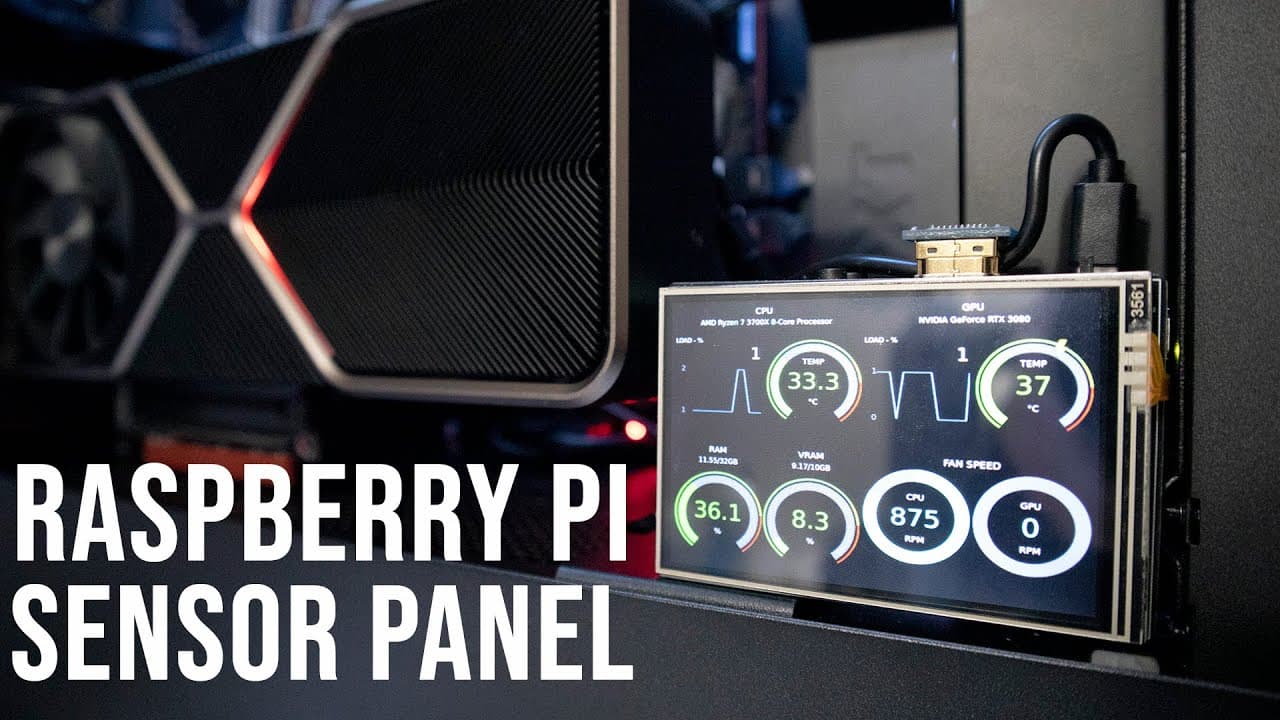
To build a wireless PC hardware monitor using a Raspberry Pi, you'll need to install specific software and connect your Raspberry Pi to your PC for display purposes. This setup allows for various screen sizes and eliminates HDMI mouse trapping issues, making real-time system monitoring convenient and customizable.
Transcript
hey guys what's going on it's don here from nova spirit tech and welcome back to the channel and today i got a pretty exciting project for you guys which is a hardware monitor for your pc using a raspberry pi so let's get started well if you guys didn't know i recently built my pc with the 3080 founders edition and i'm going to leave a little demo ... Read More
Key Insights
- 😒 The project demonstrates an innovative use of a Raspberry Pi for PC hardware monitoring, highlighting its versatility.
- 🪤 Utilizing wireless communication avoids issues associated with mouse trapping and HDMI port limitations.
- 💻 The setup process requires basic knowledge of software installation and configuration for screen display and monitoring.
- 😒 Power management features like under-volting optimize the Raspberry Pi’s performance while maintaining efficient energy use.
- 👤 Users can opt for a variety of display sizes and types, enhancing customization opportunities for their monitoring system.
- 😒 Emphasizing security, the video encourages the use of a reliable VPN to protect online activity, especially in public spaces.
- 😒 The presenter’s personal experience and long-term use of Private Internet Access adds credibility to the VPN recommendation.
Install to Summarize YouTube Videos and Get Transcripts
Explore YouTube Video Summarizer or Get YouTube Transcript Extractor
Questions & Answers
Q: What inspired you to create a hardware monitor using a Raspberry Pi?
I built a new PC and realized it lacked a dedicated system monitor for important stats like GPU and CPU performance. Traditional monitors create mouse trapping issues, so I saw an opportunity to use Raspberry Pi as a flexible, wireless solution for monitoring system performance without the downsides of existing methods.
Q: How does the Raspberry Pi communicate with the PC to display system stats?
The Raspberry Pi communicates wirelessly with a software program installed on the PC. The program transmits data regarding various system statistics, which the Raspberry Pi processes and displays on the connected screen. This allows for real-time monitoring without needing physical connections that consume HDMI ports.
Q: Can I use different screen sizes or types with this Raspberry Pi setup?
Absolutely! You can use different displays with the Raspberry Pi, including those without HDMI inputs. The setup is versatile and programmable, allowing you to connect screens as small as three and a half inches up to larger sizes, depending on what fits your needs and preferences.
Q: What adjustments did you make to the Raspberry Pi for efficient operation?
To ensure efficient operation of the Raspberry Pi 3, I modified the configuration file, lowering the CPU frequency and applying under-volting. This reduces the power requirement and heat generation, which prevents issues like the lightning bolt warning icon that indicates insufficient power.
Q: Why do you recommend using a VPN alongside this project?
A VPN, such as Private Internet Access, offers privacy and security by encrypting user data. This is particularly important when operating in public networks. The VPN protects against ISP tracking and allows for more secure access to online resources, making it an essential tool for users engaged in tech projects.
Q: How do you customize the display theme on the Raspberry Pi?
Customizing the display theme is performed through a web interface accessible via the Pi's IP address. Users can select various pre-defined themes or utilize HTML and JavaScript knowledge to design their unique display, offering a personalized touch to their monitoring setup.
Summary & Key Takeaways
-
The video showcases how to create a hardware monitor for PCs using a Raspberry Pi, avoiding HDMI mouse trapping issues.
-
It explains the setup process, including software installation and configuration, while demonstrating the flexibility with different screen sizes.
-
The presenter also promotes Private Internet Access VPN, discussing its benefits, features, and improvements over the years.
Read in Other Languages (beta)
Share This Summary 📚
Summarize YouTube Videos and Get Video Transcripts with 1-Click
Try YouTube Summary with ChatGPT & Claude or YouTube Transcript Generator
Explore More Summaries from Novaspirit Tech 📚






Summarize YouTube Videos and Get Video Transcripts with 1-Click
Try YouTube Summary with ChatGPT & Claude or YouTube Transcript Generator