How to Combine Graphs and Graphics Using GraphPad Prism
TL;DR
To combine graphs and graphics in GraphPad Prism, use the layout tool to arrange your elements, ensuring maximum resolution for publication. Import external graphics via 'Paste Special' to maintain quality, and export your composite figure in formats like PDF and JPEG for easy integration into reports or journals.
Transcript
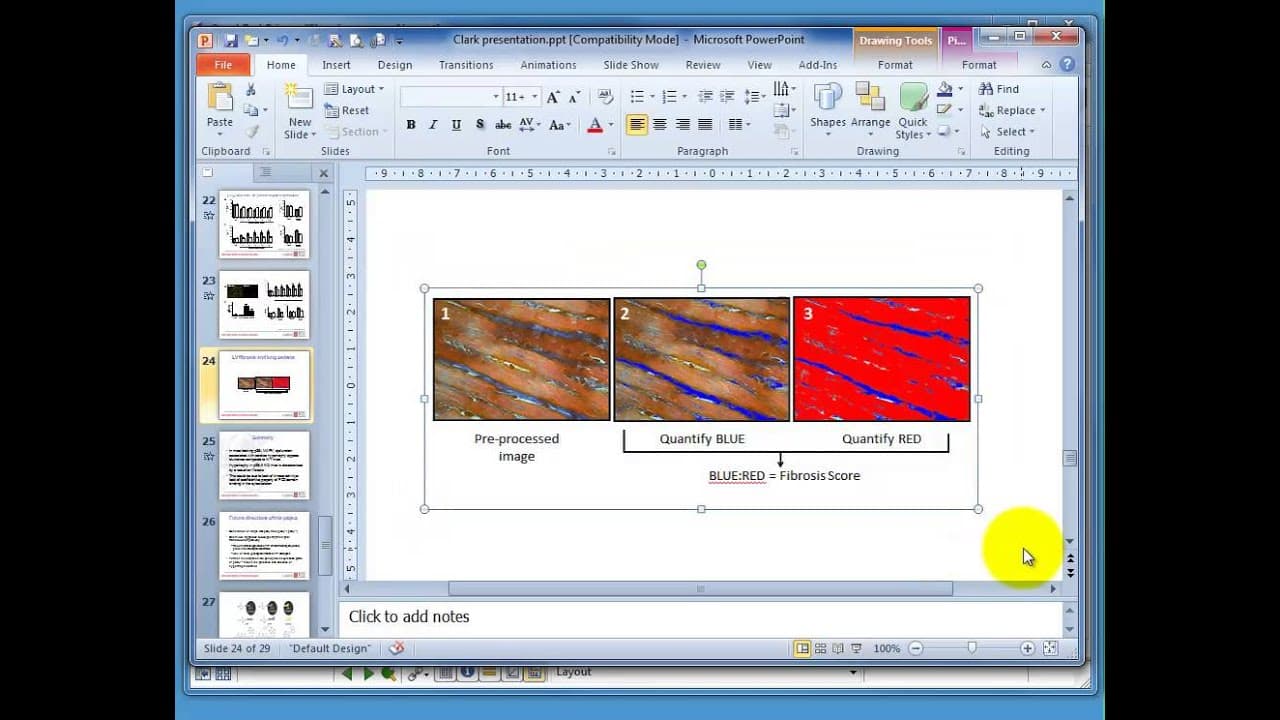
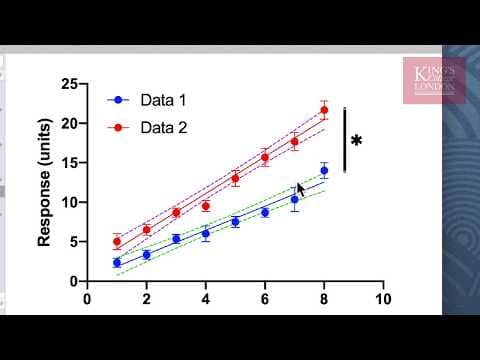
hello this is a quick tutorial just to show you how to use the layout tool in graphpad prism to combine prism Drive graphs and graphics from another program in this instance we're going to use a graphic we've created in PowerPoint so here is one of our graphs and there's another one of our graphs and we want to combine these with other graphic to m... Read More
Key Insights
- 📈 GraphPad Prism's layout tool simplifies the process of combining graphs and graphics from different sources.
- 👋 By using the paste special feature in GraphPad Prism, you can maintain the best quality of graphics when copying and pasting from other programs like PowerPoint.
- 👻 GraphPad Prism allows exporting the combined figure in various popular formats and resolutions, including PDF, TIFF, and JPEG.
- 💄 The export function in GraphPad Prism ensures that the graphs are exported at their maximum resolution, making it ideal for publication purposes.
- 👤 Combining graphs and graphics in GraphPad Prism enables users to create publication-ready figures more efficiently compared to using PowerPoint.
- 🎨 The ability to label and resize elements in GraphPad Prism provides flexibility in designing and customizing figures.
- 👻 GraphPad Prism's export function allows users to easily incorporate the combined figure into Microsoft Word or other word processing software.
Install to Summarize YouTube Videos and Get Transcripts
Explore YouTube Video Summarizer or Get YouTube Transcript Extractor
Questions & Answers
Q: Can I combine graphs from GraphPad Prism with graphics from PowerPoint?
Yes, using the layout tool in GraphPad Prism, you can easily combine graphs and graphics from different sources, including PowerPoint. You can copy and paste the graphic into Prism, choose the layout, and position it accordingly.
Q: How can I resize and label the elements in the combined figure?
GraphPad Prism allows you to resize and label the elements in the combined figure. You can double-click on the elements to resize or click on them to add labels. Additionally, you can format the labels by adjusting the font size and style.
Q: What is the advantage of using GraphPad Prism for creating figures instead of PowerPoint?
GraphPad Prism offers a better export function for saving publication-quality figures compared to PowerPoint. It allows you to export the figure in various formats and resolutions, ensuring high-quality graphics for publications.
Q: Can I export the combined figure to Microsoft Word?
Yes, you can export the combined figure from GraphPad Prism to Microsoft Word. You can select everything on the page, copy it, and then paste it into Word using the paste special option and choosing the enhanced metafile format for maintaining the quality and scalability of the figure.
Summary & Key Takeaways
-
This tutorial demonstrates how to use GraphPad Prism to combine graphs and graphics from different sources, avoiding the need for copying and pasting into PowerPoint.
-
The layout tool in GraphPad Prism allows users to easily arrange graphs and graphics on a page for creating figures.
-
The tutorial also explains how to export the combined figure in various formats and resolutions, including PDF and JPEG.
Read in Other Languages (beta)
Share This Summary 📚
Summarize YouTube Videos and Get Video Transcripts with 1-Click
Try YouTube Summary with ChatGPT & Claude or YouTube Transcript Generator
Explore More Summaries from Dory Video 📚




Summarize YouTube Videos and Get Video Transcripts with 1-Click
Try YouTube Summary with ChatGPT & Claude or YouTube Transcript Generator