How to Customize Raspberry Pi Desktop for Daily Use
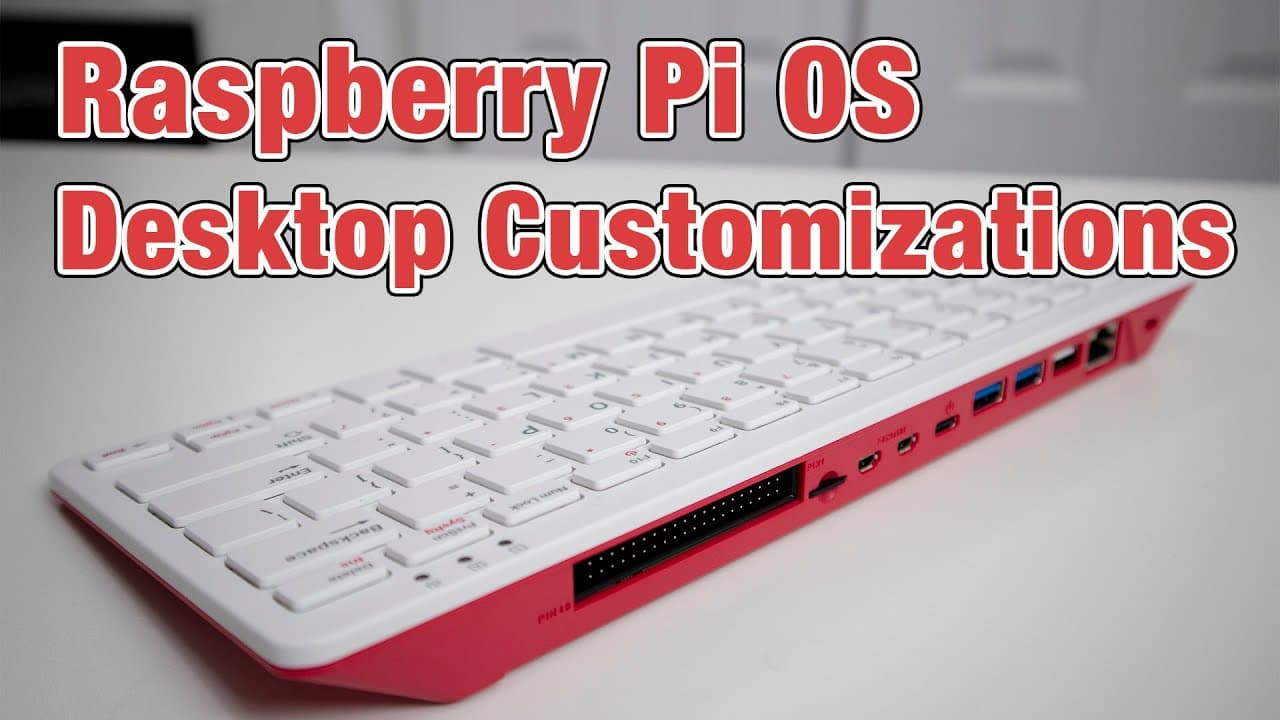
TL;DR
To customize the Raspberry Pi desktop for everyday use, start by overclocking to 2GHz for improved performance and enable drop shadows for better visual distinction between windows. Use the 'Add and Remove Software' tool to install additional themes and applications, and consider replacing the default file manager with 'Nemo' for enhanced file management capabilities.
Transcript
hey guys what is going on it's don here from novaspirittech and welcome back to the channel and today we are going to be doing a raspberry pi os desktop build so let's get started to begin you guys know that there's a lot of other desktop distros that you can install on the raspberry pi which is ubuntu os or ubuntu main or even elementary os but we... Read More
Key Insights
- 👤 Raspberry Pi OS desktop environments like LXDE can be customized significantly to improve user experience.
- 🥺 Overclocking and adjusting minimum frequencies can lead to noticeable performance enhancements during desktop usage.
- 💦 Visual tweaks, such as enabling drop shadows, enhance usability and help differentiate between overlapping applications.
- 💻 Installing additional themes and software can personalize the desktop environment further.
- 👤 The 'Add and Remove Software' tool enables users to access an extensive library of applications for better functionality.
- 📁 Replacing the default file manager with 'Nemo' grants users more features for effective file management.
- ❓ Configuring settings may encounter compatibility issues; thus, adaptations may be necessary for optimal performance.
Install to Summarize YouTube Videos and Get Transcripts
Explore YouTube Video Summarizer or Get YouTube Transcript Extractor
Questions & Answers
Q: What is the primary focus of the video?
The video primarily focuses on enhancing the Raspberry Pi OS desktop environment, specifically using the LXDE desktop environment to improve usability and performance. It covers installation, customization options, and essential tweaks to make the Raspberry Pi system more user-friendly and visually appealing.
Q: Why is overclocking the Raspberry Pi 400 suggested?
Overclocking the Raspberry Pi 400 is suggested to enhance its performance, as it increases the clock speed from 1.8GHz to as high as 2.3GHz. This helps to reduce lag and provides a smoother user experience, especially beneficial when using a desktop environment that may require more processing power.
Q: What are some visual tweaks mentioned in the video?
Some visual tweaks discussed include enabling drop shadows which make overlapping applications more distinguishable and changing themes using the main menu editor. These enhancements contribute to both the aesthetic appeal and the ease of navigation within the desktop environment.
Q: How can users install additional themes or software?
Users can install additional themes or software by using the 'Add and Remove Software' option, which allows access to a full Debian library. The video specifically mentions downloading the 'Arc Theme' and 'Breeze Cursor' themes and guides viewers on how to seek out and install these new applications efficiently.
Q: What file manager does the host recommend replacing and why?
The host recommends replacing the default 'pacman' file manager with 'Nemo' due to its enhanced features, such as better plugin support and a more user-friendly interface. 'Nemo' offers functionalities like right-click extraction of files and clearer disk space visibility, improving overall file management.
Q: Are there any performance configurations discussed in the video?
Yes, the video discusses vital performance configurations such as setting the minimum ARM frequency to 1GHz to improve responsiveness, along with adjusting the overvoltage necessary for overclocking. These configurations significantly enhance the user experience on the Raspberry Pi OS desktop.
Q: What issues might users face when using the GNOME Software Center on Raspberry Pi OS?
Users might encounter issues with the GNOME Software Center not loading correctly or displaying content. The host mentions that it struggles with reading default images when running within LXDE, causing limitations in software visibility and installation processes.
Q: What final recommendations does the host provide for a better Raspberry Pi OS experience?
The host recommends setting drop shadows, overclocking the processor, changing the file manager, and using a more extensive software center to load applications. These adjustments aim to enhance the overall performance and aesthetic of the Raspberry Pi OS desktop.
Summary & Key Takeaways
-
The video focuses on building a usable desktop environment on Raspberry Pi OS, particularly using LXDE, detailing installation and customization steps.
-
Key improvements include overclocking options, configuring memory frequency, and introducing visual enhancements like drop shadows for better usability.
-
The host also discusses software installation methods using Debian libraries and adds applications to enhance overall functionality on the desktop.
Read in Other Languages (beta)
Share This Summary 📚
Summarize YouTube Videos and Get Video Transcripts with 1-Click
Try YouTube Summary with ChatGPT & Claude or YouTube Transcript Generator
Explore More Summaries from Novaspirit Tech 📚






Summarize YouTube Videos and Get Video Transcripts with 1-Click
Try YouTube Summary with ChatGPT & Claude or YouTube Transcript Generator