How to Create a Line Graph with Error Bars in SigmaPlot
TL;DR
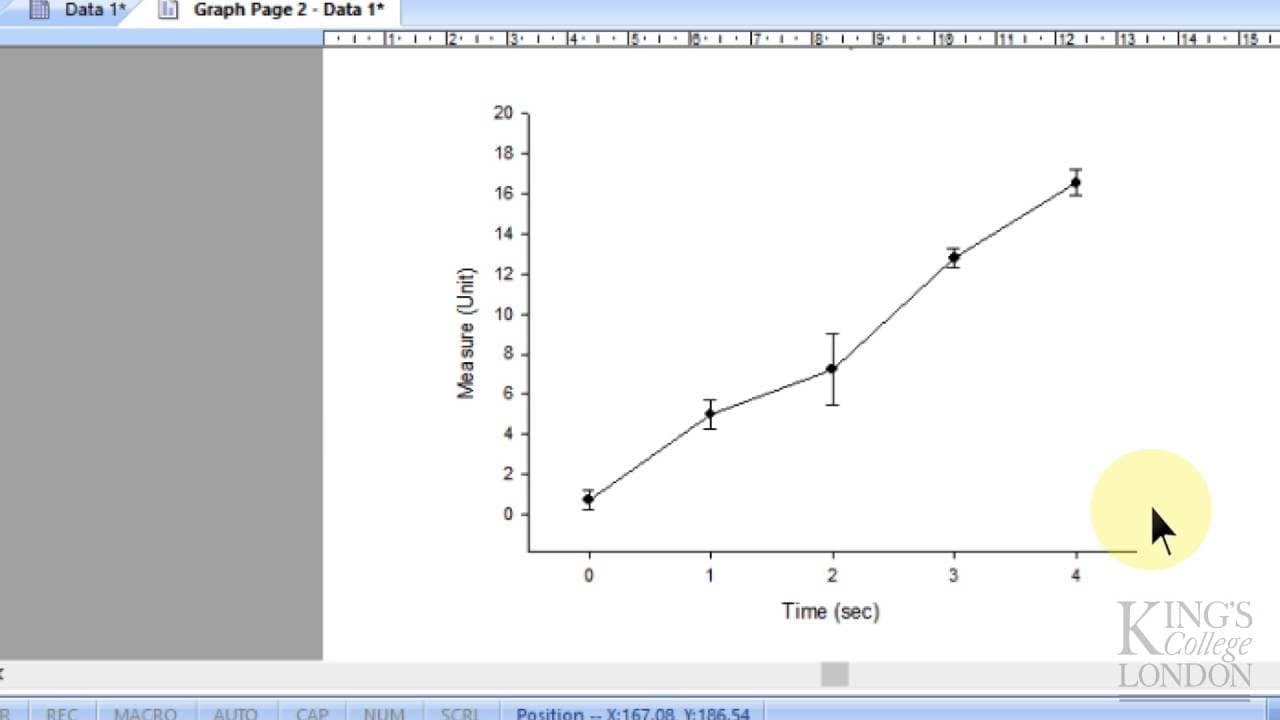
To create a line graph with error bars in SigmaPlot 13, label your x-axis with time and the y-axis with averaged data points. Select the combination line scatter graph option for error bars, and ensure your data is formatted correctly for analysis, allowing you to visualize trends and perform statistical tests like one-way ANOVA.
Transcript
so here we are in Sigma plot 13 and we're going to make ourselves a very simple line graph where we have an x axis with numerical information maybe relating to time or or dose of a drug and then we're going to have Y data consisting of an average of a number of data points so for instance we might have data time zero one minute two minute three min... Read More
Key Insights
- 🫥 Sigma Plot 13 allows for easy creation of line graphs with labeled axes and grouped data.
- 🤢 You can add error bars to represent standard deviation or standard error.
- 🍱 Graph customization options include changing the scale of the axes and hiding unnecessary legends and boxes.
- 💨 To perform statistical tests like a one-way ANOVA, ensure the data is in a suitable format with columns for comparisons.
- 🛀 While the provided data may not pass a normality test, this demonstration shows how to interpret the results of a statistical analysis in Sigma Plot.
- 🤩 Text annotations can be used to add stars or other symbols to indicate significant changes on the graph.
Install to Summarize YouTube Videos and Get Transcripts
Explore YouTube Video Summarizer or Get YouTube Transcript Extractor
Questions & Answers
Q: How can you label each column in Sigma Plot 13?
Right-click on the column, choose column titles, and enter the desired label. This helps differentiate between x-axis data and different experimental groups.
Q: How do you create a line graph with error bars in Sigma Plot 13?
Select the option for a combination line scatter graph with error bars. This will display the mean values of the data points with error bars representing standard deviation or standard error.
Q: Can you change the scale of the x-axis in the graph?
Yes, you can double-click on the x-axis line, adjust the scale settings, and choose the desired minimum and maximum values for the x-axis.
Q: How can you perform statistical analysis on the data in Sigma Plot 13?
To perform statistical analysis, you may need to reformat the data into columns. For example, for a one-way ANOVA, transpose the data and compare the rows. Then, select the appropriate analysis tool from the dropdown menu.
Summary & Key Takeaways
-
In Sigma Plot 13, you can create a line graph with an x-axis representing time or dose and a y-axis displaying the average of multiple data points.
-
By labeling each column, you can differentiate between different time points or experimental groups.
-
To create the graph, choose the option for a combination line scatter graph with error bars, and input the appropriate data sets.
Read in Other Languages (beta)
Share This Summary 📚
Summarize YouTube Videos and Get Video Transcripts with 1-Click
Try YouTube Summary with ChatGPT & Claude or YouTube Transcript Generator
Explore More Summaries from Dory Video 📚




Summarize YouTube Videos and Get Video Transcripts with 1-Click
Try YouTube Summary with ChatGPT & Claude or YouTube Transcript Generator