How to Build a Macro Keyboard with Raspberry Pi Pico
TL;DR
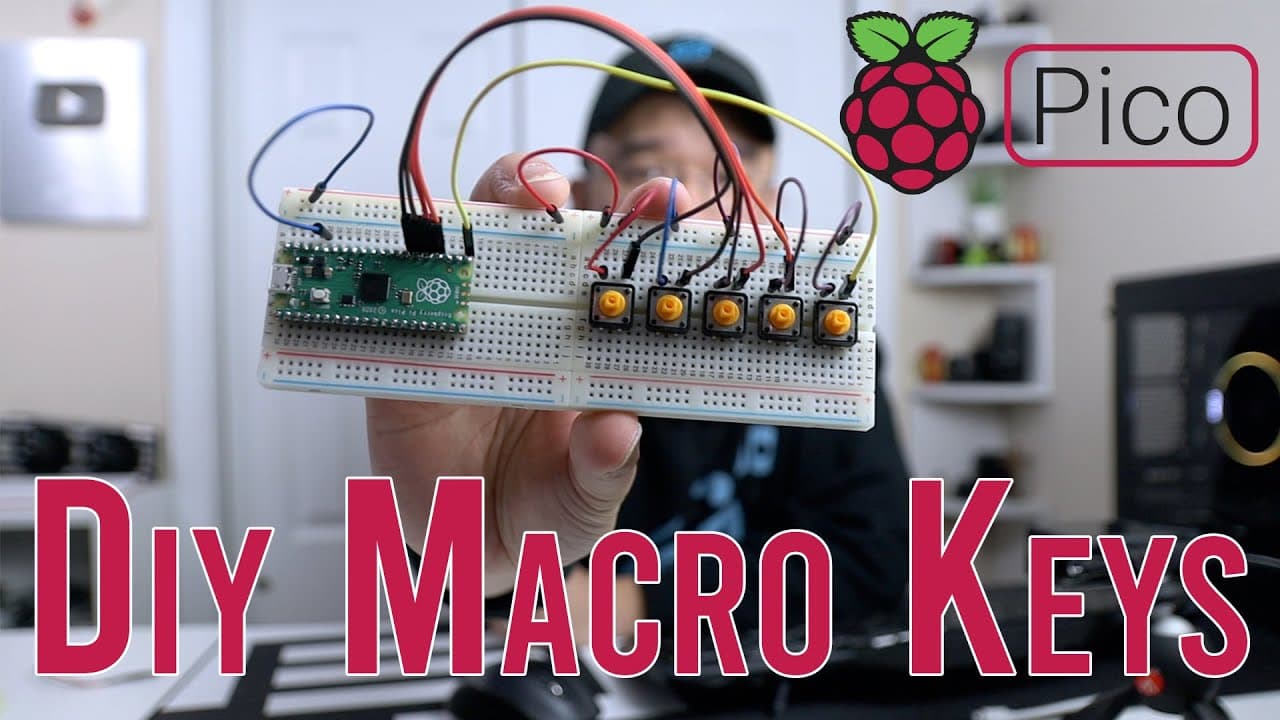
To build a macro keyboard using the Raspberry Pi Pico, connect tactile switches to GPIO pins, then write Python code to detect button presses and execute macro commands using USB HID. Start with one button to ensure functionality, and expand the setup based on your needs.
Transcript
hey guys it's don here from novaspirit tech and welcome back to the channel and today we are going to be creating ourselves a little macro keyboard using the raspberry pi pico so let's get started now if you guys haven't seen my previous videos before on the raspberry pi pico i actually made a little playlist that you could check out and one of the... Read More
Key Insights
- 🎹 The Raspberry Pi Pico is a versatile platform for DIY electronics projects, including macro keyboards.
- 👻 Understanding GPIO configuration allows users to effectively manage button inputs and outputs in their code.
- 👤 Libraries like USB HID enable simple integration of keyboard functions, enhancing user experience with programmable inputs.
- 👤 The project emphasizes the value of incremental development, encouraging users to test one button before adding more.
- 🛍️ Tactile switches can be easily sourced from electronic shops, making this project accessible for DIY enthusiasts.
- 👻 The flexibility of Python code allows users to customize macro functions based on individual needs, enhancing productivity.
- 🎮 Ideas for additional project features can include volume control or hotkey combinations tailored to specific software applications.
Install to Summarize YouTube Videos and Get Transcripts
Explore YouTube Video Summarizer or Get YouTube Transcript Extractor
Questions & Answers
Q: What materials are needed to build the macro keyboard using Raspberry Pi Pico?
To create the macro keyboard, you'll need a Raspberry Pi Pico, tactile switches, jumper wires, and a breadboard for circuit assembly. The Pico can be purchased from electronics retailers, and tactile switches are often available at similar outlets. An understanding of MicroPython or CircuitPython will also be beneficial for coding the device.
Q: Can you explain how the GPIO pins work in this project?
GPIO pins on the Raspberry Pi Pico serve as input or output channels for various components. In this project, specific GPIO pins are designated for each button. When a button is pressed, a signal is sent to the corresponding GPIO pin, which can be programmed to trigger specific actions in the code, like sending a keyboard command when activated.
Q: How can users expand the functionality of their macro keyboard?
Users can expand their macro keyboard by adding more buttons and modifying the code accordingly. Each additional button requires assigning a new GPIO pin and writing corresponding code for it in the existing script. The setup can accommodate multiple buttons, allowing for a range of macro functions tailored to the user’s needs.
Q: What coding languages and libraries are used in this tutorial?
The tutorial primarily uses MicroPython along with specific libraries from Adafruit. Key libraries include digital I/O for managing GPIO pin states and USB HID for enabling the keyboard functionalities. The coding structure and functions help detect button presses and send corresponding key events to the connected computer.
Q: What challenges might beginners face when setting up this project?
Beginners may struggle with wiring the components correctly, understanding GPIO pin assignments, or debugging code if button presses do not register as intended. Familiarity with Python programming and circuit assembly is essential to troubleshoot any issues. It's recommended to follow the project closely and refer to previous videos for foundational understanding.
Summary & Key Takeaways
-
The video demonstrates how to build a macro keyboard with Raspberry Pi Pico, using basic coding and tactile switches for input.
-
Don provides a step-by-step guide on setting up GPIO pins, coding button presses, and integrating USB HID functionality for macro commands.
-
Viewers are encouraged to explore previous videos for foundational knowledge on programming and setting up the Raspberry Pi Pico environment.
Read in Other Languages (beta)
Share This Summary 📚
Summarize YouTube Videos and Get Video Transcripts with 1-Click
Try YouTube Summary with ChatGPT & Claude or YouTube Transcript Generator
Explore More Summaries from Novaspirit Tech 📚




Summarize YouTube Videos and Get Video Transcripts with 1-Click
Try YouTube Summary with ChatGPT & Claude or YouTube Transcript Generator