Top 6 Gmail Filters for Productivity!
TL;DR
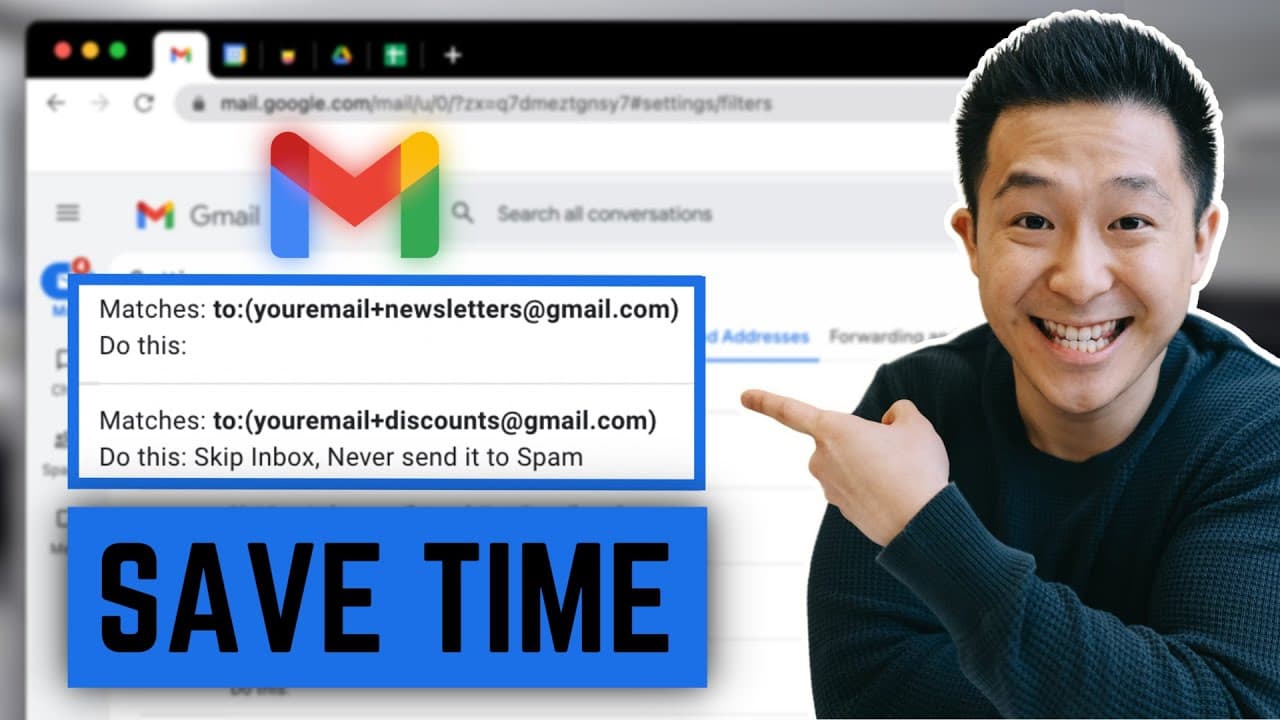
Learn how to set up Gmail filters for productivity including organizing Google Drive comments, automated responses, and reducing distractions.
Transcript
in an age of constant distractions having a structure system for your inbox means getting things done faster while making fewer mistakes and whether you're a student entrepreneur or working professional you most likely want a system where you get to decide which important emails get surfaced and which ones get deprioritized so in this video i'm gon... Read More
Key Insights
- 💬 Organize Google Drive comments with separate labels for efficient reference.
- 😫 Set up automated responses using Gmail templates for different types of emails.
- 🔔 Automatically archive useless calendar notifications to reduce distractions.
- ➕ Selectively filter out newsletters and promotions using the plus sign in your email address.
- 👨💻 Color code your inbox for a visually appealing and organized interface.
- ❓ Transfer Gmail filters across accounts to share productivity setups with colleagues and friends.
- 📥 Utilize Gmail filters to achieve an inbox zero setup for increased productivity.
Install to Summarize YouTube Videos and Get Transcripts
Explore YouTube Video Summarizer or Get YouTube Transcript Extractor
Questions & Answers
Q: How can Gmail filters help with organizing Google Drive comments?
By creating separate labels for comments from Google Docs, Sheets, and Slides, you can easily refer back to resolved items efficiently.
Q: How can Gmail templates be used for automated responses?
Gmail templates can be utilized to set up different responses for internal and external emails, ensuring appropriate and professional replies.
Q: What is the benefit of automatically archiving calendar notifications?
Archiving useless calendar notifications reduces distractions and streamlines your inbox, allowing you to focus on actionable emails.
Q: How can the plus sign be used to selectively filter out newsletters and promotions?
By using the plus sign trick in your email address, you can create filters for newsletters and promotions, helping to prioritize important emails while reducing distractions.
Summary & Key Takeaways
-
Organize Google Drive file comments by creating separate labels for Docs, Sheets, and Slides to refer back to resolved items efficiently.
-
Set up automated responses using Gmail templates for different types of emails, such as internal and external communication.
-
Use Gmail filters to automatically archive useless calendar notifications and selectively filter out newsletters and promotions.
Read in Other Languages (beta)
Share This Summary 📚
Summarize YouTube Videos and Get Video Transcripts with 1-Click
Try YouTube Summary with ChatGPT & Claude or YouTube Transcript Generator
Explore More Summaries from Jeff Su 📚



Summarize YouTube Videos and Get Video Transcripts with 1-Click
Try YouTube Summary with ChatGPT & Claude or YouTube Transcript Generator