How to Set Up a Claude Cowork System
TL;DR
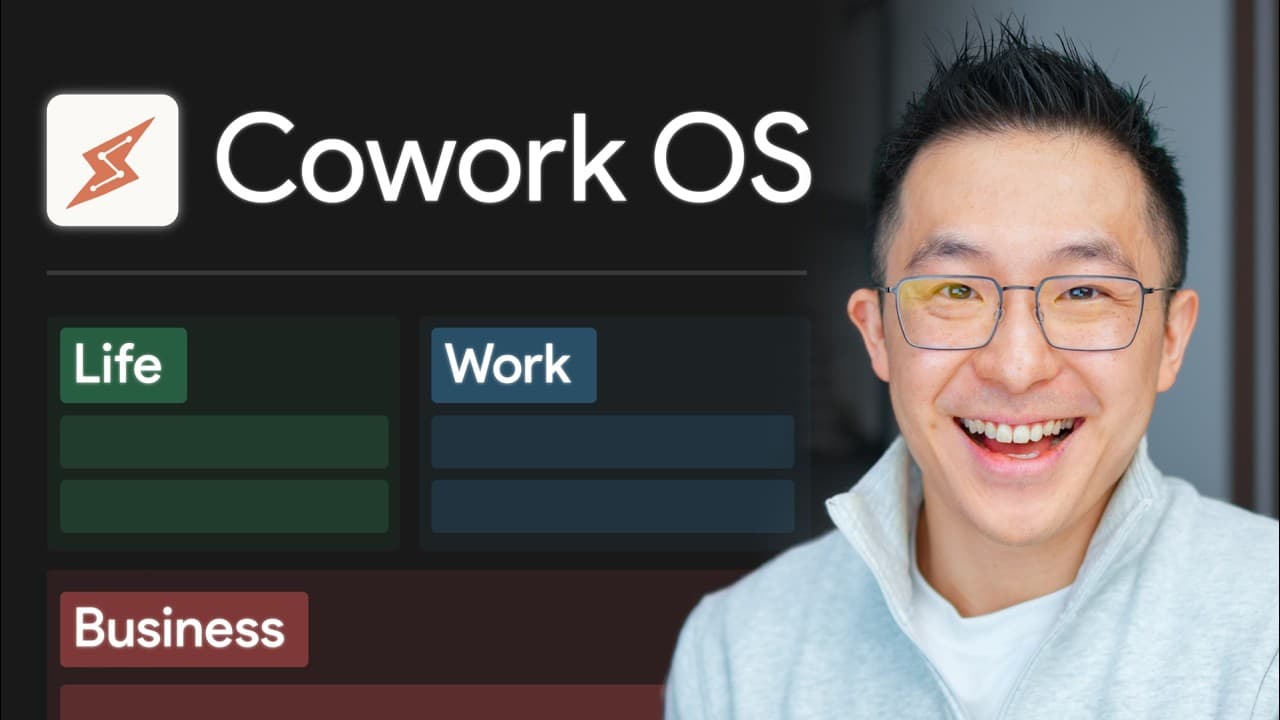
The Claude Cowork system transforms Claude from a chatbot into a comprehensive workspace operating system. By using simple text files and a structured hierarchy, users can manage projects, emails, and personal tasks efficiently. The system includes instruction manuals, persistent memory, and specific workstations tailored to individual needs, enhancing productivity without exceeding usage limits.
Transcript
Hey co-work, I am hung over. What are we supposed to be doing today? Finalize outline for workshop, dinner, newsletter, right? Um, review expenses. Um, how much did I spend last month? Process last month's credit card statement. My spending is about a,000% mainly from Bumble Premium. Good job throwing money away while not landing a single. That's u... Read More
Key Insights
- Claude Cowork transforms Claude from a chatbot into a full operating system for work.
- The system uses simple text files, including 'claw.md' and 'memory.mmd', to manage tasks.
- A three-level hierarchy organizes workstations and projects, improving task management.
- Root level rules apply universally, while workstation-specific rules cater to specific tasks.
- Persistent memory allows Cowork to remember tasks and preferences between sessions.
- The setup includes templates for voice principles, spending trackers, and email drafts.
- Pro tips include keeping the root 'claw.md' file lean and using the Sonnet model for efficiency.
- Building a personal contact system early ensures compounded benefits with each session.
Install to Summarize YouTube Videos and Get Transcripts
Explore YouTube Video Summarizer or Get YouTube Transcript Extractor
Questions & Answers
Q: How to set up a Claude Cowork system?
To set up a Claude Cowork system, create a folder named Cowork OS and add 'claw.md' and 'memory.mmd' files. These files act as the instruction manual and memory for the system. Use templates to structure your workspace, creating workstations for different tasks, and ensure persistent memory by saving preferences and tasks between sessions.
Q: What is the purpose of the 'claw.md' file in Claude Cowork?
The 'claw.md' file serves as the instruction manual for the Claude Cowork system. It contains rules and guidelines that govern the entire workspace, ensuring that tasks are managed efficiently. This file helps maintain a structured approach by pointing to other resource files only when necessary, keeping the system lean and effective.
Q: Why is persistent memory important in Claude Cowork?
Persistent memory in Claude Cowork is crucial because it allows the system to remember tasks and preferences between sessions. This feature ensures continuity and efficiency, as Cowork can recall previous activities and adapt to user preferences without needing repeated instructions. It enhances productivity by maintaining a consistent workflow.
Q: How does the hierarchy in Claude Cowork work?
Claude Cowork uses a three-level hierarchy to organize tasks: the root level, workstations, and projects. The root level contains universal rules applicable to all tasks, while workstations have specific rules for particular areas like email or finances. Projects can have their own rules, allowing for detailed task management and customization.
Q: What are some pro tips for using Claude Cowork efficiently?
To use Claude Cowork efficiently, keep the root 'claw.md' file within 300 lines to avoid excessive token usage. Avoid repeating rules in multiple files and focus on specific preferences for each workstation. Use the Sonnet model for most tasks, switching to Opus only when necessary, to balance cost and performance.
Q: How can Claude Cowork improve email management?
Claude Cowork improves email management by creating a dedicated Email HQ workstation with specific rules for drafting emails. It incorporates voice principles and email-specific conventions, ensuring that emails are consistent with the user's style and preferences. This setup streamlines communication and maintains professionalism in email interactions.
Q: What are the benefits of starting a Claude Cowork system early?
Starting a Claude Cowork system early allows users to accumulate compounded benefits with each session. As the system learns and adapts to user preferences, it becomes more efficient and personalized, giving users a productivity advantage over those who start later. Early adoption ensures a head start in managing tasks effectively.
Q: How does Claude Cowork handle data privacy?
Claude Cowork respects data privacy by allowing users to choose what information to share. For instance, users can decide whether to share credit card statements for financial management. The system relies on user input and preferences, ensuring that data handling aligns with individual comfort levels and privacy concerns.
Summary & Key Takeaways
-
Claude Cowork transforms Claude into an operating system for managing work tasks efficiently. By using simple text files, such as 'claw.md' and 'memory.mmd', users can create a structured workspace with persistent memory. This system includes a three-level hierarchy for organizing workstations and projects, allowing for tailored task management while keeping token usage low.
-
The system's root level rules apply universally, while workstation-specific rules cater to particular tasks, ensuring flexibility and efficiency. Users can set up persistent memory, allowing Cowork to remember tasks and preferences between sessions. This setup includes templates for voice principles, spending trackers, and email drafts, enhancing productivity without exceeding usage limits.
-
Pro tips for using Claude Cowork effectively include keeping the root 'claw.md' file lean, avoiding rule repetition, and defaulting to the Sonnet model for most tasks. Building a personal contact system early ensures compounded benefits with each session, keeping users ahead in productivity and task management.
Read in Other Languages (beta)
Share This Summary 📚
Summarize YouTube Videos and Get Video Transcripts with 1-Click
Try YouTube Summary with ChatGPT & Claude or YouTube Transcript Generator
Explore More Summaries from Jeff Su 📚




Summarize YouTube Videos and Get Video Transcripts with 1-Click
Try YouTube Summary with ChatGPT & Claude or YouTube Transcript Generator