How to Use Google Docs Faster: 10 Practical Tips
TL;DR
Use Google Docs faster by typing @ to insert features, enabling pageless mode for flexible layouts, saving default text styles, and linking collaborators directly to headings or comments. The 10 practical tips also cover collapsible headings, editable product roadmap tables, suggested-edit previews, version history, email drafts, and sending a document as a PDF. Read on for the exact commands and menu paths.
Transcript
hey friends in this video I'm going over 10 extremely practical tips you probably aren't using in Google Docs but definitely should starting with tip number one use building blocks to save time if you're currently digging around the menu bar to access features like insert bookmark you should know there's a much better way simply place your cursor a... Read More
Key Insights
- The @ command is the fastest route to most Google Docs features, since many items under the Insert, Format, and Tools tabs can be triggered by typing @ followed by the feature name and pressing Enter, instead of navigating the menu bar.
- A table of contents can be styled beyond the default by inserting a one-cell table, typing the words inside it, increasing the font size, center aligning the text, and changing the cell background color for a more professional look.
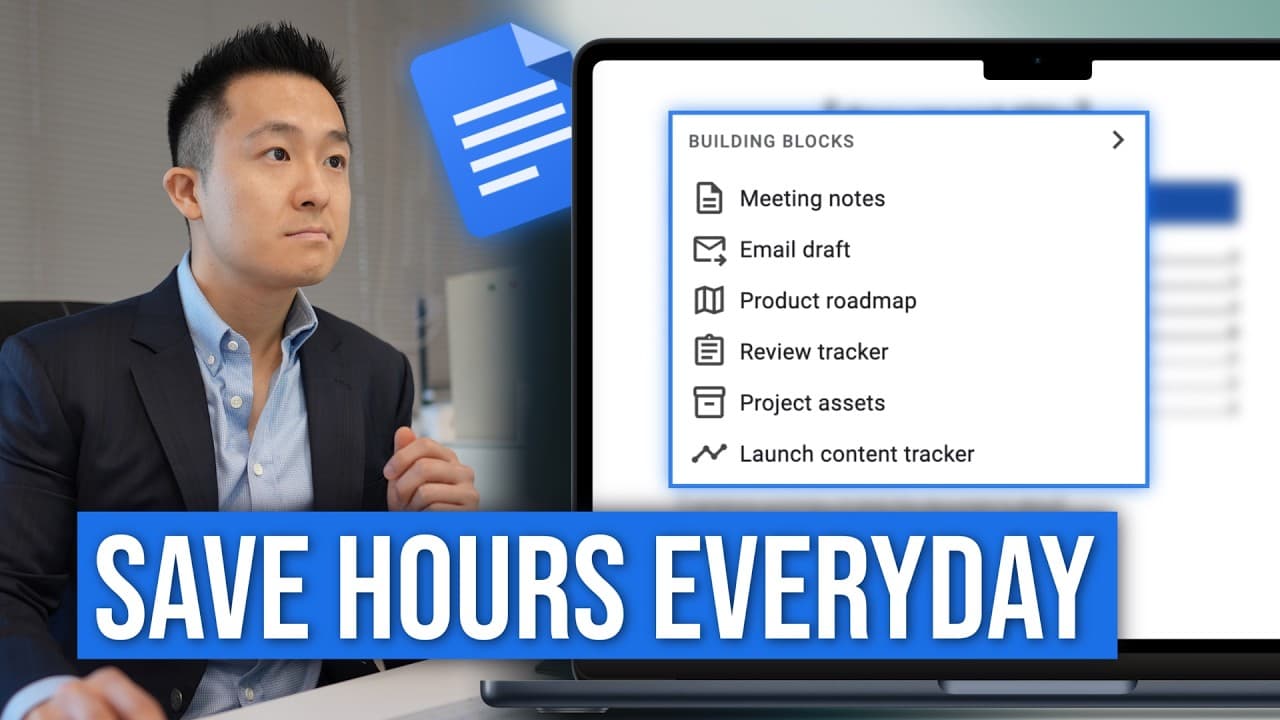
- Pre-formatted building blocks such as the product roadmap table remove the need to build tables from scratch, and every element stays editable: font sizes, column labels, and even the drop-down option sets can be replaced with custom selections.
- Pageless mode, found under Format, removes page boundaries so tables can be dragged wider than a page allows, and View then Text width set to wide or full lets a document use the full extra horizontal space.
- Collapsible heading toggles only work in pageless mode, and headings can be created quickly by typing pound symbols followed by a space, where five pound signs plus a space produces heading five.
- Default fonts are saved by formatting sample headings, choosing update heading to match from the style drop-down for each level, then selecting Options and save as my default styles, which applies to every newly created document.
- Existing documents can adopt saved defaults by selecting all text, opening the style drop-down, going to Options, and choosing use my default styles, which converts the older fonts in one pass.
- Right-clicking a heading gives copy heading link, and the three dots on a comment give a link to that comment, so a request sent by email can point a colleague straight to the exact section needing input.
Install to Summarize YouTube Videos and Get Transcripts
Explore YouTube Video Summarizer or Get YouTube Transcript Extractor
Questions & Answers
Q: How do you use the @ command in Google Docs?
Place the cursor at the beginning or end of a line, type @ followed by the feature name, and press Enter. Many features found under Insert, Format, and Tools are available this way, including bookmarks, tables of contents, product roadmap tables, horizontal lines, and email drafts.
Q: How do you insert and style a table of contents in Google Docs?
Type @ followed by “table of contents,” press Enter, and select the option with the dotted tab header. To create a styled header, insert a one-cell table, type “table of contents” inside it, enlarge and center the text, and change the cell’s background color.
Q: How do you insert an editable product roadmap table in Google Docs?
Type @ followed by “product roadmap,” then press Enter to generate a pre-formatted table. You can edit its font sizes and column labels, such as replacing “project” with “workstream,” and use “type dropdown” to create your own dropdown selections.
Q: What does pageless mode unlock in Google Docs?
Open Format and switch to pageless mode to remove page divisions and width constraints. Tables can then extend farther horizontally, while View, Text width, and either wide or full provide additional working space. Pageless mode also enables collapsible heading toggles and lets you minimize comments.
Q: How do you create and collapse headings in Google Docs?
Collapsible heading toggles work only in pageless mode, where an arrow beside each heading expands or hides its section. You can quickly create headings with pound symbols followed by a space; for example, five pound signs and a space create heading five.
Q: How do you save default fonts and styles for new Google Docs?
Format sample headings and normal text, then use the style dropdown to choose “update heading to match” for each relevant level. After updating headings 2 through 5 and normal text, open Options and select “save as my default styles.” Those settings will apply to newly created documents.
Q: How do you apply saved default styles to an existing Google Doc?
Select all text in the existing document with Command-A on Mac or Control-A on Windows. Open the style dropdown, go to Options, and choose “use my default styles” to update the document’s fonts in one pass.
Q: How do you preview suggested edits before accepting them in Google Docs?
Go to Tools, select Review suggested edits, and choose Preview accept all to see the document as it would appear with every suggestion applied. If the preview looks right, use Accept all to commit the changes.
Summary & Key Takeaways
-
The video covers ten Google Docs tips, beginning with the @ command, which surfaces features from the Insert, Format, and Tools menus directly in the document. Top use cases include inserting bookmarks, a table of contents with dotted tabs, a pre-formatted product roadmap table, and a horizontal line to mark the end of a section.
-
Pageless mode, enabled under Format, removes page constraints so tables can extend as wide as needed, especially combined with View and Text width set to wide or full. It is the only mode where heading toggles let you collapse sections, and comments can be minimized with the right arrow then reopened by hovering over the comment bubble.
-
Collaboration tips include copying heading and comment links to point teammates at exact sections, previewing suggested edits through Tools then Review suggested edits then Preview accept all before committing, restoring or naming versions under File then Version history, drafting emails via the email draft building block, emailing a PDF through File then Email this file, and emailing all collaborators at once.
Read in Other Languages (beta)
Share This Summary 📚
Summarize YouTube Videos and Get Video Transcripts with 1-Click
Try YouTube Summary with ChatGPT & Claude or YouTube Transcript Generator
Explore More Summaries from Jeff Su 📚



Summarize YouTube Videos and Get Video Transcripts with 1-Click
Try YouTube Summary with ChatGPT & Claude or YouTube Transcript Generator