How to Pass Through a GPU to a Proxmox VM
TL;DR
To pass through a GPU to a Proxmox virtual machine, you need to configure the VM to use the GPU as its primary device. Ensure that the necessary USB peripherals are also passed through for full desktop functionality. This setup allows you to run applications like Photoshop within a Windows 11 VM while utilizing the GPU's power effectively.
Transcript
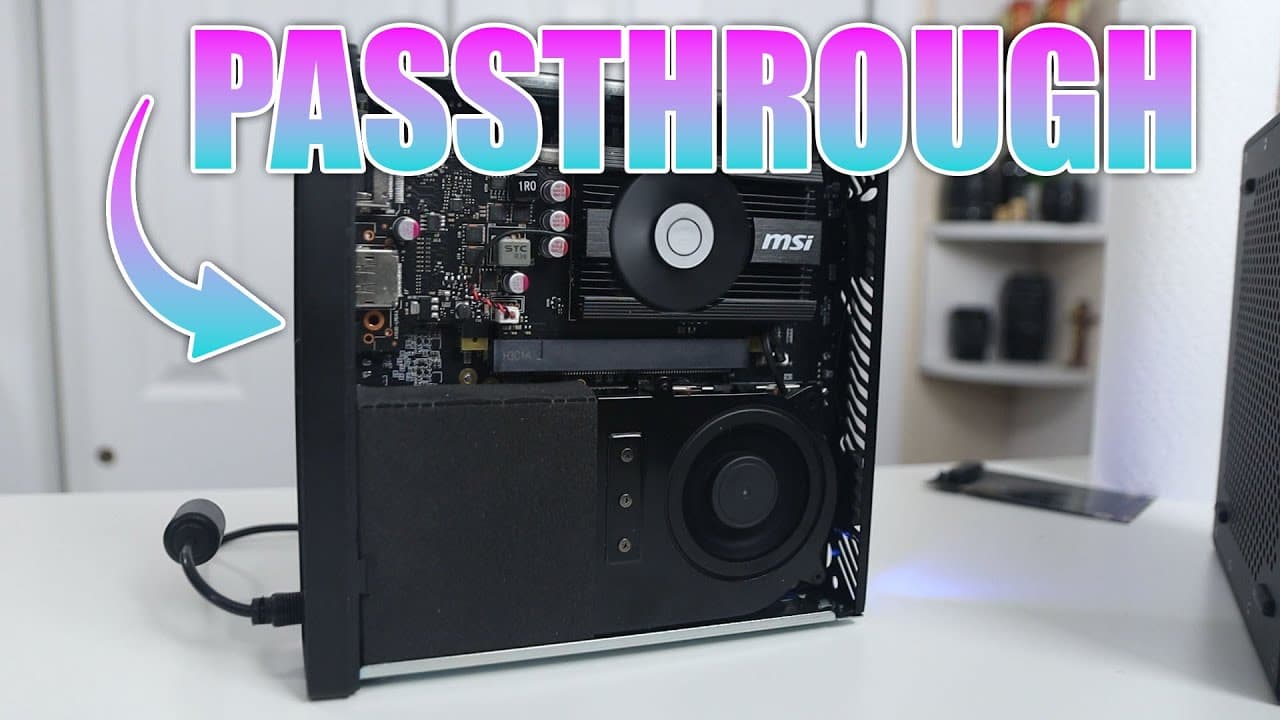
did you know you can actually pass through a graphic card from your proxmox to a virtual machine and use it as a desktop PC so let's check it out so I recently did a video on this Mini PC called the miniforms ms01 which I'll leave a link on the top left right over here it's not only meant to be used as a desktop but you could also use it as a home ... Read More
Key Insights
- 👻 Graphics card passthrough allows users to leverage a powerful GPU within a virtual machine, transforming it into a practical desktop solution.
- 👤 Proxmox supports extensive virtualization capabilities, enabling users to manage resources and optimize performance effectively across multiple VMs.
- 👤 The incorporation of peripheral passthrough, such as USB devices, is essential for offering a seamless user experience when accessing the virtual machine.
- 🪡 The demonstration highlights practical applications of virtualization technology, particularly for creative software needing graphical hardware.
- 👤 Resource management is crucial; with Proxmox, users can dynamically adjust CPUs, RAM, and storage for each VM according to their needs.
- 🤩 A high-performance host environment is key; the Intel i9 processor and adequate RAM significantly enhance the virtualization capabilities in this setup.
- 🪡 The ease of adding additional virtual machines highlights Proxmox's flexibility, allowing users to scale their computing needs without the need for extra physical hardware.
Install to Summarize YouTube Videos and Get Transcripts
Explore YouTube Video Summarizer or Get YouTube Transcript Extractor
Questions & Answers
Q: What are the main components required to pass a GPU through to a virtual machine using Proxmox?
To successfully pass a GPU through, you need a compatible GPU, the Proxmox virtualization platform, and a host machine with sufficient resources such as a powerful CPU and adequate RAM. USB passthrough for input devices like keyboard and mouse is also necessary to effectively control the virtual machine.
Q: How do you ensure that the NVIDIA GPU is properly recognized in the Windows 11 VM?
After passing through the NVIDIA GPU, you can check its recognition by accessing the Device Manager in Windows. Look for the GPU under "Display adapters" to confirm that it is detected. If the GPU isn't recognized, ensure that the correct PCI device is passed through on the Proxmox settings, and that you have blacklisted any conflicting drivers.
Q: What steps are involved in resizing the storage available to the virtual machine?
To resize the storage for a virtual machine in Proxmox, access the virtual machine’s hardware settings from the Proxmox web interface. Select the disk you want to resize, perform a "Resize Disk" action, specify the new size, and click "Resize." After resizing, you may need to resize the volume within the Windows disk management tools to utilize the additional space.
Q: Can you use applications that require GPU access in a Windows 11 VM?
Yes, by passing through a dedicated GPU to the Windows 11 VM, applications requiring GPU acceleration—like Photoshop—can run without issues. You’ll need to ensure that the required GPU drivers are installed correctly on the VM for optimized performance and functionality.
Summary & Key Takeaways
-
The video discusses how to set up a Proxmox environment to pass through an NVIDIA GTX 1030 GPU to a Windows 11 virtual machine, effectively allowing it to function as a desktop PC.
-
Key specs of the hardware include an Intel i9 processor with 14 cores, 32GB of RAM, and efficient management of resources to run applications like Photoshop smoothly in the VM.
-
The process demonstrated includes setting up USB passthrough for keyboard and mouse, confirming GPU detection in Windows, and adjusting virtual hardware settings for optimal performance.
Read in Other Languages (beta)
Share This Summary 📚
Summarize YouTube Videos and Get Video Transcripts with 1-Click
Try YouTube Summary with ChatGPT & Claude or YouTube Transcript Generator
Explore More Summaries from Novaspirit Tech 📚





Summarize YouTube Videos and Get Video Transcripts with 1-Click
Try YouTube Summary with ChatGPT & Claude or YouTube Transcript Generator