How to Extract Text From PDFs and Images With n8n AI
TL;DR
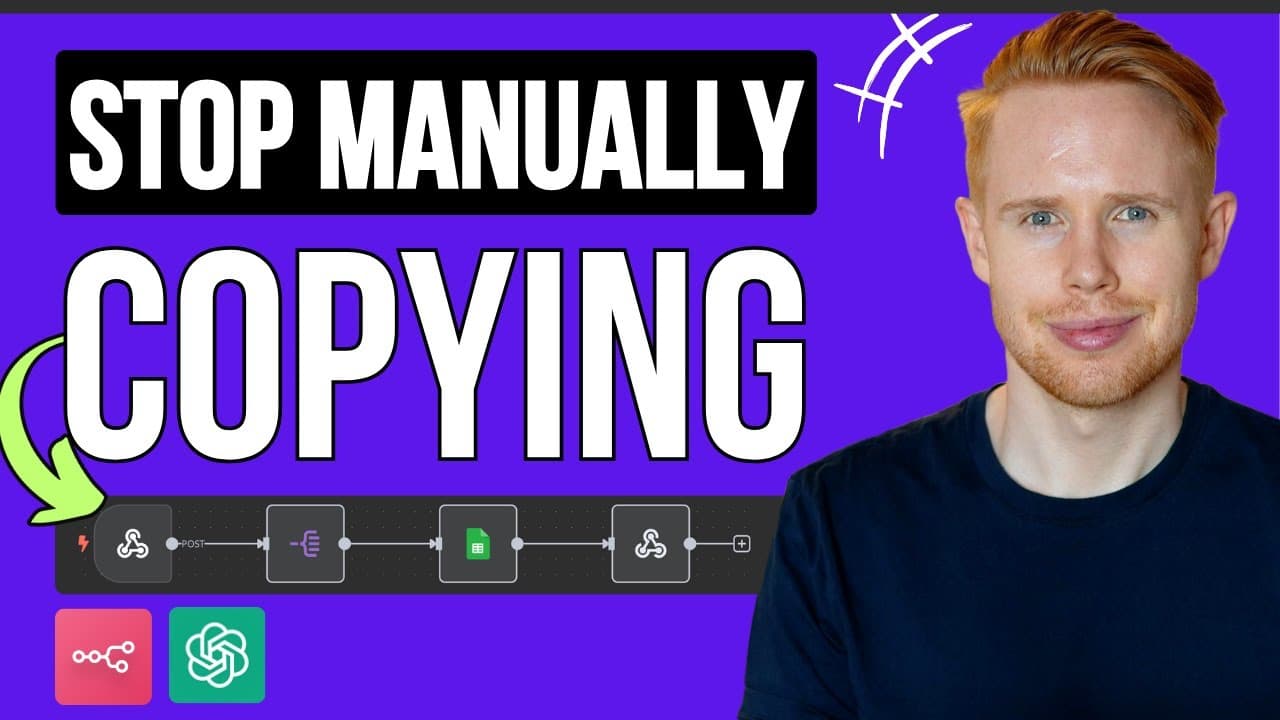
An n8n AI agent receives PDF invoices and image receipts through Telegram, decides whether to run its document or image tool, and writes the extracted data into a Google Sheet one line item at a time. A tested receipt produced four rows (1999, 1999, $24.99, $24) plus the grabbed total, showing multi-line extraction working out of the box.
Transcript
So, in this AI agent, I'm taking Telegram messages. These messages contain PDF invoices as well as image receipts, and we're stripping all of this information off of the receipts that are images, and off of the invoices, which are PDF documents, and we're uploading it into a Google sheet line item by line item. Practically speaking, how this works ... Read More
Key Insights
- The build is split into three workflows: a main AI agent that sends and retrieves Telegram messages, one subflow for processing images, and a third subflow for processing PDF documents, keeping document and image logic separate.
- The AI agent decides which tool to call based on whether the incoming file is a PDF document or an image, then routes the file into the matching subflow to strip its data before writing to a sheet.
- Extracted fields are fully customizable, but the demo pulls standard values like name, price, line item, and invoice number, and it creates a separate Google Sheet row for every line item found in a file.
- Multi-line extraction works reliably: the image receipt produced four rows priced 1999, 1999, $24.99, and $24, matching the source, and the agent also grabbed the overall total automatically.
- Telegram is chosen as the trigger because it is the easiest option to get running, though WhatsApp, Twilio for text messages, Siri, or Facebook Messenger could also serve as message triggers in n8n.
- The Telegram access token is created through BotFather using the /newbot command, choosing a bot name and username, then copying the token into n8n credentials so incoming messages start the workflow.
- When uploading files for testing, choosing 'file' rather than 'photo' matters because the data is formatted differently, so selecting 'file' reproduces the exact setup used in the tutorial.
- Because a non-default trigger like Telegram is used, the AI agent prompt shows red and must be fixed by connecting another source and defining the message as the incoming caption, such as 'process this PDF document'.
Install to Summarize YouTube Videos and Get Transcripts
Explore YouTube Video Summarizer or Get YouTube Transcript Extractor
Questions & Answers
Q: How do you extract text from PDFs and images using an n8n AI agent?
You build an AI agent in n8n that receives files through Telegram, then uses the agent's brain to decide whether it is processing a PDF document or an image. The file is routed into a matching subflow that strips the information, and every line item is written into a Google Sheet as its own row, including fields like name, price, line item, and invoice number.
Q: What three workflows make up this n8n document extraction build?
The build has three separate workflows. The first is the main AI agent that uses Telegram to send and retrieve messages and decide which tool to call. The second workflow handles processing images, such as photo receipts. The third workflow handles processing PDF documents, such as invoices. Splitting document and image logic into distinct subflows keeps each path organized and lets the agent pick the correct one.
Q: How do you set up Telegram credentials for n8n?
You create a chat with BotFather inside Telegram, which is free and quick to download. You send the /newbot command, then choose a name and a username for the bot, for example botfather fan club and botfatherfanclubbot. BotFather returns an access token, which you copy and paste into the Telegram credentials inside n8n. Once connected, any message the bot receives automatically starts the workflow.
Q: Why choose 'file' instead of 'photo' when uploading to Telegram?
When testing the workflow you can attach either a photo or a file, but the data is formatted slightly differently depending on the choice. The tutorial recommends choosing 'file' because that gives you the exact same setup shown in the build. Selecting 'file' ensures the incoming data structure matches, so the downstream nodes and subflows behave consistently for both PDF documents and image receipts.
Q: How does the AI agent decide whether to process a document or an image?
The AI agent acts like a brain with memory and tools. Using the prompt it receives and the history of past messages, it selects the right tool for the job. If the incoming file is a PDF invoice it calls the document processing tool and subflow; if it is an image receipt it calls the image processing tool and subflow. The correct path strips the data and writes it to the sheet.
Q: What results did the image receipt test produce?
When the image receipt was processed, the agent pulled out four line items instead of just one and created a separate Google Sheet row for each. The prices were 1999, 1999, $24.99, and $24, which the presenter cross-referenced against the original receipt to confirm they matched. The agent also grabbed the overall total for everything, showing that multi-line extraction worked correctly out of the box.
Q: Why does the AI agent prompt turn red and how do you fix it?
The prompt text turns red when it is not correctly configured, meaning the workflow will not run. This happens because the agent normally expects the default n8n 'on message' chat trigger, but this build uses Telegram instead. To fix it you connect another source and define the message below, pointing it at the incoming caption, such as 'process this PDF document', so the agent knows what to process.
Q: Where can you get the blueprints for this n8n workflow?
The blueprints are provided completely free in the video description. To use them you click the three dots in the workflow, then choose import from a file, and load the downloaded blueprint. The presenter also includes the exact PDF and image sample files used in the demo so viewers can replicate the same setup. This lets you drop the automation into your own business without building it from scratch.
Summary & Key Takeaways
-
An n8n AI agent ingests Telegram messages containing PDF invoices and image receipts, calls the correct processing tool, strips the data through dedicated subflows, and uploads each extracted line item as its own row into a Google Sheet, demonstrated live with both a document and a receipt.
-
The system uses three workflows: the main Telegram-driven AI agent plus separate image and PDF processing subflows. Telegram credentials are set up via BotFather's /newbot command, generating an access token that is pasted into n8n so any incoming message automatically starts the workflow.
-
Testing the image path produced four rows priced 1999, 1999, $24.99, and $24 plus a captured total, matching the receipt exactly. The AI agent needs its prompt fixed to read the Telegram caption, and free importable blueprints are linked in the video description.
Read in Other Languages (beta)
Share This Summary 📚
Summarize YouTube Videos and Get Video Transcripts with 1-Click
Try YouTube Summary with ChatGPT & Claude or YouTube Transcript Generator
Explore More Summaries from Jono Catliff 📚



Summarize YouTube Videos and Get Video Transcripts with 1-Click
Try YouTube Summary with ChatGPT & Claude or YouTube Transcript Generator