How to Create Breakout Groups in Microsoft Teams
TL;DR
To create breakout groups in Microsoft Teams, set up unique chat groups and initiate video calls for each subgroup while maintaining the main meeting active. You can easily navigate between breakout groups and the main meeting room, allowing participants to engage in focused discussions without losing connection to the overall meeting.
Transcript
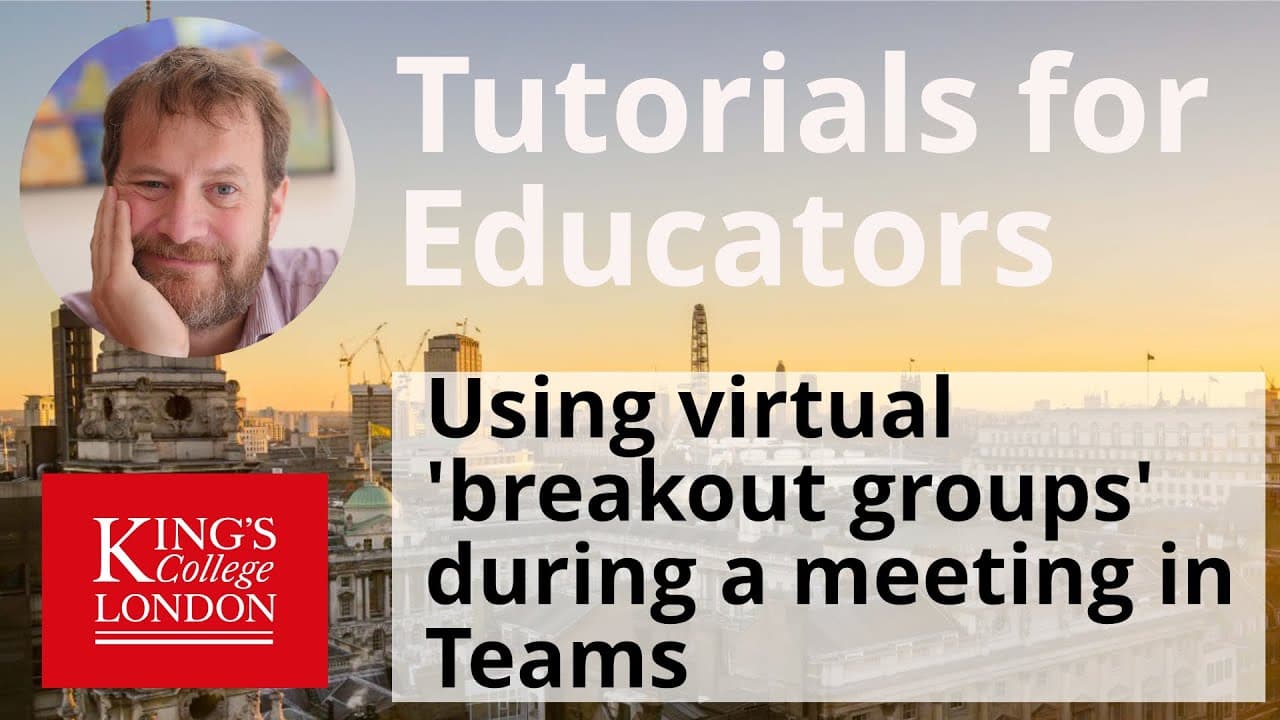
hello I'm James Clark from the department of physiology at King's College London and in this short tutorial I'm going to show you how you can run breakout groups during an ad hoc meeting session in Microsoft teams we're going to join the teams meeting that was set up in my calendar to which a number of colleagues have been invited now we're on the ... Read More
Key Insights
- 👻 Breakout groups in Microsoft Teams allow for more focused discussions within a larger meeting.
- 😫 Organizers can easily set up and manage multiple breakout groups.
- 🤵 Attendees can seamlessly switch between different subgroups and the main meeting room.
- ☢️ The original meeting remains active throughout the breakout sessions, ensuring continuity and connectivity.
- 👥 Breakout groups are a valuable feature for collaborative and interactive meetings.
- ❓ They provide opportunities for interactive discussions and engagement among participants.
- 👻 Breakout groups can enhance productivity by allowing specific topics to be addressed simultaneously.
Install to Summarize YouTube Videos and Get Transcripts
Explore YouTube Video Summarizer or Get YouTube Transcript Extractor
Questions & Answers
Q: How do I set up breakout groups in Microsoft Teams?
To set up breakout groups, search for the specific chat group in the search box, enter the chat, and click on "video call" to invite members to a video call. The original meeting remains accessible through a floating box on the top left of the screen.
Q: Can I switch between the main meeting and breakout groups?
Yes, you can easily switch by clicking on the "resume" button in the original meeting link. Avoid clicking on the "hang up" button to stay in the main meeting room.
Q: Can I create multiple breakout groups?
Yes, you can create multiple breakout groups by repeating the procedure for each group. Search for the relevant chat group, invite members to a video call, and return to the main meeting room when needed.
Q: How do I end a breakout group and return to the main meeting?
To end a breakout group, ask the participants to hang up or return to the original meeting link using the link on the top left of their screens. You can then click on the "resume" button to return to the main meeting room.
Summary & Key Takeaways
-
This tutorial explains how to create and manage breakout groups within a Microsoft Teams meeting.
-
The process involves setting up chat groups, initiating video calls with specific group members, and switching between the main meeting and breakout groups.
-
Attendees can easily join and return to different subgroups, and the main meeting remains active throughout the breakout sessions.
Read in Other Languages (beta)
Share This Summary 📚
Summarize YouTube Videos and Get Video Transcripts with 1-Click
Try YouTube Summary with ChatGPT & Claude or YouTube Transcript Generator
Explore More Summaries from Dory Video 📚



Summarize YouTube Videos and Get Video Transcripts with 1-Click
Try YouTube Summary with ChatGPT & Claude or YouTube Transcript Generator