How to Set Up vMix for Easy Recording
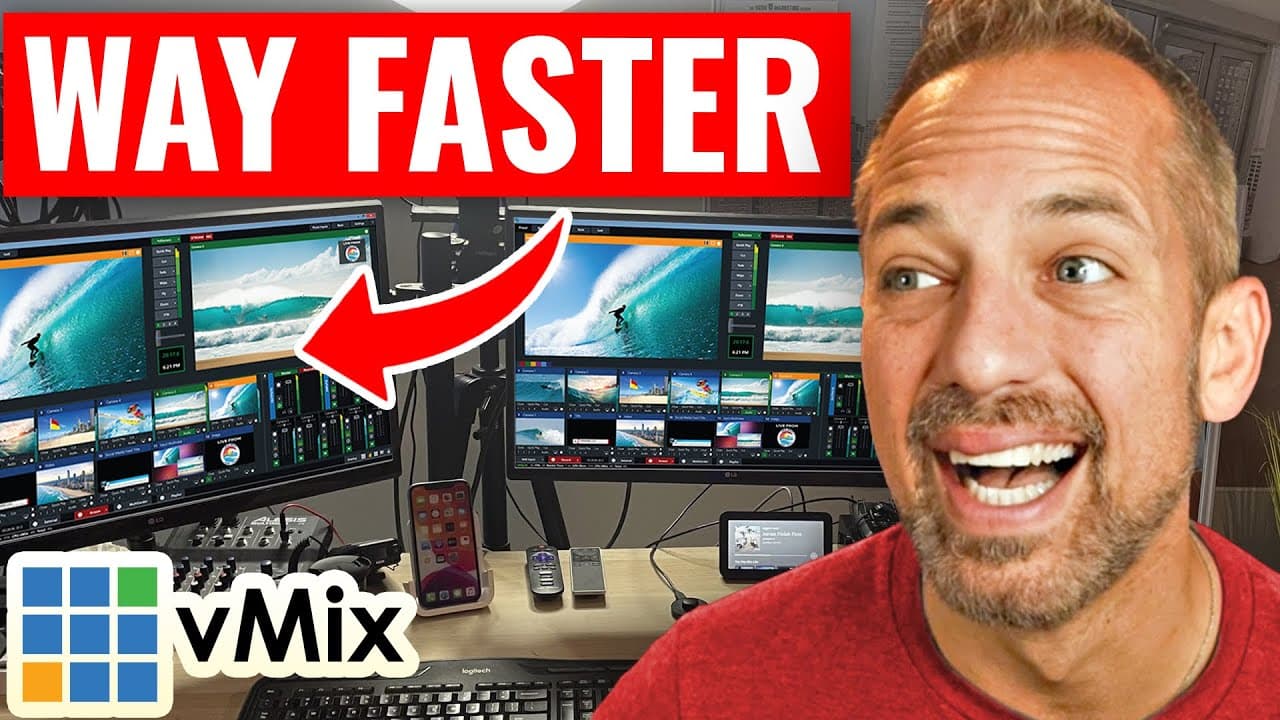
TL;DR
Set up vMix to record both camera and screen effortlessly. This guide provides step-by-step instructions on configuring your inputs, audio settings, and recording options to enhance your YouTube video production.
Transcript
today we're going to get started with step number one how to set up your vmix to record your camera and your computer screen so that you can sit down and film a ton of videos to grow your YouTube channel let's get started I'm Owen video the first time you open up vmix and every time you open up vmix you'll see this screen this black box on the righ... Read More
Key Insights
- 🫒 vmix is a versatile software for recording and live streaming videos, commonly used by content creators for YouTube.
- 🎮 It offers features like transitions, audio controls, and customizable projects for different purposes.
- 🎥 Setting up camera and screen inputs in vmix allows you to easily switch between the two while recording videos.
- 🪈 Configuring audio mixer settings ensures that both camera and screen audio are recorded correctly.
- 🪈 vmix provides options for recording settings, including simultaneous recording of multiple inputs.
- 👻 Saving and accessing projects in vmix allows for easy customization and switching between different setups.
- 🫒 vmix offers additional features like live streaming and multi-corder, which can be explored in separate tutorials.
Install to Summarize YouTube Videos and Get Transcripts
Explore YouTube Video Summarizer or Get YouTube Transcript Extractor
Questions & Answers
Q: What is vmix and what can it be used for?
vmix is a software for recording and live streaming videos, commonly used for producing content for YouTube channels and online platforms. It offers various features like transitions and audio controls.
Q: How can I set up my camera input in vmix?
To set up your camera input, click on "Add Input" and select "Camera". Choose the camera you want to use, ensure the resolution is correct, and enable audio if necessary. Then, click OK to add the camera input.
Q: Can I record my computer screen using vmix?
Yes, you can record your computer screen by setting up a screen share input. Click on "Add Input" and select "NDI Desktop Capture", then choose the display or application you want to capture. Click OK to add the screen share input.
Q: How can I switch between camera and screen inputs while recording?
You can use the "Cut" button in vmix to switch between camera and screen inputs. This allows you to toggle between frames while recording your videos.
Q: What should I do to ensure audio is recorded correctly in vmix?
In vmix, you need to configure your audio mixer settings to ensure that both the camera audio and screen share audio are recorded simultaneously. Access the audio mixer, ensure the camera audio is connected to the master, and make sure the audio bars are green.
Q: How do I set up recording settings in vmix?
To set up recording settings in vmix, click on the "Record" button and configure the options. You can choose to record only the main window or record both camera and screen inputs simultaneously. Set the output folder and file name, and click OK to start recording.
Q: Can I record multiple inputs simultaneously in vmix?
Yes, you can record multiple inputs simultaneously using the "Multi-corder" feature in vmix. This allows you to record multiple cameras and screens at the same time, creating separate files for each input.
Q: How can I access my saved vmix projects?
You can access your saved vmix projects by opening vmix and clicking on "Open". Select the project you want to access from the list and click OK. This allows you to easily switch between different customized setups for recording or live streaming.
Summary & Key Takeaways
-
vmix is a software for recording and live streaming videos, with features like transitions and audio controls.
-
You can save and access different projects for recording or live streaming.
-
The tutorial covers setting up camera and screen inputs, configuring audio settings, and recording options.
Read in Other Languages (beta)
Share This Summary 📚
Summarize YouTube Videos and Get Video Transcripts with 1-Click
Try YouTube Summary with ChatGPT & Claude or YouTube Transcript Generator
Explore More Summaries from Owen Video 📚


Summarize YouTube Videos and Get Video Transcripts with 1-Click
Try YouTube Summary with ChatGPT & Claude or YouTube Transcript Generator