How to Connect Google Workspace CLI to Claude Code
TL;DR
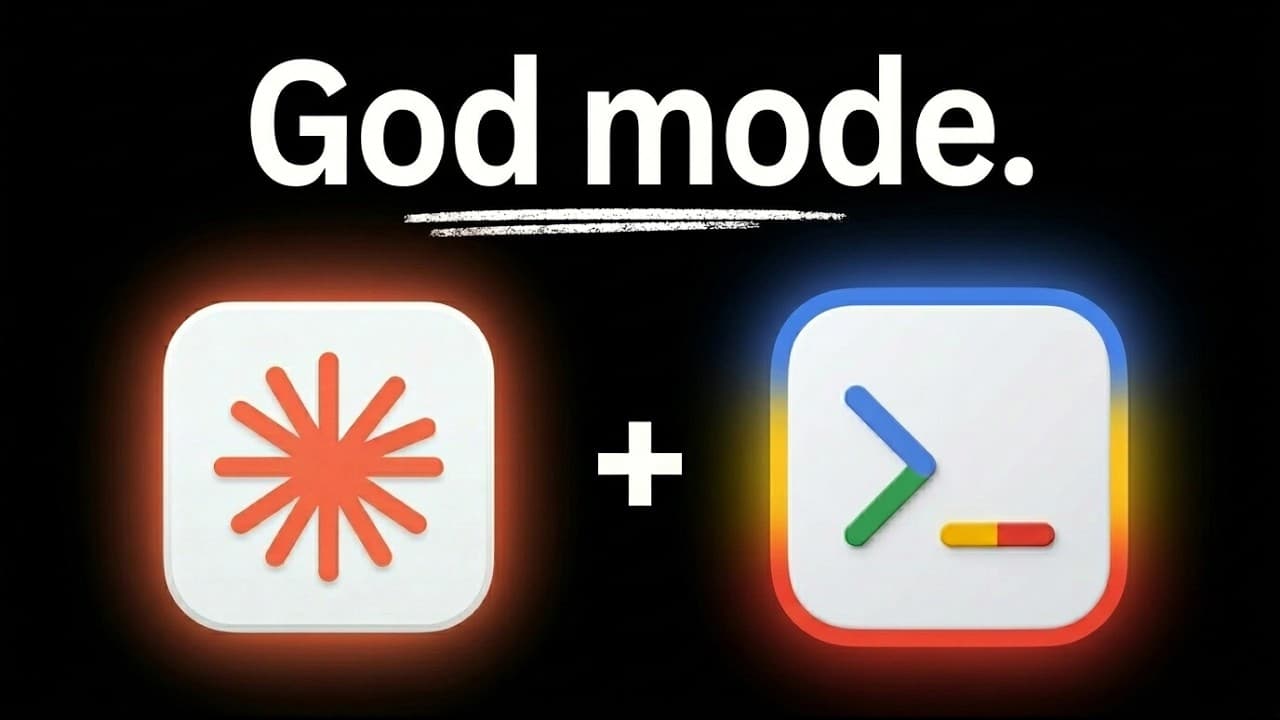
Connect Google Workspace CLI to Claude Code by installing the CLI, configuring a Google Cloud project and OAuth credentials, signing in, and enabling each Workspace API you need. The free, open-source tool gives Claude Code one JSON-first interface for Gmail, Drive, Docs, Sheets, Slides, Calendar, and more than 100 workflow recipes. Read on for the exact setup sequence, capabilities, and stability caveats.
Transcript
Google just dropped what some are already calling the most powerful workspace CLI on the internet. So if you've got a ton of stuff that lives in the Google environment just like I do, then you're going to love this because now any of my cloud code projects can access everything. And all I had to do was install one simple thing. So here you can see ... Read More
Key Insights
- Google Workspace CLI is a single command-line interface for Gmail, Drive, Docs, Sheets, Slides, Calendar, Admin, and other Workspace services. Giving Claude Code access to this one tool avoids configuring numerous separate API endpoints or MCP tools that could consume additional context.
- The CLI is JSON-first, producing structured responses that an AI agent can process effectively. Its automatic discovery feature also picks up Google Workspace API endpoints or methods as they are added, which reduces the maintenance required to keep its available commands current.
- More than 100 built-in workflow recipes provide pre-made patterns for multi-step tasks. Examples include creating documents from templates, reading spreadsheet data to generate reports, finding free time and scheduling meetings, creating events from sheets, creating presentations, and labeling or archiving emails.
- Claude Code can create formatted Google Docs through GWS terminal commands instead of relying on a direct API call or MCP connection. In the demonstration, it converts a YouTube link and transcript into a resource guide containing an image, links, organized sections, horizontal lines, and a call to action.
- A command-line interface lets users and computers operate software through typed text commands instead of graphical buttons and form fields. Claude Code can run those commands in its terminal, allowing it to communicate with Google Workspace services while remaining inside the coding environment.
- Google Workspace CLI is an open-source and free Google Workspace project, but it is not an officially supported Google product. The repository describes it as being under active development and warns users to expect breaking changes as the project progresses toward version 1.0.
- Manual authentication requires a Google Cloud project, an OAuth consent screen, and a desktop-app OAuth client ID. The downloaded JSON credentials must be placed in the global GWS configuration directory before the login command can open the Google authorization flow.
- Workspace APIs must be enabled individually in the selected Google Cloud project before their corresponding services will work. After authentication and API activation, Claude Code can search for files, retrieve document links, inspect unread email, and take actions across the connected Workspace services.
Install to Summarize YouTube Videos and Get Transcripts
Explore YouTube Video Summarizer or Get YouTube Transcript Extractor
Questions & Answers
Q: What can Google Workspace CLI do with Claude Code?
Google Workspace CLI lets Claude Code search, list, upload, download, move, copy, and share files in Google Drive. It can also work with Gmail, Calendar, Docs, Sheets, Slides, Admin, and other Workspace services through terminal commands. Its library includes more than 100 multi-step workflow recipes.
Q: How do you install Google Workspace CLI for Claude Code?
Give Claude Code the Google Workspace CLI GitHub repository link and ask it to read the documentation and help install everything required. Claude Code can inspect the existing prerequisites, install the CLI, and guide you through either automatic setup with Google Cloud CLI or manual Google Cloud project configuration.
Q: How do you configure OAuth for Google Workspace CLI?
Create or select a Google Cloud project, open APIs and Services, and configure the OAuth consent screen. Enter the application and contact information and choose an audience. For an external testing configuration, add the relevant email address as a test user.
Q: How do you create Google Workspace CLI credentials?
In the selected Google Cloud project, open APIs and Services, go to Credentials, and create an OAuth client ID. Select desktop app as the application type, name it, and download the resulting JSON credentials. Place that file in the global GWS configuration directory.
Q: How do you authenticate Google Workspace CLI with a Google account?
After placing the credential JSON file in the GWS configuration directory, run the GWS OAuth login command. Open the authorization page, select the intended Google account, review the requested access, and allow it. The CLI can then test the authentication and identify remaining setup problems.
Q: Why must Google Workspace APIs be enabled separately?
OAuth authentication connects the selected Google account, but each required service API must also be enabled in the associated Google Cloud project. Enable only the APIs for the Workspace services you plan to use. An existing project can be reused if you create the necessary OAuth client ID within it.
Q: How can Claude Code create a formatted Google Doc from a YouTube video?
Give Claude Code the YouTube link and ask it to create a resource guide. It can download the transcript, create the Google Doc through Google Workspace CLI terminal commands, and populate it with formatted content. The demonstrated guide included a header image, links, organized sections, horizontal lines, and a call to action.
Q: Is Google Workspace CLI officially supported and stable?
Google Workspace CLI is described as free and open source, but it is not an officially supported Google product. The project is under active development, and its repository warns users to expect breaking changes as it progresses toward version 1.0.
Summary & Key Takeaways
-
Google Workspace CLI gives Claude Code one command-line interface for working across Gmail, Drive, Docs, Sheets, Slides, Calendar, Admin, and other Workspace services. Its structured JSON responses suit AI agents, while more than 100 built-in workflow recipes support tasks such as generating reports, scheduling meetings, creating presentations, and organizing email.
-
The demonstrated workflow turns a YouTube link into a formatted Google Docs resource guide. Claude Code downloads the transcript, creates and populates the document through terminal commands, inserts a header image and links, organizes the source material into sections, and adds a call to action at the end of the finished guide.
-
Manual setup requires installing the CLI, creating or selecting a Google Cloud project, configuring the OAuth consent screen, creating desktop-app credentials, and saving the downloaded JSON credential file in the GWS configuration directory. After running the login command, users must enable each Google Workspace API they plan to access.
Read in Other Languages (beta)
Share This Summary 📚
Summarize YouTube Videos and Get Video Transcripts with 1-Click
Try YouTube Summary with ChatGPT & Claude or YouTube Transcript Generator
Explore More Summaries from Nate Herk | AI Automation 📚



Summarize YouTube Videos and Get Video Transcripts with 1-Click
Try YouTube Summary with ChatGPT & Claude or YouTube Transcript Generator