How to Design and 3D Print a Custom PCB Case
TL;DR
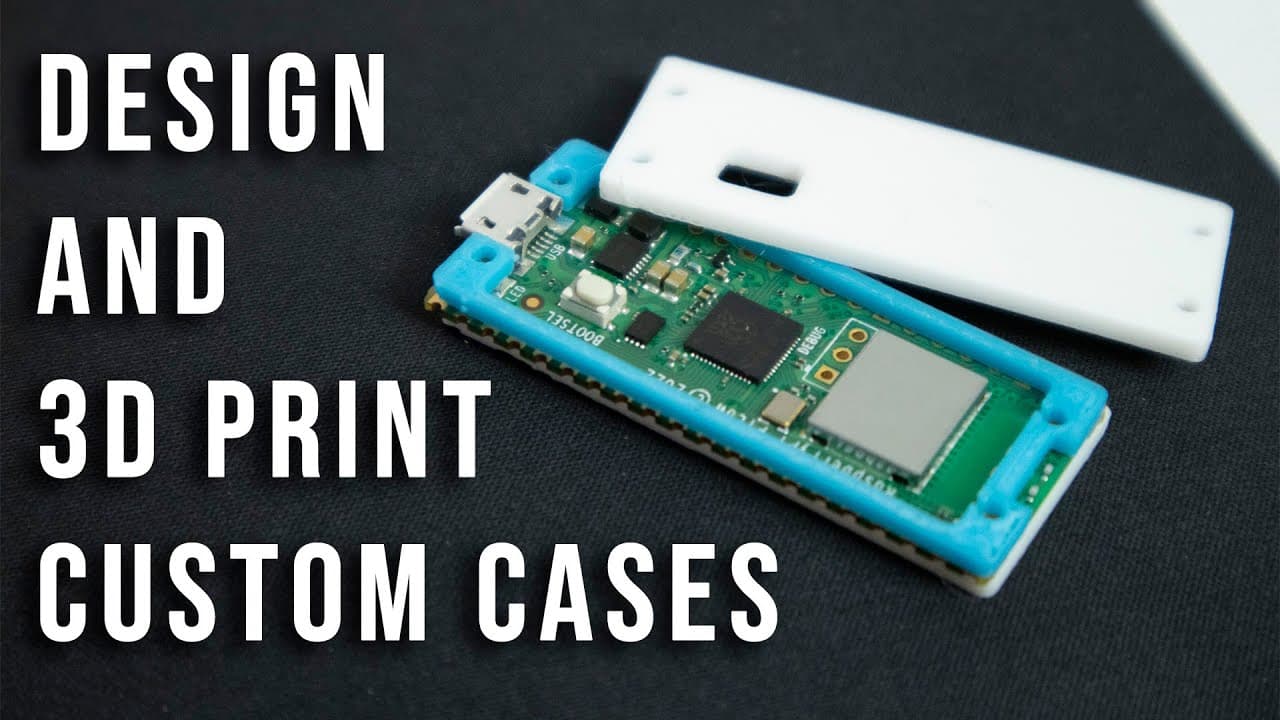
To design and 3D print a custom PCB case, use Inkscape to create a layout based on mechanical drawings of your board, such as the Raspberry Pi Pico. After setting dimensions and creating the necessary shapes and holes, export your design to Tinkercad for 3D modeling and final adjustments before printing. This process simplifies custom case creation for beginners.
Transcript
hey guys what's going on it's don here from nova spare tech and welcome back to the channel and today i'm going to be showing you guys a super simple way on creating and customizing your own case for your pcb boards so let's get started now i've recently read an article from tom's hardware which i'll leave a link down in the description below on in... Read More
Key Insights
- 💄 Inkscape simplifies the process of creating custom PCB cases, making it accessible for beginners.
- 🦾 Accurate mechanical drawings of your PCB are crucial for producing a correctly fitting case.
- 😒 The use of basic shapes and layering techniques can effectively troubleshoot and manage design issues.
- 👻 Exporting to Tinkercad allows for 3D modeling and adjustments essential for preparing designs for printing.
- 🥳 Combining different parts into one cohesive unit can enhance the functionality of the overall design.
- 🐎 The tutorial emphasizes practicality and speed, making PCB case designing less daunting for novices.
- 💬 Users are encouraged to provide feedback and share their own tips in the comments, fostering community interaction.
Install to Summarize YouTube Videos and Get Transcripts
Explore YouTube Video Summarizer or Get YouTube Transcript Extractor
Questions & Answers
Q: What software is used to design the PCB case?
The primary software used for designing the PCB case is Inkscape, a free drawing program. It allows users to create visual layouts before exporting them to Tinkercad for 3D modeling. Tinkercad is also a free online CAD tool that's excellent for beginners, especially when creating simple designs like custom PCB cases.
Q: Why is Inkscape preferred over FreeCAD for beginners?
Inkscape is preferred due to its simpler interface and lower learning curve compared to FreeCAD. While FreeCAD offers advanced modeling features, it can be overwhelming for new users. Inkscape enables quick design and manipulation of shapes, which is particularly beneficial for casual projects like making custom cases.
Q: How do you ensure correct dimensions for your PCB case?
Ensuring correct dimensions involves obtaining mechanical drawings of the PCB, setting the working units in Inkscape to millimeters, and adjusting the design according to these precise measurements. The tutorial emphasizes overlaying the mechanical drawing and adjusting the shapes accordingly to achieve an accurate fit.
Q: What steps are involved in exporting the designed case for 3D printing?
After finalizing the design in Inkscape, the user selects the parts to export as SVG files. These files can then be imported into Tinkercad, where additional adjustments such as height are made. Finally, the designed pieces are exported as STL files, ideal for 3D printing.
Q: Can the same design method be applied to other PCBs?
Yes, the method used can be applied to any PCB board, provided that accurate mechanical drawings are obtained. The techniques shown in the video can be adapted to different sizes and shapes, allowing the user to customize the case for various components as needed.
Q: Are there any limitations to this method of design?
While the method allows for straightforward case creation, it might not suit complex designs requiring intricate housing functionalities. Additionally, shortcuts may lead to small inaccuracies, especially with more advanced components or designs, which is where FreeCAD could be integrated for improved outcomes.
Summary & Key Takeaways
-
The video demonstrates how to create a custom case for PCB boards using Inkscape and Tinkercad, providing an easy approach for beginners.
-
It guides viewers through importing mechanical drawings, setting dimensions, and designing a case that accommodates specific components like the Raspberry Pi Pico.
-
Key steps include using shapes to create the case, ensuring accurate sizing, and effectively managing layers for holes and connectors while maintaining user-friendly techniques.
Read in Other Languages (beta)
Share This Summary 📚
Summarize YouTube Videos and Get Video Transcripts with 1-Click
Try YouTube Summary with ChatGPT & Claude or YouTube Transcript Generator
Explore More Summaries from Novaspirit Tech 📚





Summarize YouTube Videos and Get Video Transcripts with 1-Click
Try YouTube Summary with ChatGPT & Claude or YouTube Transcript Generator