Products
Features
YouTube Video Summarizer
Summarize YouTube videos
Web & PDF Highlighter
Highlight web pages & PDFs
Chat with PDF
Ask any PDF questions with AI
Ask AI Clone
Chat with your highlights & memories
Audio Transcriber
Transcribe audio files to text
Glasp Reader
Read and highlight articles
Kindle Highlight Export
Export your Kindle highlights
Idea Hatch
Hatch ideas from your highlights
Integrations
Obsidian Plugin
Notion Integration
Pocket Integration
Instapaper Integration
Medium Integration
Readwise Integration
Snipd Integration
Hypothesis Integration
Apps & Extensions
Chrome Extension
Safari Extension
Edge Add-ons
Firefox Add-ons
iOS App
Android App
Discover
Discover
Ideas
Discover new ideas and insights
Articles
Curated articles and insights
Books
Book recommendations by great minds
Posts
Essays and notes from readers
Quotes
Inspiring quotes collection
Videos
Curated videos and summaries
Explore Glasp
Glasp Newsletter
Weekly insights and updates
Glasp Talk
Interview series with great minds
Glasp Blog
Latest news and articles
Glasp Use Cases
Learn how others use Glasp
Build & Support
Glasp API
Access Glasp's API for developers
MCP Connector
Connect Glasp to Claude & ChatGPT
Community
Glasp Reddit Community
Students
Student discount and benefits
FAQs
Frequently Asked Questions
AboutPricing
DashboardLog inSign up

How to Organize Your Digital Notes in Evernote
78.6K views
•
May 19, 2020
by
Tiago Forte
YouTube video player
How to Organize Your Digital Notes in Evernote

TL;DR

To organize your digital notes in Evernote, start by using the default inbox for quick saving. Rename notes with clear descriptions, create tasks linked to relevant notes, and move them into appropriate project notebooks for better organization and easy retrieval. Regularly emptying the trash helps maintain a clean and efficient workspace.

Transcript

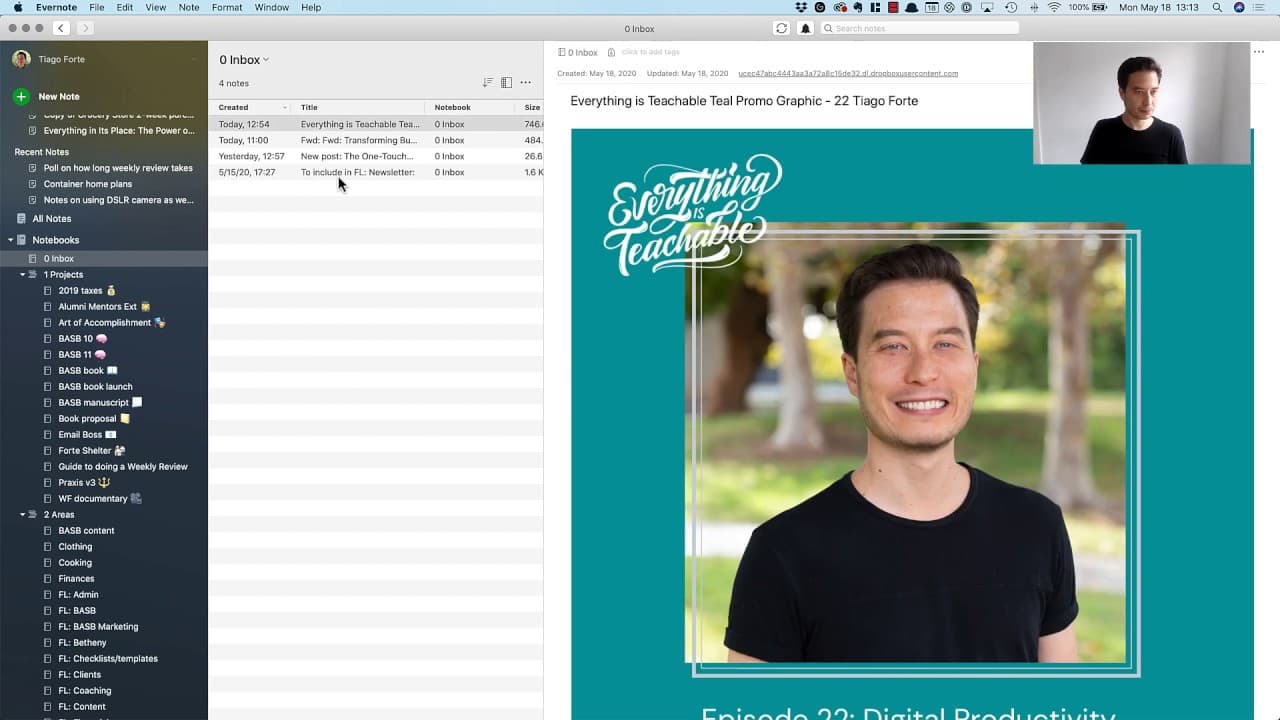
in this video I want to show you the fourth out of five steps that I complete in my weekly review so you can see here my little sticky note has notes as number four and all that means is I want to open up my digital notes app I use an app called Evernote which lives right here in the dock and you can see Evernote is full of different kinds of noteb... Read More

Key Insights

  • 📔 Evernote's inbox serves as the default notebook for quick note-saving.
  • 🎵 Renaming notes with clear descriptions improves organization and accessibility.
  • 🎵 Converting notes into tasks simplifies prioritization and tracking.
  • 📔 Moving notes to project notebooks ensures better organization and easier retrieval.
  • 🪹 Emptying the trash gives a satisfying feeling of a clean and organized Evernote inbox.
  • 😀 Evernote is a versatile app that can be utilized for various types of notes and projects.
  • 👨‍🔬 The ability to save web content directly to Evernote streamlines the research process.

Install to Summarize YouTube Videos and Get Transcripts

Explore YouTube Video Summarizer or Get YouTube Transcript Extractor

Questions & Answers

Q: How can I rename a note in Evernote?

To rename a note, simply click on the note and edit the title to accurately describe its contents.

Q: How can I create tasks using notes in Evernote?

To create a task, copy the note link, use the quick capture feature of your task manager, paste the link, add a description, and save it as a task.

Q: How can I move notes to project notebooks in Evernote?

Identify the project notebook, select the note, and move it to the specific notebook for better organization and easy accessibility.

Q: What is the purpose of the Evernote inbox?

The Evernote inbox serves as the default location for all notes saved, making it easier to find and access them from one centralized spot.

Summary & Key Takeaways

  • The video demonstrates the fourth step in the weekly review process, which involves organizing notes in the Evernote app.

  • The default notebook, called the inbox, is where all notes are initially saved.

  • The video shows how to rename notes, create tasks, and move notes to relevant project notebooks for better organization.


Read in Other Languages (beta)

English

Share This Summary 📚

Summarize YouTube Videos and Get Video Transcripts with 1-Click

Download browser extensions on:

Try YouTube Summary with ChatGPT & Claude or YouTube Transcript Generator

Explore More Summaries from Tiago Forte 📚
NotebookLM Will Change How You Learn – Here’s Why! thumbnail
NotebookLM Will Change How You Learn – Here’s Why!
Tiago Forte
Should Notion Be Your Second Brain? | ft. Thomas Frank thumbnail
Should Notion Be Your Second Brain? | ft. Thomas Frank
Tiago Forte
Inside Ali Abdaal's Second Brain System thumbnail
Inside Ali Abdaal's Second Brain System
Tiago Forte
How to Decide What to Highlight in Ebooks thumbnail
How to Decide What to Highlight in Ebooks
Tiago Forte
Stop Team Chaos! The GTD Way to Get Things Done Together! thumbnail
Stop Team Chaos! The GTD Way to Get Things Done Together!
Tiago Forte
Why Community Is the Key to Your Success (in the Age of AI) thumbnail
Why Community Is the Key to Your Success (in the Age of AI)
Tiago Forte

Summarize YouTube Videos and Get Video Transcripts with 1-Click

Download browser extensions on:

Try YouTube Summary with ChatGPT & Claude or YouTube Transcript Generator

Apps & Extensions

  • Chrome Extension
  • Safari Extension
  • Edge Add-ons
  • Firefox Add-ons
  • iOS App
  • Android App

Key Features

  • YouTube Video Summarizer
  • Web & PDF Summarizer
  • Web & PDF Highlighter
  • Chat with PDF
  • Ask AI Clone
  • Audio Transcriber
  • Glasp Reader
  • Kindle Highlight Export
  • Idea Hatch

Integrations

  • Obsidian Plugin
  • Notion Integration
  • Pocket Integration
  • Instapaper Integration
  • Medium Integration
  • Readwise Integration
  • Snipd Integration
  • Hypothesis Integration

More Features

  • APIs
  • MCP Connector
  • Blog & Post
  • Embed Links
  • Image Highlight
  • Personality Test
  • Quote Shots

Company

  • About us
  • Blog
  • Community
  • FAQs
  • Job Board
  • Newsletter
  • Pricing
Terms

•

Privacy

•

Guidelines

© 2026 Glasp Inc. All rights reserved.