How to Edit Videos like a Pro in CapCut
TL;DR
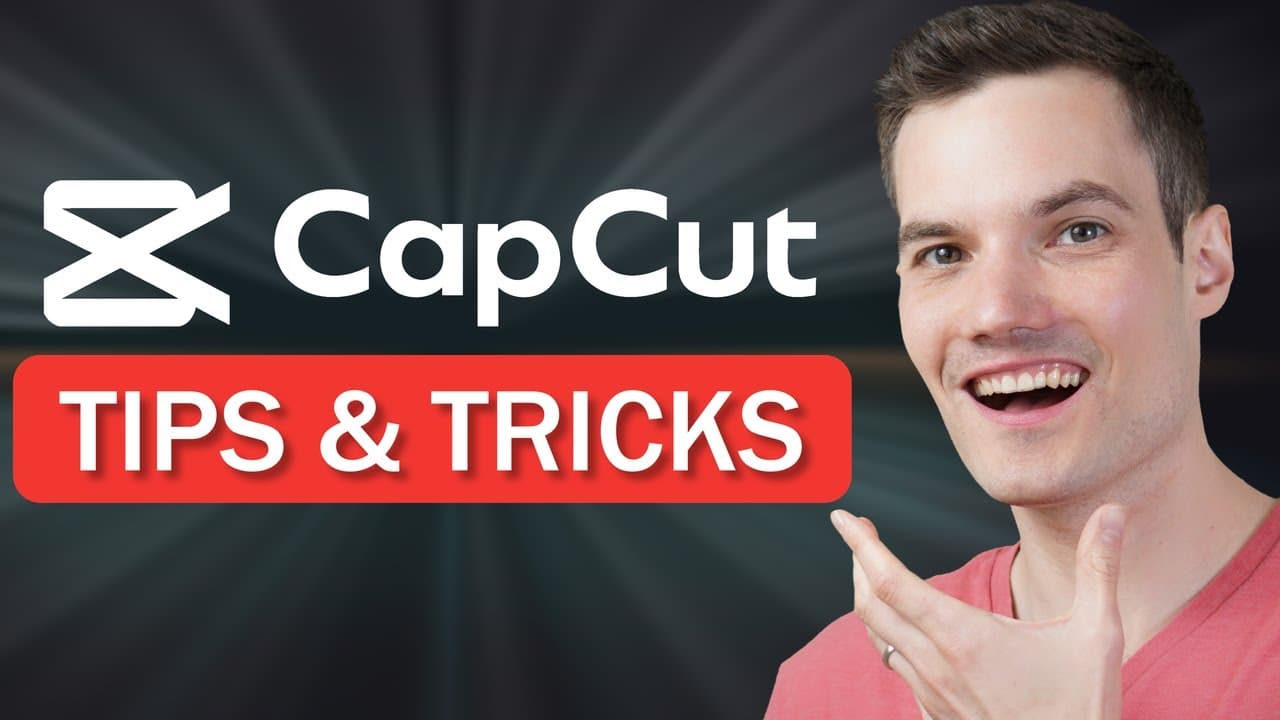
To edit videos effectively in CapCut, use AI enhancements for appearance, adjust audio levels for clarity, and apply engaging effects. Utilize shortcut keys for faster editing, easily change video dimensions for various platforms, and create appealing thumbnails directly within the app. Motion tracking and voiceovers can further elevate your video quality.
Transcript
Hi everyone, Kevin here. Today, we're going to look at how you can edit better in CapCut. For example, we'll look at how you can use shortcut keys to edit so much faster. We'll also look at how you can enhance the way you both look and also sound. We'll even look at how you can prepare videos to post on TikTok, Instagram, or YouTube short... Read More
Key Insights
- 🥶 CapCut is a versatile and free video editing software that offers numerous features and can be used on various devices and platforms.
- 🤨 Users can enhance their appearance in videos using AI-powered face detection and enhancement features, as well as apply a wide range of visual effects to make their videos more engaging.
- 🎮 CapCut provides tools for adjusting and improving audio quality, including volume control, audio level monitoring, noise removal, and voice effects.
- 🤩 Video dimensions can be easily adjusted to fit different platforms, and shortcut keys can significantly enhance the editing process.
- 🎮 Users have the ability to control the speed of video clips, create attractive thumbnails, add transitions and sound effects, and utilize motion tracking for more dynamic and professional-looking videos.
- 🎮 CapCut also offers features for adding voiceovers and adjusting audio settings, ensuring the overall quality of the final video.
Install to Summarize YouTube Videos and Get Transcripts
Explore YouTube Video Summarizer or Get YouTube Transcript Extractor
Questions & Answers
Q: What is CapCut?
CapCut is a free video editing software that offers more features than many paid options. It can be accessed on mobile devices, web browsers, or as a desktop app.
Q: How can I enhance my appearance in videos using CapCut?
CapCut provides AI-powered face detection and enhancement features. You can smooth your skin, whiten your teeth, apply makeup, and make manual improvements to improve your appearance.
Q: Can I add effects to my videos in CapCut?
Yes, CapCut offers a wide range of effects, including video effects and body effects. You can choose from trending effects, drag them onto your timeline, adjust their duration, and apply multiple effects simultaneously.
Q: How can I improve the audio in my videos using CapCut?
CapCut allows you to adjust the volume, monitor audio levels, and remove background noise. You can also apply voice effects and customize audio settings.
Q: Can I adjust the dimensions of my video clips for different platforms in CapCut?
Yes, CapCut allows you to easily adjust the dimensions of your video clips to fit platforms like TikTok, Instagram, or YouTube Shorts. You can choose from preset ratios, customize dimensions, and position your clips accordingly.
Q: Are there shortcut keys available in CapCut to speed up editing?
Yes, CapCut offers a range of shortcut keys to perform actions like splitting clips, disabling clips, zooming in/out, navigating through the timeline, and more. You can customize shortcut keys or choose from preset options.
Q: How can I control the speed of my video clips in CapCut?
CapCut allows you to speed up or slow down video clips by adjusting the duration or using customized speed curves. You can apply speed changes to the entire clip or specific portions.
Q: Can I create customized thumbnails for my videos in CapCut?
Yes, CapCut provides tools to create attractive thumbnails by combining background images, cutout effects, text, and logos. You can export the thumbnail as a still frame and choose the resolution and format.
Key Insights:
- CapCut is a versatile and free video editing software that offers numerous features and can be used on various devices and platforms.
- Users can enhance their appearance in videos using AI-powered face detection and enhancement features, as well as apply a wide range of visual effects to make their videos more engaging.
- CapCut provides tools for adjusting and improving audio quality, including volume control, audio level monitoring, noise removal, and voice effects.
- Video dimensions can be easily adjusted to fit different platforms, and shortcut keys can significantly enhance the editing process.
- Users have the ability to control the speed of video clips, create attractive thumbnails, add transitions and sound effects, and utilize motion tracking for more dynamic and professional-looking videos.
- CapCut also offers features for adding voiceovers and adjusting audio settings, ensuring the overall quality of the final video.
- Enabling proxy mode and optimizing preview quality can help improve editing performance and ensure smoother playback.
Summary & Key Takeaways
-
CapCut is a free video editing software that offers more features than many paid options and can be accessed on mobile devices, web browsers, or as a desktop app.
-
Enhance the way you look in videos using CapCut's AI-powered face detection and enhancement features, including skin smoothing, teeth whitening, and makeup application.
-
Add effects to your videos, such as video effects and body effects, to make them more visually appealing and engaging.
-
Improve the audio in your videos by adjusting the volume, monitoring levels, and using tools like noise removal and voice effects.
-
Easily adjust video dimensions to fit different platforms like TikTok, Instagram, or YouTube Shorts.
-
Use shortcut keys to speed up your editing process and perform actions like splitting clips, disabling clips, zooming in/out, and navigating through the timeline.
-
Control the speed of video clips or specific portions of a clip by adjusting the duration or using customized speed curves.
-
Create attractive thumbnails for your videos within CapCut, combining background images, cutout effects, text, and logos.
-
Add transitions and sound effects to make your video transitions more seamless and impactful.
-
Utilize motion tracking to make objects, like logos, move alongside subjects or specific elements in your videos.
-
Easily add voiceovers to your videos and adjust the volume and settings for optimal audio quality.
-
Improve editing performance by enabling proxy mode and adjusting preview quality.
Read in Other Languages (beta)
Share This Summary 📚
Summarize YouTube Videos and Get Video Transcripts with 1-Click
Try YouTube Summary with ChatGPT & Claude or YouTube Transcript Generator
Explore More Summaries from Kevin Stratvert 📚



Summarize YouTube Videos and Get Video Transcripts with 1-Click
Try YouTube Summary with ChatGPT & Claude or YouTube Transcript Generator