How to Check PowerPoint Slides for Accessibility Issues
TL;DR
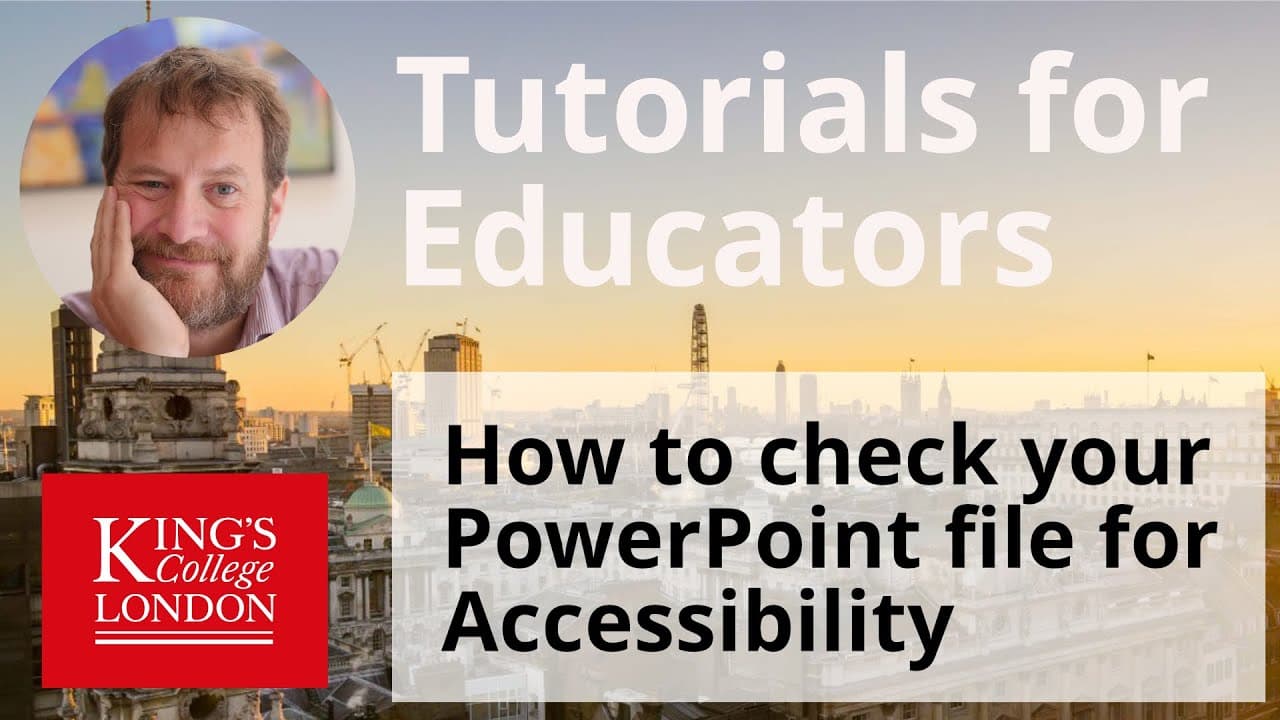
You can check your PowerPoint slides for accessibility issues using the built-in 'Check Accessibility' feature in the Review tab. This tool identifies problems like missing alternative text, tables without headers, and slide title omissions, allowing you to address them quickly before saving your presentation.
Transcript
hello I'm James Clark from the department of physiology at King's College London and in this short tutorial I'm going to show you how you can check your PowerPoint presentations for accessibility you'll see on the screen I have loaded up a PowerPoint presentation it's on statistics but I want to check this for accessibility and I can do so within P... Read More
Key Insights
- ♿ PowerPoint has a built-in accessibility checker that can quickly identify common accessibility issues in presentations.
- 🎟️ Missing alternative text for images, tables without header rows, and missing slide titles are important accessibility problems to address.
- 👤 Pay attention to text contrast to ensure readability for all users.
- 💾 Correcting accessibility problems before saving your file is crucial for inclusive presentations.
- 💁 Alternative text for images is essential for providing necessary information to visually impaired users.
- 👻 The accessibility checker allows you to easily navigate to and fix specific problems within your slides.
- 💋 Consider marking images as decorative if they don't carry any significant information.
Install to Summarize YouTube Videos and Get Transcripts
Explore YouTube Video Summarizer or Get YouTube Transcript Extractor
Questions & Answers
Q: How can I check my PowerPoint presentation for accessibility issues?
Within PowerPoint, go to the review section and click on the "check accessibility" button. This tool will scan your presentation for common accessibility problems.
Q: What are some common accessibility issues that the tool checks for?
The tool checks for missing alternative text for images, tables without header rows, missing slide titles, hard-to-read text contrast, merged or split table cells, and incorrect reading order for slides.
Q: How can I fix accessibility problems related to text contrast?
If you have used white text on a light-colored background, the tool will highlight it as a warning. To fix it, select the text, go to the home tab, and change the text color to black or a more readable color.
Q: What is alternative text for images, and how can I add it?
Alternative text is a hidden figure legend for an image that provides a description of the image for people who cannot see it. To add alternative text, select the image, go to the picture format tab, and enter a short description in the alt text option box.
Summary & Key Takeaways
-
You can check PowerPoint presentations for accessibility within PowerPoint itself by using the "check accessibility" button in the review section.
-
The tool highlights accessibility problems, such as missing alternative text for images, tables without header rows, and missing slide titles.
-
It also provides warnings for issues like hard-to-read text contrast, merged or split table cells, and incorrect reading order for slides.
Read in Other Languages (beta)
Share This Summary 📚
Summarize YouTube Videos and Get Video Transcripts with 1-Click
Try YouTube Summary with ChatGPT & Claude or YouTube Transcript Generator
Explore More Summaries from Dory Video 📚


Summarize YouTube Videos and Get Video Transcripts with 1-Click
Try YouTube Summary with ChatGPT & Claude or YouTube Transcript Generator