How to Bulk Schedule HighLevel Social Posts
TL;DR
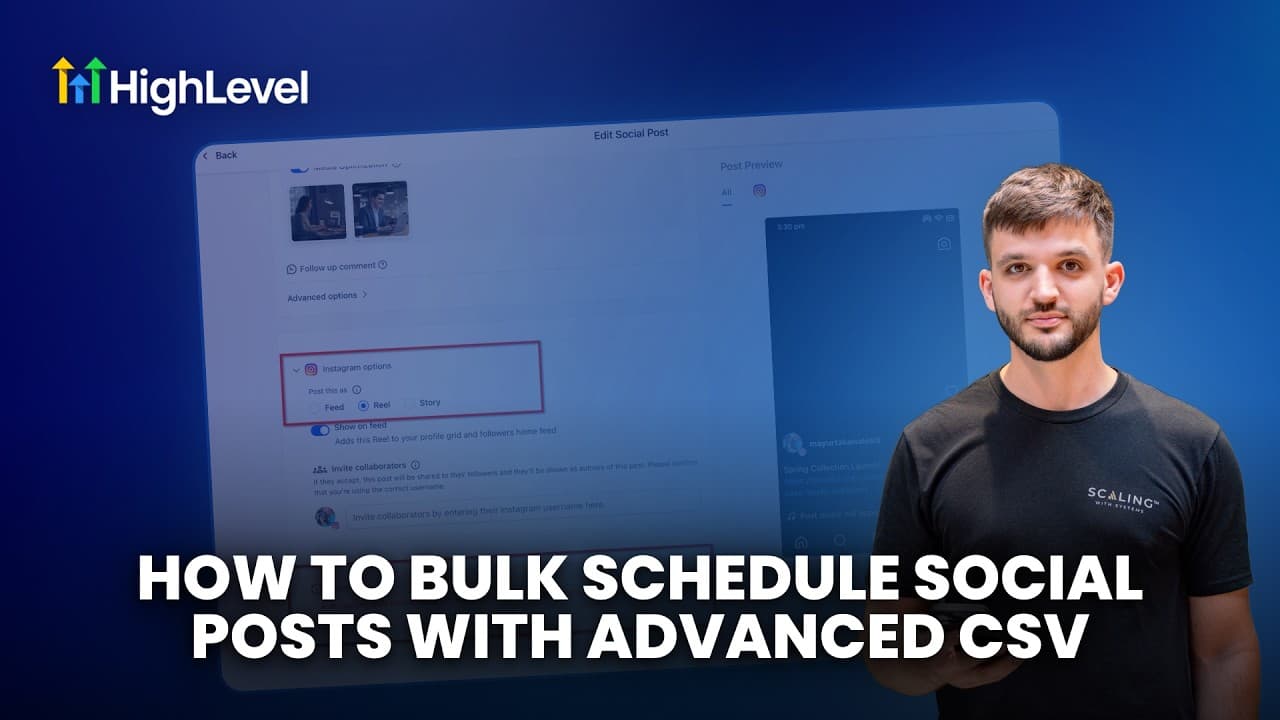
Use HighLevel’s advanced CSV importer to schedule weeks or months of social content from one file, including reels, stories, shorts, first comments, tags, categories, and optional watermarks. Download the sample file, prepare and review the content, select the target channels, enable approval if needed, then resolve every detected error before scheduling the imported posts.
Transcript
In this video, I'm going to introduce you to the advanced CSV importer inside of HighLevel's social planner. This is a really powerful feature because it allows you to import entire weeks and months worth of content all at once from a single CSV file. Now, the CSV importer inside of the social planner has actually got two versions. You've got a bas... Read More
Key Insights
- The advanced CSV importer is a Social Planner feature that can import weeks or months of prepared social content from a single CSV file, reducing the need to create and schedule every post individually inside HighLevel.
- The basic CSV format supports core fields such as date, text, link, and media, while the advanced format adds support for stories, reels, shorts, Google Business Profile fields, tags, categories, first comments, and optional watermarks.
- The sample CSV file is the recommended starting point for first-time users because it provides an existing structure that can be populated manually or with assistance from an AI tool before being reviewed and adjusted.
- The import workflow begins under Marketing, then Social Planner, New Post, and Upload from CSV. Users must choose the advanced format before uploading their completed file and proceeding to channel selection.
- The target social channels are selected after the CSV has been uploaded. The demonstration chooses Facebook and Instagram, although the interface allows users to select any or all available social media channels from the displayed list.
- The approval step is optional and can route imported posts to a client, business owner, or team member for review. When approval is disabled, scheduling sends the imported content directly into the posting schedule.
- The import review screen displays each post’s channel version, caption, media, first comment, post type, watermark, category, tags, and scheduled date and time, allowing users to inspect the populated settings before scheduling.
- The built-in error checker identifies problems before scheduling, such as a reel that has no video attached. Users can correct issues in the original CSV and import it again, or fix them directly within the review screen.
Install to Summarize YouTube Videos and Get Transcripts
Explore YouTube Video Summarizer or Get YouTube Transcript Extractor
Questions & Answers
Q: How do I bulk schedule social posts in HighLevel?
Open Marketing from the left-hand menu, select Social Planner, choose New Post, and click Upload from CSV. Select the advanced format, upload the prepared CSV file, and continue to choose the social channels. After HighLevel processes the file, review every imported post, correct any detected errors, and then schedule the batch.
Q: What is the difference between basic and advanced CSV imports in HighLevel?
The basic CSV format supports standard data such as dates, text, links, and media. The advanced format supports additional capabilities, including stories, reels, shorts, Google Business Profile fields, tags, categories, scheduled first comments, and optional watermarks. These extra fields make the advanced format more suitable for detailed, multi-channel social content plans.
Q: How should I prepare an advanced CSV file for HighLevel?
Download HighLevel’s sample file and use it as the starting structure, especially when completing an advanced import for the first time. Populate it with the planned content manually or use an AI tool to assist with the initial work. Review and adjust the resulting content yourself, then check the formatting tips before uploading the file.
Q: Can HighLevel schedule posts to multiple social channels from one CSV?
Yes. After uploading the advanced CSV file and clicking Next, select the social media channels that should receive the imported content. The demonstration selects Facebook and Instagram, but the interface permits selection of any or all channels shown in the list. HighLevel then creates channel-specific versions that can be reviewed before scheduling.
Q: How does the approval workflow work for imported HighLevel posts?
The approval option appears during the import process after the social channels are selected. It can be enabled when a client, business owner, or team member needs to approve posts before scheduling. If the approval step is left disabled, the imported content proceeds directly to the schedule when the user completes the scheduling action.
Q: What can I review after importing a social media CSV into HighLevel?
The review screen shows all imported posts and their versions for each selected channel. Users can inspect captions, images or other media, automated first comments, watermarks, categories, tags, post types, and scheduled dates and times. It also indicates whether an item is configured as a regular feed post, reel, or story.
Q: How does HighLevel detect errors in advanced CSV imports?
HighLevel validates imported content before the user schedules the batch and marks posts with problems. In the demonstration, it detects reels assigned to Facebook and Instagram that do not include a required video. The list can be filtered to display only posts with errors, making it easier to work through each issue before scheduling.
Q: How can I fix errors found after importing a CSV into HighLevel?
Errors can be corrected in either of two ways shown in the tutorial. Users can return to the original CSV file, repair the content or formatting, and import the file again. Alternatively, they can edit affected posts directly on the import review screen, resolve every listed problem, and schedule the content once validation issues are cleared.
Summary & Key Takeaways
-
HighLevel’s advanced CSV importer is accessed through Marketing, Social Planner, New Post, and Upload from CSV. Unlike the basic format, it supports additional post types and fields, including stories, reels, shorts, Google Business Profile fields, tags, categories, automated first comments, and optional watermarks for more detailed bulk scheduling.
-
First-time users should download the sample CSV and use it as the foundation for their content. The file can be populated manually or with help from an AI tool, followed by manual review and adjustments. Checking HighLevel’s formatting tips before uploading can reduce missing data, broken media references, and other import problems.
-
After uploading the CSV, users select the social channels, optionally enable an approval workflow, and create the import. HighLevel then displays each channel-specific post with its caption, media, first comment, settings, and scheduled time. Built-in validation identifies errors, which can be filtered and corrected before the entire batch is scheduled.
Read in Other Languages (beta)
Share This Summary 📚
Summarize YouTube Videos and Get Video Transcripts with 1-Click
Try YouTube Summary with ChatGPT & Claude or YouTube Transcript Generator
Explore More Summaries from HighLevel 📚






Summarize YouTube Videos and Get Video Transcripts with 1-Click
Try YouTube Summary with ChatGPT & Claude or YouTube Transcript Generator