How to Install an mSATA SSD in a Laptop
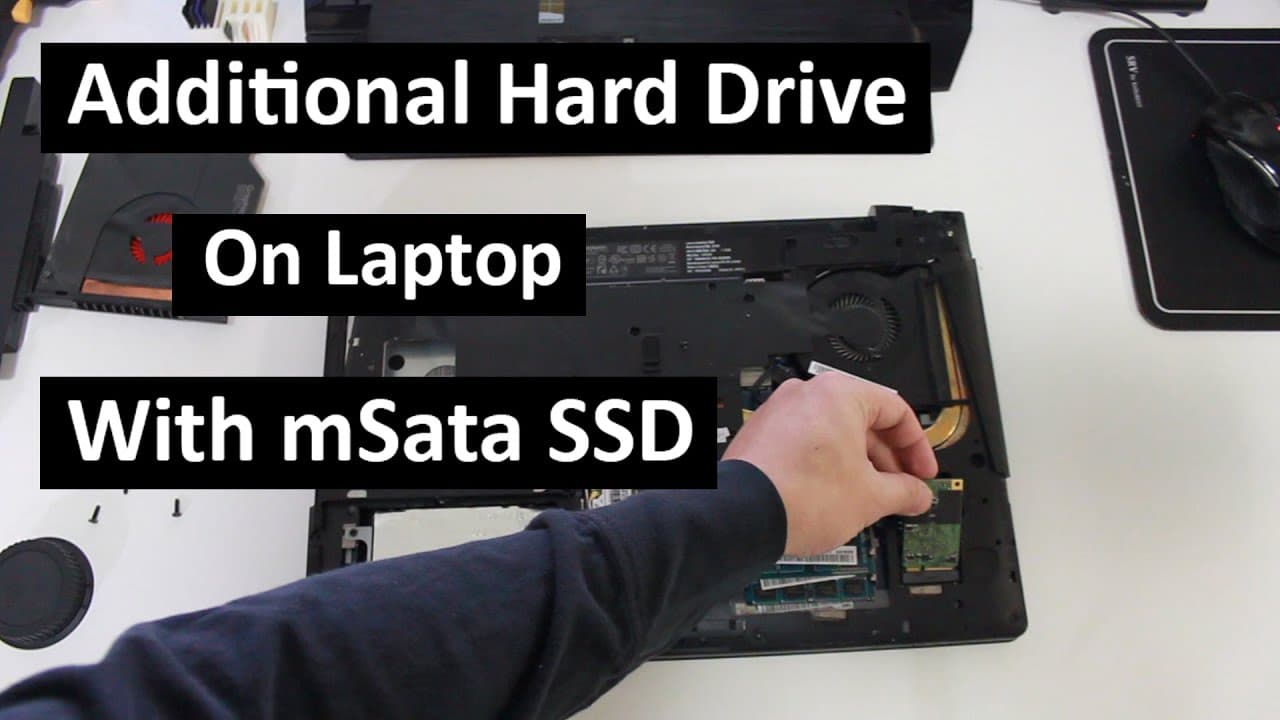
TL;DR
To install an mSATA SSD in a laptop, first check if your model supports it by researching online. Disassemble your laptop if needed, locate the mSATA slot, and securely install the SSD. After installation, verify the drive's recognition in the BIOS before reassembling the laptop, and consider using software RAID for improved performance.
Transcript
hey guys what's going on it's Don here from Nova Spirit Tech and if you hearing my voice a little I am sick uh my wife is sick my three-year-old little bacteria is sick and it's almost inevitable that I am going to get sick so with that being said what we're going to be doing today is installing a second hard drive to our laptops right here right n... Read More
Key Insights
- 💻 The installation process can vary greatly depending on the laptop model, especially regarding access to hard drive bays.
- 👨🔬 Before purchasing hardware, researching model specifications online can save time and avoid compatibility issues.
- 👀 MSA SSDs are a cost-effective solution for users looking to upgrade storage without replacing the entire hard drive.
- ❓ Proper handling during disassembly is essential to prevent damage to internal components during installation.
- 🐎 Utilizing software-based RAID, like Rapid Drive, can significantly enhance performance by improving data access speeds.
- 👶 It’s important to verify new hardware in the BIOS after installation to ensure it’s recognized properly by the system.
- 🫵 The video encourages viewer engagement by inviting questions and suggestions for future content, fostering community interaction.
Install to Summarize YouTube Videos and Get Transcripts
Explore YouTube Video Summarizer or Get YouTube Transcript Extractor
Questions & Answers
Q: What is an MSA SSD, and why would someone want to install one?
An MSA SSD is a micro SATA solid-state drive that plugs directly into a laptop's PCIe slot. Adding an MSA SSD improves storage capacity and performance, enabling faster data read/write speeds compared to traditional hard drives. This upgrade is particularly beneficial for users needing extra storage or seeking to enhance their laptop's speed.
Q: How can I determine if my laptop supports MSA SSDs?
To verify MSA SSD compatibility, type your laptop model number along with "MSA" into a search engine. This should yield results from forums and tech sites discussing whether your specific model supports MSA SSDs. If documentation from the manufacturer isn't clear, community insights can provide helpful information.
Q: What challenges might arise during the installation process?
Challenges may include a lack of a modular bay, necessitating the removal of the entire laptop bottom panel for access, which can be time-consuming. Each laptop design differs, meaning the amount of disassembly required can vary. Ensuring screws are correctly removed and components are handled carefully is crucial to avoid damage.
Q: What is the purpose of using RAID disc caching with an SSD and hard drive combination?
RAID disc caching allows the computer to utilize the SSD's speed for read/write operations before transferring the data to a slower hard drive. This setup maximizes performance, as the SSD handles data quickly while the hard drive stores larger amounts of data long-term, enhancing overall responsiveness.
Summary & Key Takeaways
-
The video guides viewers on how to install an MSA SSD into a laptop, especially useful if the laptop lacks a modular bay for easy access.
-
The host suggests checking laptop compatibility with MSA SSDs through online research, as not all laptops support this hardware upgrade.
-
After successfully installing the SSD and accessing BIOS, users can utilize software-based RAID for improved performance and responsiveness of their machines.
Read in Other Languages (beta)
Share This Summary 📚
Summarize YouTube Videos and Get Video Transcripts with 1-Click
Try YouTube Summary with ChatGPT & Claude or YouTube Transcript Generator
Explore More Summaries from Novaspirit Tech 📚






Summarize YouTube Videos and Get Video Transcripts with 1-Click
Try YouTube Summary with ChatGPT & Claude or YouTube Transcript Generator