How to use Obsidian Mobile 2.0 widgets on iOS and Android
TL;DR
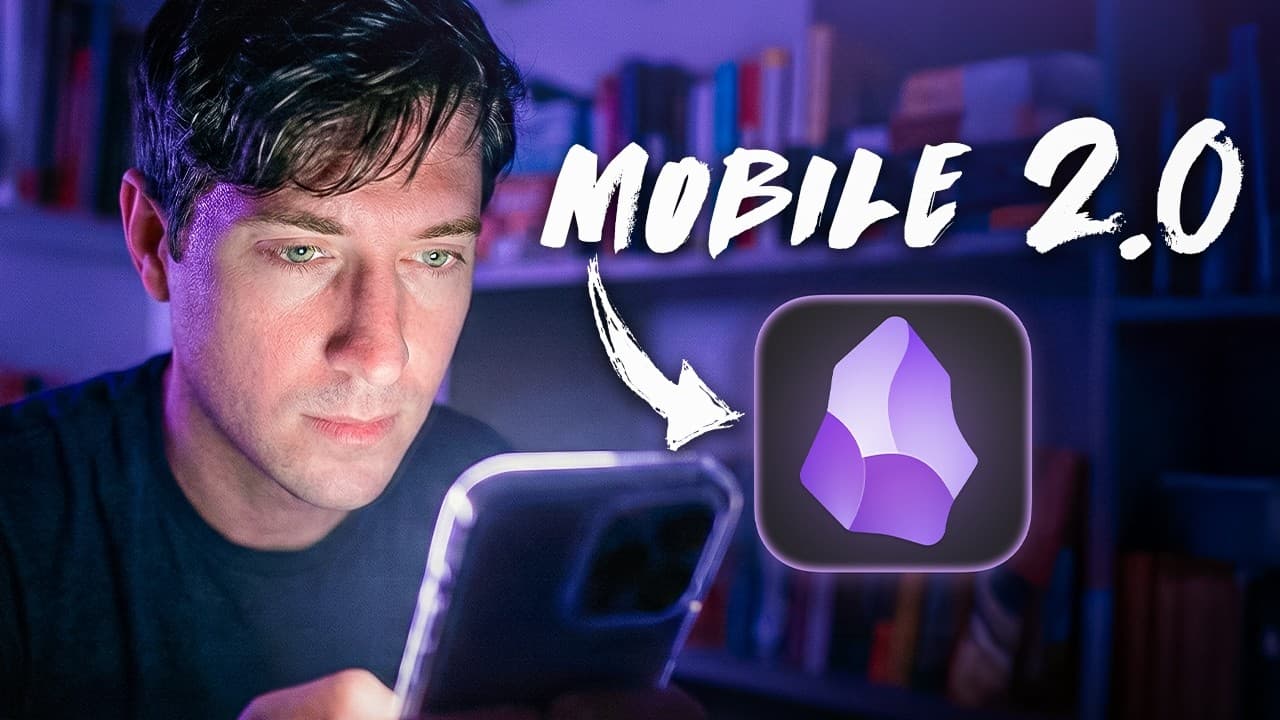
Obsidian Mobile 2.0 adds clickable widgets for the lock screen, home screen, and control center, enabling quick access to daily notes, home base, or new notes. This setup helps hijack the impulse to scroll by directing it toward your own notes and ideas. You can configure vaults, bookmarking, and preloaded searches to tailor quick actions across devices.
Transcript
Do you ever absent-mindedly reach for your phone? Do you ever swipe around until you find an app that'll give you just a splash of dopamine? Well, if you don't, good for you. But for the rest of us, how nice would it be to turn our impulsive phone habits into something good. In this new update of the Obsidian app, I believe we can. And I want to sh... Read More
Key Insights
- Obsidian Mobile 2.0 introduces widgets that jump directly to daily notes, home base, or new notes, reducing friction and speeding idea capture.
- Widgets can be added on the home screen or lock screen and can be configured to open specific vaults and notes, including bookmarked notes for quick access.
- Control Center shortcuts can be customized to perform the same quick actions, enabling instant navigation from any page.
- The home base note is essential in the workflow, serving as a reliable hub for navigation and context across the vault.
- Bookmarks are used to enable the view note widget, which previews and opens the bookmarked home base or other important notes.
- Daily notes and bookmarks sync through the Obsidian vault setup, ensuring quick access to current or critical notes.
- The update emphasizes cross-device compatibility, making the feature usable on both iOS and Android platforms.
- The overall aim is to reduce impulsive app switching by providing productive alternatives to dopamine-driven scrolling and information overload.
Install to Summarize YouTube Videos and Get Transcripts
Explore YouTube Video Summarizer or Get YouTube Transcript Extractor
Questions & Answers
Q: How do you add a daily note widget in Obsidian Mobile 2.0
To add a daily note widget you press and hold on the home screen to enter edit mode, choose add widget, type Obsidian, then select daily note. You can assign the widget to a specific vault like idea verse and confirm the selection. This creates a one-tap shortcut that opens the daily note directly, streamlining daily idea capture.
Q: What is the home base note and why is it important
The home base note acts as a central dashboard for the idea verse. It is set as a widget so you can jump back to it with a single tap. Having a home base note gives you confidence whenever you feel lost, because it provides a stable landing page to navigate your vaults and plan your next steps.
Q: How can you create a lock screen widget for Obsidian
To create a lock screen widget, you customize the lock screen in the device settings and add Obsidian widgets. You can set up buttons like new note, daily note, and search, and then arrange them on the lock screen so that a single tap opens the corresponding action in Obsidian, enabling instant note taking on wake.
Q: What is the view note widget and how is it used
The view note widget bookmarks a note and shows a small preview. You first bookmark a note in Obsidian, then select it for the widget. This lets you instantly open a bookmarked home base note or other important notes from the widget, providing quick context access without scrolling.
Q: How do you set up a control center shortcut for Obsidian
In the control center editor, you add a new Obsidian shortcut and choose between actions like search or open a note. You pick the correct vault, and optionally prefill a search query. The shortcut then appears in the iPhone control center for one-tap access to Obsidian actions.
Q: Can you use Obsidian widgets on Android as described
Yes, the update is described as working across iOS and Android, so you can set up the same types of widgets on Android as on iOS. The key steps are adding home screen or lock screen widgets, linking them to your vaults, and choosing daily note, new note, or search actions for quick access.
Q: Why would you want to hijack novelty bias with Obsidian widgets
The idea is to redirect impulsive scrolling toward productive behavior. By making daily notes, home base, and quick searches readily accessible, you reduce friction and the lure of casual apps. This keeps you anchored to your own notes and ideas, which supports consistent thinking and idea development rather than mindless consumption.
Q: What additional resources are mentioned for Obsidian and Ideaverse
The video mentions Ideaverse Pro as a complete Obsidian setup and course, promising updates as Obsidian changes. It also promotes a beginner Obsidian setup, plus an Obsidian basics course for foundational learning, all linked in the description for further study.
Summary & Key Takeaways
-
This section explains how the Obsidian Mobile 2.0 widgets work across lock screen and home screen, plus how to use control center to jump into notes instantly, reducing friction.
-
The video demonstrates creating widgets for daily notes, home base, and new notes, including selecting a vault and bookmarking notes for quick access.
-
The presenter emphasizes using these widgets to hijack novelty bias by guiding impulsive checking toward productive note taking and reviewing your idea verse.
Read in Other Languages (beta)
Share This Summary 📚
Summarize YouTube Videos and Get Video Transcripts with 1-Click
Try YouTube Summary with ChatGPT & Claude or YouTube Transcript Generator
Explore More Summaries from Linking Your Thinking with Nick Milo 📚






Summarize YouTube Videos and Get Video Transcripts with 1-Click
Try YouTube Summary with ChatGPT & Claude or YouTube Transcript Generator