How to Install Parrot OS on Raspberry Pi 3
TL;DR
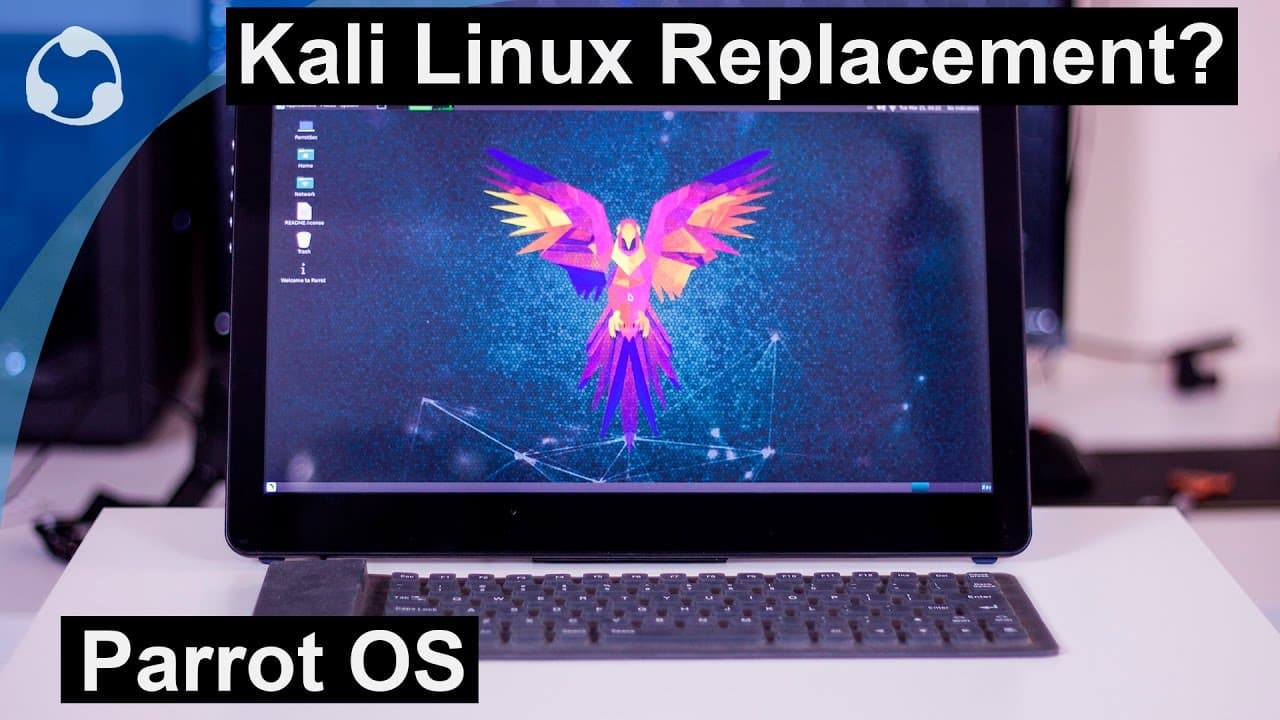
To install Parrot OS on a Raspberry Pi 3, download the image from the official Parrot Security website, use Etcher to flash the image onto an SD card, and then configure the system by setting a username/password and adjusting overscan settings. Parrot OS emphasizes anonymity with built-in Tor support and features a user-friendly Mate desktop environment.
Transcript
hey guys what's going on it's Don here from Nova Spirit Tech and is parro OS the C Linux replacement for Raspberry Pi I'm going to show you guys how to install it you can check it out for yourself so let's get started so guys the first thing you want to do is navigate over to parot sec.org and I'll leave all the links in the description below now t... Read More
Key Insights
- 😚 Parrot OS can be downloaded from its official site and is more efficient to install using Etcher than other tools.
- 👤 Users will need to configure initial settings, such as overscan and password, to complete the booting process effectively.
- ♻️ The Mate desktop environment in Parrot OS is widely regarded for its simplicity and usability compared to other environments, offering a more tailored user experience.
- 👻 The inclusion of Tor within Parrot OS allows users to maintain anonymity while browsing, showcasing the OS's focus on privacy.
- 👤 Parrot OS operates with a collection of tools similar to those found in Kali Linux, but focuses more on user accessibility and performance in network anonymity.
- 🔒 Regular system updates are essential for maintaining software security and performance in the operating system.
- 👤 Users can easily switch between anonymous browsing on the Tor network and normal internet access through intuitive application menus.
Install to Summarize YouTube Videos and Get Transcripts
Explore YouTube Video Summarizer or Get YouTube Transcript Extractor
Questions & Answers
Q: What steps should I follow to install Parrot OS on my Raspberry Pi?
To install Parrot OS, first navigate to the official Parrot Security website to download the appropriate image for Raspberry Pi. Use Etcher to flash the image onto an SD card. After inserting the SD card into your Raspberry Pi, the first boot may require navigating to a prompt by pressing Control-Alt-F1 and entering the username and password. Configure settings and update the system to complete the setup.
Q: Why should I use Etcher over Win32 Dis Imager for flashing the Parrot OS image?
Etcher is preferred because it provides a more user-friendly interface and efficiently manages the flashing process by allowing you to use zip files without the need for extraction. It also checks the integrity of the copied files, ensuring that the image is properly installed on the SD card, which is crucial for stable performance on your Raspberry Pi.
Q: How can I overcome the overscan issue on Parrot OS during the first boot?
To address the overscan issue, access the boot configuration file by navigating to it after the initial boot prompt. Use a text editor, such as Nano, to add the line "disable_overscan=1" to the config.txt file. This adjustment will help properly display the desktop environment without screen borders being cut off.
Q: What makes Parrot OS different from Kali Linux?
While both Parrot OS and Kali Linux serve as security-focused Linux distributions, Parrot emphasizes user privacy and anonymity, especially through its robust Tor integration. Parrot also features a more user-friendly desktop environment with Mate, which many users prefer over the Gnome desktop used in Kali, making it a suitable option for those seeking ease of use.
Summary & Key Takeaways
-
Parrot OS can be installed on Raspberry Pi using a straightforward process that involves downloading from the official website and flashing the image using Etcher, which simplifies the installation task.
-
Upon initial boot, users may need to set their username and password, edit settings to disable overscan, and expand the filesystem in order to access the operating system's GUI.
-
Parrot OS is designed for anonymity, incorporating tools that facilitate secure browsing through the Tor network while offering a user-friendly desktop environment with the Mate interface.
Read in Other Languages (beta)
Share This Summary 📚
Summarize YouTube Videos and Get Video Transcripts with 1-Click
Try YouTube Summary with ChatGPT & Claude or YouTube Transcript Generator
Explore More Summaries from Novaspirit Tech 📚






Summarize YouTube Videos and Get Video Transcripts with 1-Click
Try YouTube Summary with ChatGPT & Claude or YouTube Transcript Generator