How to Launch Browsers with Selenium Java
TL;DR
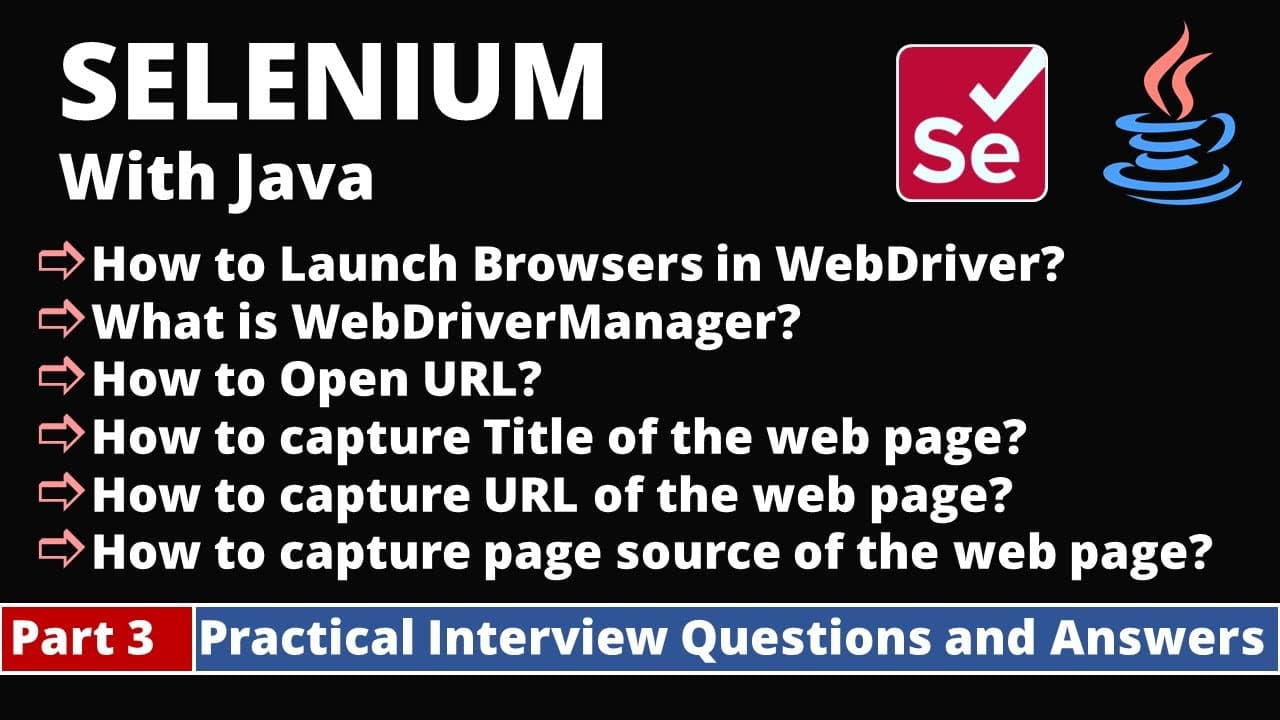
Launch a browser in Selenium Java by downloading the browser-specific driver, setting its executable path with System.setProperty, and creating the corresponding driver object. Store that object in a WebDriver variable, then call get with the application URL to open a page. The driver version should match the installed browser version and operating system.
Transcript
hey everyone uh welcome you all so in the today's video we are going to see some of the important entry questions from selenium webdriver now let's get started okay so the first question is how to launch browsers in driver and the second question is how to open url then how to capture title of the webpage then we will see how to capture url... Read More
Key Insights
- • Browser automation setup requires a browser-specific driver executable. The tutorial uses ChromeDriver for Chrome, GeckoDriver for Firefox, and EdgeDriver for Microsoft Edge, with each executable serving as the connection required to launch its corresponding browser from Selenium WebDriver.
- • Driver selection depends on the installed browser version and operating system. The tutorial checks browser version information through each browser's help or settings area, then selects a compatible driver release and the appropriate available operating-system package before downloading it.
- • Driver downloads are provided as ZIP files that must be extracted. After extraction, the resulting executable file, such as chromedriver.exe, is kept in a known folder because its complete location is supplied later in the Java automation code.
- • System.setProperty configures the driver executable before the browser object is created. It accepts a key and a value, where the browser-specific WebDriver property is the key and the full location of the downloaded executable is the value.
- • ChromeDriver is a browser-specific class that implements the WebDriver interface. Creating a ChromeDriver object invokes its default constructor, which automatically launches Chrome after the driver property has been configured and the required Selenium class has been imported.
- • A WebDriver variable can hold an object created from a browser-specific driver class. The tutorial presents WebDriver driver = new ChromeDriver() as an alternative to declaring the variable directly as ChromeDriver, enabling access to WebDriver methods through the interface reference.
- • The get method opens an application URL in the browser controlled by the driver. Launching the browser and loading a page are separate actions: object creation starts the browser, while driver.get receives the URL and navigates the open browser to it.
- • The practical interview topics include launching browsers, opening URLs, capturing page titles, capturing current URLs, capturing page source, and understanding WebDriverManager. The demonstrated transcript focuses primarily on manual driver preparation, Chrome startup, URL navigation, and the beginning of Firefox configuration.
Install to Summarize YouTube Videos and Get Transcripts
Explore YouTube Video Summarizer or Get YouTube Transcript Extractor
Questions & Answers
Q: How do you launch Chrome with Selenium WebDriver in Java?
Download a ChromeDriver release that corresponds to the installed Chrome version, extract chromedriver.exe from the downloaded ZIP file, and keep it in a known folder. In Java, call System.setProperty with the Chrome WebDriver property as the key and the executable location as the value. Then create a ChromeDriver object, optionally assigning it to a WebDriver variable. Creating that object launches Chrome.
Q: How do you open a URL with Selenium WebDriver?
Create the browser driver object first so that Selenium launches the selected browser. Then call the get method through that driver object and pass the application URL as its argument. The browser-launch statement and the navigation statement perform separate tasks: the driver constructor starts the browser, while the get call opens the supplied application address in the browser controlled by that driver.
Q: Why must the browser driver version be checked before downloading it?
The tutorial directs users to compare the installed browser version with the available driver releases before downloading an executable. For Chrome, the version is checked under Help and About Google Chrome. For Edge, it is checked under Help and Feedback and About Microsoft Edge. The matching release is then selected, along with the package appropriate for the operating system.
Q: Which driver executables are used for Chrome, Firefox, and Edge?
Chrome uses ChromeDriver, Firefox uses GeckoDriver, and Microsoft Edge uses EdgeDriver. The tutorial shows these as browser-specific executable files that must be downloaded and extracted before writing the automation script. ChromeDriver is obtained from the ChromeDriver site, GeckoDriver releases are found through Mozilla's GitHub releases, and EdgeDriver is downloaded from the Microsoft Edge developer location.
Q: What does System.setProperty do in Selenium browser setup?
System.setProperty supplies Selenium with the location of the browser-specific driver executable. The statement takes two arguments: a key associated with the selected browser driver and a value containing the executable's path and file name. In the Chrome example, this configuration is completed before creating the ChromeDriver object, allowing its constructor to launch the Chrome browser successfully.
Q: Why can a ChromeDriver object be stored in a WebDriver variable?
A ChromeDriver object can be assigned to a WebDriver variable because ChromeDriver is one of the browser-specific classes that implements the WebDriver interface. The tutorial also identifies FirefoxDriver and EdgeDriver as implementations. This relationship allows code to declare a WebDriver reference, assign a specific browser driver object to it, and access the WebDriver methods through that shared interface.
Q: How do you prepare a downloaded browser driver for Selenium?
Download the driver package that matches the browser version and operating system, then extract the ZIP file into a folder. The extracted folder contains the executable driver file needed by Selenium. Keep track of its complete path, including the executable name, because that location becomes the value passed to System.setProperty before the corresponding browser-driver object is created.
Q: What Selenium WebDriver interview topics are covered in the tutorial?
The listed practical interview topics are how to launch browsers in WebDriver, how to open a URL, how to capture a page title, how to capture the page URL, how to capture page source, and what WebDriverManager is. The supplied transcript demonstrates project preparation, manual driver downloading, system-property configuration, browser-object creation, Chrome launching, URL navigation, and the start of Firefox setup.
Summary & Key Takeaways
-
The tutorial begins with a Maven project whose pom.xml already contains a Selenium 4 beta dependency. A Java class with a main method is created under the test package. The initial practical task is preparing browser-specific executable drivers before writing the Selenium automation statements that launch a browser.
-
Chrome, Firefox, and Edge require corresponding browser drivers. The tutorial identifies ChromeDriver for Chrome, GeckoDriver for Firefox, and EdgeDriver for Edge. Each driver is downloaded as a ZIP file from its provider, selected according to the installed browser version and operating system, extracted, and retained for use by the automation script.
-
The browser is launched by setting the appropriate WebDriver system property to the executable location and creating a browser-driver object. Because browser-specific driver classes implement the WebDriver interface, their objects can be assigned to a WebDriver variable. Calling the get method with an application URL then opens that page in the launched browser.
Read in Other Languages (beta)
Share This Summary 📚
Summarize YouTube Videos and Get Video Transcripts with 1-Click
Try YouTube Summary with ChatGPT & Claude or YouTube Transcript Generator
Explore More Summaries from SDET- QA 📚
Summarize YouTube Videos and Get Video Transcripts with 1-Click
Try YouTube Summary with ChatGPT & Claude or YouTube Transcript Generator