How to build Gemini Gems with live data sources
TL;DR
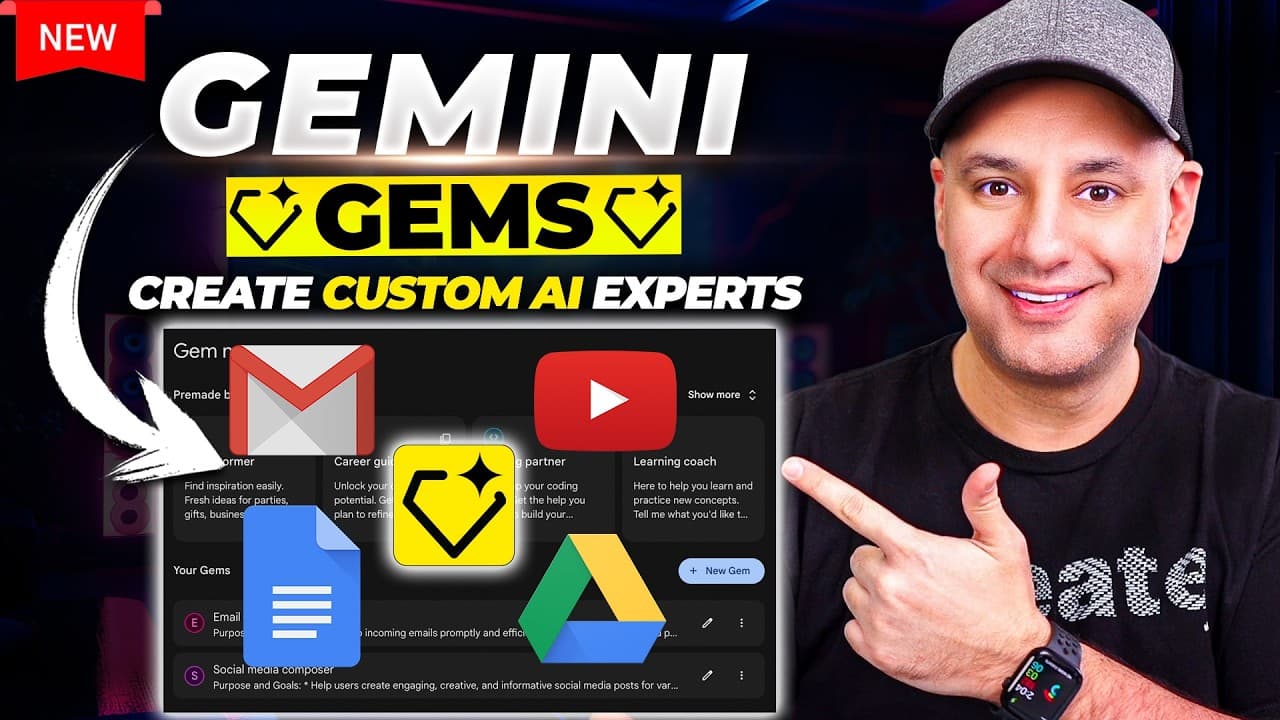
Gemini Gems pull live data from Gmail, Google Drive, and YouTube and are customized with your own instructions and knowledge base. You must upgrade to Gemini Advance to use gems, then create and manage them in the gem manager, using the prompt generator to build detailed prompts. The system supports live data extensions and Gmail drafting integrations.
Transcript
Google just released a brand new update inside of Gemini they're called Gem and what these gems are they're a very customized version of Google Gemini and you could build them with your own custom instructions and with your own data and what's really unique about this which just is completely something that none of the other chat Bots could do it c... Read More
Key Insights
- Gems use live data connections to Gmail, Google Drive, and YouTube, enabling real time information access.
- The Gemini Advance upgrade is required to use Gems, implying a paid tier for this capability.
- Gems can be created with a single sentence prompt and then enhanced with a prompt generator for richer behavior.
- Extensions add live data access to the Gemini ecosystem, expanding usable sources beyond static prompts.
- A gem can draft emails or summaries and directly interact with Gmail and Google Docs from the interface.
- The gem manager stores all user created gems and makes them accessible for testing and deployment.
- Gems support summarization and reformatting across connected documents and emails in real time.
- Users can tailor instruction sets for highly specific tasks like replying to emails in a chosen tone.
Install to Summarize YouTube Videos and Get Transcripts
Explore YouTube Video Summarizer or Get YouTube Transcript Extractor
Questions & Answers
Q: How do I enable live data in Gemini Gems
To enable live data in Gemini Gems you need to upgrade to Gemini Advance and turn on extensions that provide access to Gmail, Google Docs, and Google Drive. The process involves selecting extensions in the gem settings, then creating a new gem and choosing the data sources you want connected. This enables real time data integration.
Q: What is the role of the gem manager
The gem manager is where you view, edit, and organize all of your created Gems. You can open pre made Google created examples to study their instructions, copy them, and then customize your own. It serves as the central hub for saving, testing, and deploying your custom AI workflows.
Q: How can I make a simple gem for email replies
You can create a gem with a concise prompt such as replying to emails in a friendly yet professional tone. The gem manager provides a prompt generator that expands this simple instruction into a detailed template, including tone, style, and other considerations. You can test drafts live and adjust as needed.
Q: Can gems pull data from Google Docs
Yes, gems can pull data from Google Docs through the designated extension. You can set up a gem to summarize content from documents or pull in information to answer questions. The live data access allows the gem to reflect updates automatically as your documents change.
Q: What is the function of the prompt generator
The prompt generator provides a richer, more detailed instruction set from a short initial prompt. It creates additional rules, tone guidance, and task constraints, which the gem then applies to produce more precise outputs. It helps users customize behavior without writing lengthy prompts manually.
Q: Is it possible to draft Gmail messages directly from the gem
Yes, you can draft Gmail messages directly from the gem interface. The gem can generate a draft based on your instructions and then you can share or send it, or save it to Google Docs. This reduces manual re typing and speeds up email workflows.
Q: What happens if I want to expand a gem later
You can revisit the gem in the gem manager and edit its instructions or add new extensions. The live data connections will adapt to updated sources, and you can refine the prompt with additional guidelines or renew the data scope to fit evolving needs.
Q: How do you preview a gem’s instructions
You preview a gem by opening it in the gem manager where the title and instructions are displayed. You can copy the instruction set to study how it is designed, and then you can modify or expand it before saving the updated version for testing and use.
Summary & Key Takeaways
-
Gemini Gems are customizable AI experts that can access live data from Google properties to perform tasks with user defined instructions.
-
Gems are created and edited in a dedicated gem manager, where you can preview, test, and tailor prompts for specific workflows.
-
The tutorial demonstrates using extensions to connect Gmail, Google Docs, and Drive to Gemini Gems for real time data handling and document interaction.
Read in Other Languages (beta)
Share This Summary 📚
Summarize YouTube Videos and Get Video Transcripts with 1-Click
Try YouTube Summary with ChatGPT & Claude or YouTube Transcript Generator
Explore More Summaries from Skill Leap AI 📚




Summarize YouTube Videos and Get Video Transcripts with 1-Click
Try YouTube Summary with ChatGPT & Claude or YouTube Transcript Generator