How to Create Full-Length AI Videos in InVideo
TL;DR
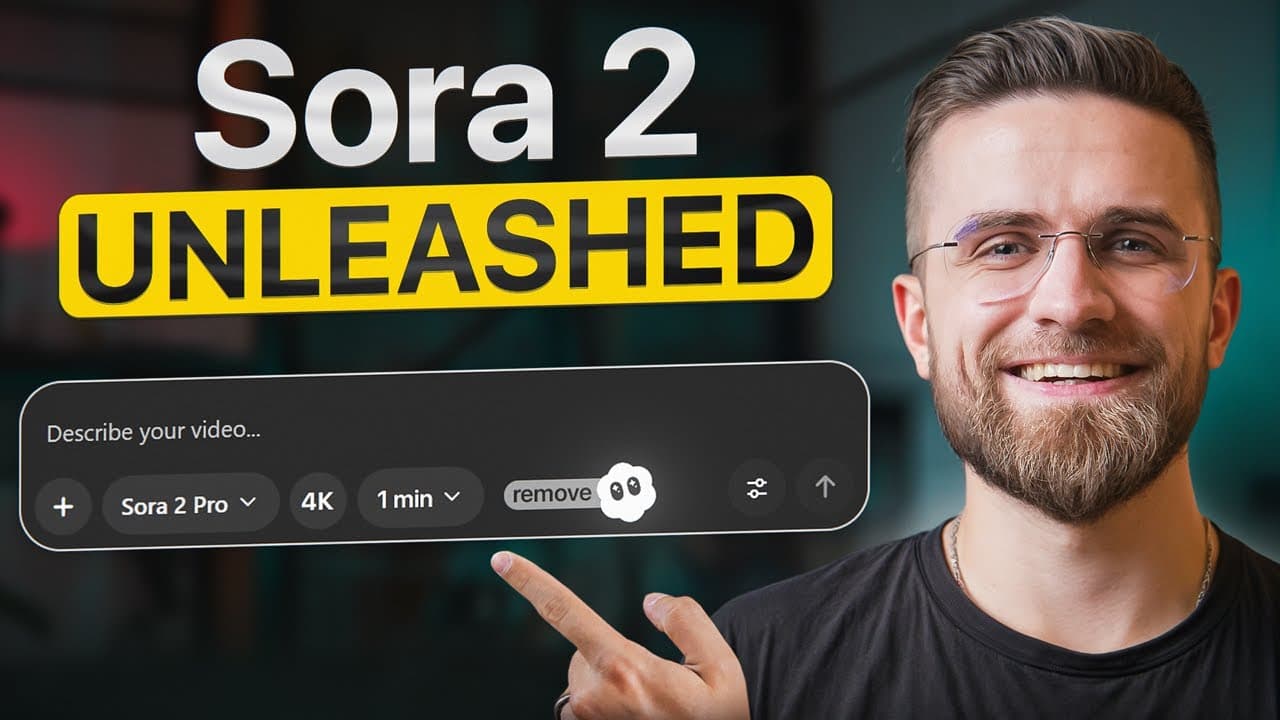
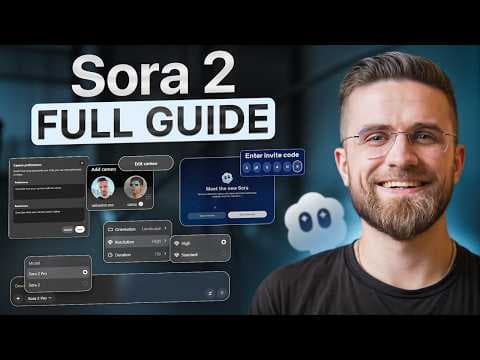
Set InVideo AI to v4.0, describe the desired video, choose its duration and platform, then select Media Ultra to access flagship models such as Sora 2 and Veo 3.1. The platform can generate videos up to two minutes with visuals, music, scripting, and voice-over, while its editing interface accepts text commands for changing shots, soundtracks, lighting, and pacing.
Transcript
Sora 2 is stunning, but there's a catch. Right now, you're limited to 10 second clips. They're watermarked and only available in the US and Canada. Unless you know about this invido is one of the only official OpenAI partners with native Sora 2 integration. It changes everything. Here's what you're getting. Fulllength videos, no watermarks, access ... Read More
Key Insights
- InVideo AI v4.0 provides access to flagship generation models through one browser-based platform, including Sora 2, Sora 2 Pro, Veo 3.1, Veo 3.1 Fast, Veo 3, and Google's Nano Banana image model.
- The standard creation workflow is prompt, duration, platform, media quality, and generation. Available durations include 30 seconds, one minute, and two minutes, while platform presets for Instagram Reels, TikTok, and YouTube automatically adjust aspect ratio and pacing.
- Media Ultra is the setting used for fully AI-generated video with models such as Sora 2 and Veo 3.1. The Basic setting can instead combine stock footage and generated images, making the selected quality level critical to the production method.
- Reference images are visual guides for matching a requested style. Adding them before generation helps InVideo reproduce qualities such as lighting, colors, and composition rather than relying only on the written description.
- InVideo's automated workflow handles more than 300 creative decisions, according to the presentation. These decisions cover scripting, visuals, editing, sound, and voice-over, resulting in a video that arrives already cut, scored, and styled.
- Text-based editing works by translating written instructions into project changes. Users can request a more energetic soundtrack, replace the opening clip, or alter pacing, then continue refining through additional commands without working directly on a conventional timeline.
- Sora 2 Pro is positioned as the option for photorealistic video with built-in audio, while Veo 3.1 Fast prioritizes faster production and cost efficiency. Veo 3 is presented as a storytelling model with longer clips, stronger continuity, and cinematic pacing.
- Nano Banana is designed for static image generation and editing rather than video. It can produce coordinated thumbnails, preview frames, and blog headers, giving creators a way to build still visual assets that match their generated video projects.
Install to Summarize YouTube Videos and Get Transcripts
Explore YouTube Video Summarizer or Get YouTube Transcript Extractor
Questions & Answers
Q: How do you create a full-length AI video in InVideo?
Open the InVideo dashboard and set the top dropdown to v4.0. Enter a clear description of the video, then choose a duration of 30 seconds, one minute, or two minutes. Select Instagram Reels, TikTok, or YouTube as the platform, choose the media quality, optionally attach reference images, and start generation. InVideo then assembles the script, visuals, editing, music, styling, and any requested voice-over.
Q: Which InVideo setting enables Sora 2 and Veo 3.1?
The workflow requires InVideo v4.0 and the Media Ultra quality option to access flagship models such as Sora 2 and Veo 3.1 for fully AI-generated footage. Media Basic can use stock footage and generated images, so it serves a different production approach. Selecting Ultra before generation is the key step when the goal is original AI video rather than a project assembled partly from stock clips.
Q: How can reference images improve an InVideo project?
Reference images help the platform understand the intended visual direction beyond what a text prompt communicates. They can guide the lighting, colors, composition, and broader style of generated shots. Users add them in the settings panel by dragging and dropping the files before generation. This is useful when a project needs to resemble an established visual concept instead of accepting the model's default interpretation.
Q: How does text-command video editing work in InVideo?
After generation, select Edit and Download to open the editing interface, then enter a requested change in the command field below the preview. A command can make the music more upbeat, replace the opening clip, or revise the pacing. InVideo rebuilds the relevant parts of the project. Users can keep entering new instructions or open the media, music, script, and settings controls for manual adjustments.
Q: What is the difference between Sora 2 Pro and Veo 3.1 Fast?
Sora 2 Pro is presented as the choice for highly realistic video with audio built in. The demonstration emphasizes natural lighting, smooth motion, and detailed movement in a golden retriever scene. Veo 3.1 Fast prioritizes production speed and cost efficiency while retaining high quality, although its output can appear more stylized. It is recommended in the presentation for producing many assets or meeting a tight deadline.
Q: When should creators use Veo 3 instead of faster models?
Veo 3 is positioned for narrative-driven projects where storytelling, continuity, longer clips, and cinematic pacing matter more than maximum generation speed. Veo 3.1 Fast is better suited to high-volume work and tight schedules, while Sora 2 Pro emphasizes photorealism. The appropriate choice therefore depends on whether the project prioritizes narrative flow, rapid output, or the most realistic visual treatment.
Q: What can Nano Banana create within InVideo?
Nano Banana is Google's image generation and editing model within the demonstrated toolkit, and it is intended for static visuals rather than video clips. Creators can use it for thumbnails, preview frames, blog headers, and other still assets that match a video's style. The demonstration generates a minimalist technology workspace with a laptop, coffee cup, and soft natural light as a clean, professional image.
Q: Can InVideo generate videos for different social platforms?
InVideo provides platform presets for Instagram Reels, TikTok, and YouTube. Each preset automatically adapts the aspect ratio and pacing to the chosen destination. The presentation uses YouTube for a wide cinematic canvas and Instagram Reels for a portrait fashion piece set on neon-lit Tokyo streets. This allows the same prompt-based workflow to support horizontal videos, vertical reels, and short-form social content.
Summary & Key Takeaways
-
InVideo AI v4.0 turns a written prompt into a complete video by handling scripting, shot generation, editing, music, styling, and optional voice-over. Users choose a duration of 30 seconds, one minute, or two minutes, select a target platform, and specify the media quality before starting generation.
-
Media Ultra enables fully AI-generated footage through flagship models such as Sora 2 and Veo 3.1, while Basic may use stock footage and generated images. Reference images can guide lighting, color, composition, and overall visual style, helping the generated shots maintain a more specific and consistent creative direction.
-
Completed projects can be revised through natural-language commands or manual controls for media, music, scripts, and settings. The separate Agents and Models area generates standalone clips or images with selectable engines, including Sora 2 Pro for realism, Veo 3.1 Fast for speed, Veo 3 for storytelling, and Nano Banana for still visuals.
Read in Other Languages (beta)
Share This Summary 📚
Summarize YouTube Videos and Get Video Transcripts with 1-Click
Try YouTube Summary with ChatGPT & Claude or YouTube Transcript Generator
Explore More Summaries from AI Master 📚


Summarize YouTube Videos and Get Video Transcripts with 1-Click
Try YouTube Summary with ChatGPT & Claude or YouTube Transcript Generator