How to add a custom AI chatbot to your website
TL;DR
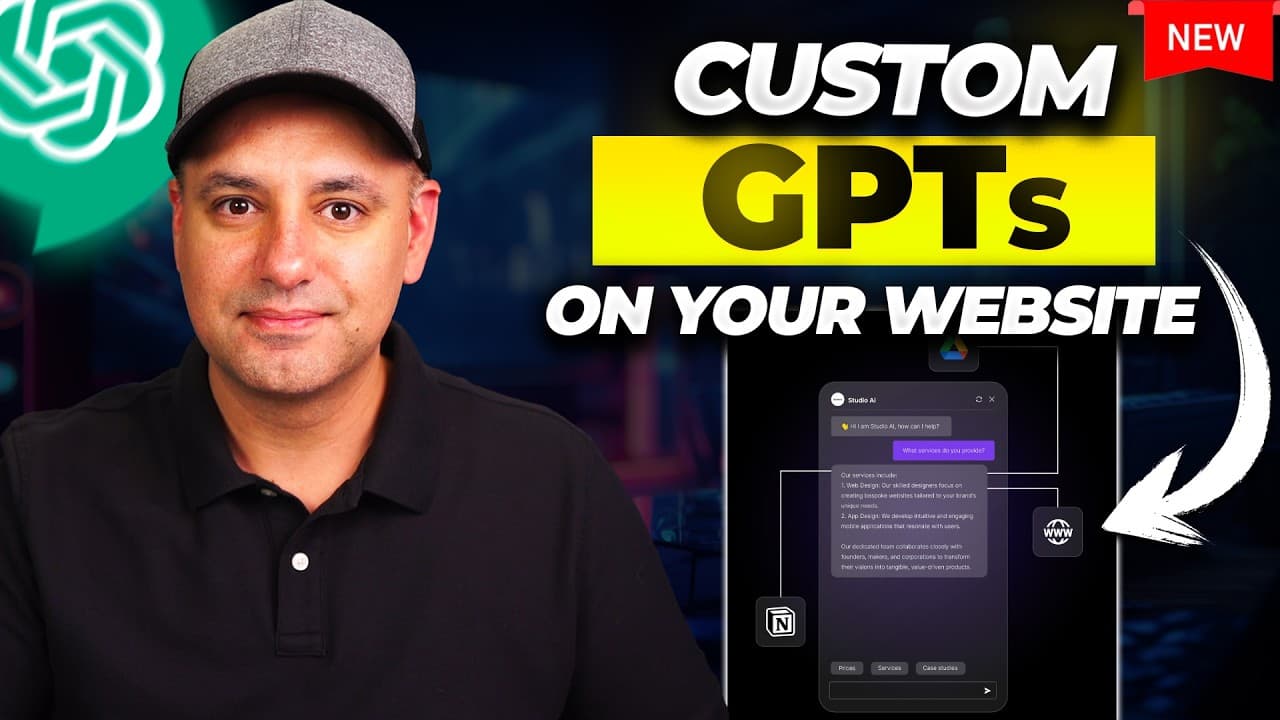
You can embed a custom AI chatbot on your site by uploading your data, choosing an LLM like GPT-4o or Claude, and using Chatbase to host it. Start with files or website crawl, configure system prompts, and embed the widget. A free tier is available and upgrades add more data limits.
Transcript
one of my favorite AI tools in the past year has been custom gpts a mini version of chat GPT where you could give it your own set of instructions upload your own data and knowledge based to them and I've covered it in many of my videos in the past year Claud has something very similar called clot projects same kind of thing with your own instructio... Read More
Key Insights
- Data sources can include PDFs, Word docs, text, and website data, all used to train the custom chatbot.
- The platform supports multiple chatbots per account, making it easy to run different assistants.
- Free version has a 400,000 character limit, while paid plans offer higher limits such as 11 million characters for the initial tier.
- You can switch among models including GPT-4o, Claude, Gemini, and others to optimize responses.
- A playground is available to test the chatbot and see how it uses the knowledge base and prompts.
- System prompts define the bot's role, constraints, and behavior for consistent outputs.
- Sources can be shown to verify how answers are derived from the knowledge base.
- Chat interface customization allows changing appearance and starting messages for website embedding
Install to Summarize YouTube Videos and Get Transcripts
Explore YouTube Video Summarizer or Get YouTube Transcript Extractor
Questions & Answers
Q: How do I start building a custom AI chatbot for my website
To start you create a new chatbot in the Chatbase playground, then upload your data sources such as PDFs, Word docs, or text files and optionally link your website to crawl its data. You can also add Q and A data and connect Notion as a data source. After setting up data, you select the model and configure a system prompt to define the chatbot’s role and constraints, then test and customize the chat interface before embedding it on your site.
Q: What data sources can I use for my custom chatbot
You can use a variety of data sources including PDFs, Word documents, and plain text files. You can also paste text directly or link your website to crawl its content. Additionally you can add Q and A pairs and connect Notion as a data source, giving you flexibility to build a knowledge base tailored to your needs.
Q: Which models can power the chatbot in Chatbase
The chatbot can be powered by several models such as GPT-4o, Claude, Gemini, and GPT 4 variants. The playground lets you switch between these models to see how the responses differ, enabling you to choose the best model for your use case and performance needs.
Q: What is the role of the system prompt in this setup
The system prompt defines the chatbot’s primary function, its constraints, and how it should respond. It can start from a default template and be customized to fit use cases like tutoring or customer support. A separate prompt generator tool can help craft more comprehensive instructions for the model.
Q: How does the chat interface customization work
You can customize how the chatbot looks and behaves on your website through the chat interface settings. This includes choosing the visual style like chat bubbles, setting the starting message, enabling user feedback collection, and selecting a dark or light theme to match your site design.
Q: Is there a free option and what are the limits
Yes, there is a free version of Chatbase. The free tier provides a 400,000 character limit for data that can be used to build the custom chatbot. If you need more capacity, paid plans increase the limit, making it possible to include larger knowledge bases and more extensive transcripts.
Q: Can I verify where the chatbot’s answers come from
Yes, you can show sources in the playground to verify where the chatbot retrieved information from within your knowledge base. This helps ensure transparency and lets users see which documents or sections the answer references.
Q: What are practical use cases mentioned for the custom GPTs on a website
The video demonstrates use cases like tutoring, company data access for internal policies, and customer support with a knowledge base tailored to the organization. By uploading relevant course transcripts and internal documents, you can create a tutor or assistant that provides precise, source-backed responses to users on your site.
Summary & Key Takeaways
-
The video explains creating a custom chatbot on a website using a platform called Chatbase, including data sources, model options, and the steps to publish. It emphasizes starting with uploaded documents or website crawling and testing in a playground. The guide covers system prompts, model selection, and embedding options for a site.
-
A core workflow is to assemble a knowledge base with PDFs, Word docs, text, or website data, then define a system prompt to control the bot's behavior before testing and deploying the chat widget. The approach supports multiple chatbots and configurable features like themes and sources display.
-
The content highlights the free access level, data limits, and upgrade path, plus the ability to switch between models such as GPT-4o, Claude, or Gemini, enabling tailored chat experiences on different websites and use cases.
Read in Other Languages (beta)
Share This Summary 📚
Summarize YouTube Videos and Get Video Transcripts with 1-Click
Try YouTube Summary with ChatGPT & Claude or YouTube Transcript Generator
Explore More Summaries from Skill Leap AI 📚


Summarize YouTube Videos and Get Video Transcripts with 1-Click
Try YouTube Summary with ChatGPT & Claude or YouTube Transcript Generator