How to Automate Content Idea Research with n8n and AI

TL;DR
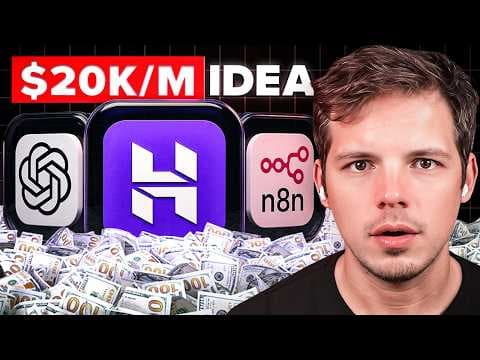
Set up an automation that watches top creators in your niche and reports what they post, instead of manually checking accounts every day. The build uses Hostinger VPS hosting plus n8n, a Google Cloud project with the Gmail and Sheets APIs enabled, an RSS Read node pointed at a YouTube channel feed, and a Google Sheets node that appends publish date, channel name, and video name. It takes about 30 minutes and roughly five dollars a month.
Transcript
This is the best time in history to make tens of thousands of dollars a month publishing content that's inspired by someone else's content. Thousands of people out there, myself included, are making real money just by posting about stuff they're already interested in. I got over 5 million followers posting about business ideas because that's what I... Read More
Key Insights
- The stated formula for making money with content is four steps: pick a niche, post consistently, build an audience, then monetize. The speaker says thousands of people are earning real money posting about things they are already interested in, and reports over 5 million followers from posting about business ideas.
- The niche does not have to be business. The video lists local events, hacks for tired parents, motorcycle reviews, and power washing videos as examples, and says the same automation can be copied for whatever niche you are interested in.
- The real failure point is the research grind, not the formula. Coming up with fresh content ideas every single day, multiple times a day, is what stops most people, and manually checking 10 different accounts daily is called exhausting.
- Watching what already works beats guessing. Every successful niche has creators who have done the hard work of figuring out what performs, so the recommended move is to take a post that crushed, such as a five minute protein breakfast, and make your own version with your spin and personality.
- The full build takes about 30 minutes, costs about five bucks a month, and runs forever. It requires Hostinger for VPS web hosting and n8n for automation, which the speaker describes as needing to be used hand in hand because the automation platform requires hosting to operate.
- Google Cloud setup is a one time step that enables the Gmail API and the Google Sheets API, then configures an OAuth consent screen with external audience. Five scopes are added in total: read, send, and modify for Gmail, and read and write for Sheets.
- A YouTube channel's RSS feed URL can be found for free by opening the channel, right clicking to view page source, and using find to search for RSS. Third party tools do the same thing but require registering and handing over your email address.
- The workflow chains three n8n nodes: a schedule trigger set to run at midnight on a days interval, an RSS Read node with the channel feed URL, and a Google Sheets append or update row node writing publish date, channel name, and video name. Green check marks across all three confirm a successful run.
Install to Summarize YouTube Videos and Get Transcripts
Explore YouTube Video Summarizer or Get YouTube Transcript Extractor
Questions & Answers
Q: How do you automate finding content ideas from other creators?
Build an automation that reads the RSS feeds of top creators in your niche and writes their new videos to a spreadsheet on a schedule. In this build, n8n runs on a Hostinger VPS with three connected nodes: a schedule trigger set to fire at midnight on a days interval, an RSS Read node containing the YouTube channel's feed URL, and a Google Sheets node set to append or update a row. Each run captures the publish date, channel name, and video name so you have a running list of what is being posted without checking any accounts manually.
Q: How do you find the RSS feed URL of a YouTube channel?
Go to the YouTube channel you want to track, right click on the page, and choose view page source. Then use the find function and search for RSS. The feed URL appears in the source as a highlighted link, and you copy that into the RSS Read node in n8n. The speaker points out that searching Google for how to get an RSS URL from a YouTube channel returns plenty of third party tools that will do this for you, but they all want you to register and hand over your email address, so reading the page source avoids giving a random site your address.
Q: What does it cost to set up this content research automation?
The video says the whole setup takes about 30 minutes, costs about five bucks a month, and will run forever. The cost comes from the two pieces of the stack: Hostinger provides the VPS web hosting and n8n provides the automation platform, and the speaker says the two have to be used hand in hand because the automation platform needs a hosting platform in order to operate. The video links a Hostinger deal at 61% off with the coupon code KOERNEROFFICE for an additional 10% off.
Q: Which Google APIs do you need to enable for this automation?
Two: the Gmail API and the Google Sheets API. Both are enabled from the library section under APIs and services inside Google Cloud Console, after creating a project. The Gmail API is what enables the automated emails, and the Sheets API is what lets the workflow write to your spreadsheet. Because YouTube and Google Sheets are both owned by Google, connecting Google once covers both sides of the automation, and this whole Google Cloud step only needs to be done one time.
Q: What OAuth scopes does the workflow need?
Five in total. Under APIs and services, go to the OAuth consent screen, then data access, then add or remove scopes. Search for Gmail and check the top three, which give it read, send, and modify. Then search for the Google Sheets API and check the two that allow read and write. After clicking update, all five permissions appear on the list, three for Gmail and two for Sheets, and then you click save. The video describes scopes as telling the API which permissions or abilities it needs to have, and an API as just a way for two pieces of technology to talk to each other.
Q: Why does Google Cloud switch you to a different project after you create one?
The video does not explain why, only that it happens and that you have to watch for it. After naming and creating your project, Google often moves you to one of their standard projects instead. The fix is to check the notifications area at the top and confirm you are on the right project, since the project name you chose appears in the top left when you are on the correct page. The video also notes that the create project option is not visible in the menu, so you have to search for the word project to find it.
Q: How do you add more channels to the automation?
Duplicate the RSS node. Click the three dots on the middle RSS feed step, choose duplicate, connect the new node into the workflow, and delete the old connection it replaced. This is how you scale from one channel to 10 or 20 or however many you want. The video also explains why the channel name column matters at that point: with a single tracked channel the column is redundant because you already know the source, but once multiple channels feed the same sheet you need each row to say which channel the video came from.
Q: How do you confirm the automation is actually working?
Check at two points. First, after pasting the RSS feed URL and clicking execute step, look at the node output. If it is showing all the data from the channel you are tracking, the feed is being read correctly. Second, after running the full workflow you should see three green check marks across all the nodes, then open the Google Sheet itself to confirm rows were written under publish date, channel name, and video name. In the demo the sheet filled with five rows from a channel that had only one long form video, because the feed pulled in that channel's shorts as well.
Summary & Key Takeaways
-
The core claim is that publishing content inspired by other people's content is currently a viable way to earn tens of thousands of dollars a month. The formula given is simple: pick a niche, post consistently, build an audience, then monetize. The speaker credits this approach with over 5 million followers from posting about business ideas.
-
The bottleneck is not the formula but the daily research grind. Finding fresh ideas multiple times a day, and manually checking 10 different accounts, is exhausting and eats time people would rather spend with kids or a spouse. After an earlier video went viral, the speaker concluded that people need a consistent place to look for inspiration.
-
The fix is two AI automations that do the research while you sleep, find what top creators in your niche are posting, and send a weekly report. The stack is Hostinger for VPS hosting and n8n for automation, described as a budget host and a budget automation platform that must be used hand in hand.
-
Google setup happens once in Google Cloud Console: create a project, confirm you are still on it because Google often switches you to a standard project, then enable the Gmail API and the Sheets API from the library. The OAuth consent screen is configured with the same project name, a support email, external audience, and contact information.
-
Scopes are added under data access: three Gmail permissions for read, send, and modify, plus two Google Sheets permissions for read and write, five in total. Test users are added on the audience screen, and the speaker adds two of their own email addresses to hedge.
-
The n8n workflow has three nodes. A schedule trigger runs on a days interval at midnight, an RSS Read node pulls a YouTube channel feed, and a Google Sheets node appends or updates a row. The Sheets credential needs the redirect URL pasted back into Google Cloud Console, then the client ID and client secret pasted into n8n.
-
To get a YouTube channel's RSS URL without handing an email address to a third party tool, open the channel, right click, view page source, then use find to search for RSS. The feed URL appears in the source. Pasting it into the RSS node and clicking execute step shows channel data in the output, confirming it works.
-
The Google Sheet has three columns: publish date, channel name, video name. Sharing is set to anyone with the link as editor, and the fields are mapped manually by dragging publish date, author into channel name, and title into video name. The first run wrote five rows because the channel had one long form video plus shorts.
-
Scaling to more channels means duplicating the RSS Read node with the three dots menu, connecting the duplicate into the workflow, and deleting the old connection. The channel name column matters here: tracking a single channel makes it redundant, but with 10 or 20 channels the sheet needs to say which one each video came from.
Read in Other Languages (beta)
Share This Summary 📚
Summarize YouTube Videos and Get Video Transcripts with 1-Click
Try YouTube Summary with ChatGPT & Claude or YouTube Transcript Generator
Explore More Summaries from Chris Koerner on The Koerner Office Podcast 📚





Summarize YouTube Videos and Get Video Transcripts with 1-Click
Try YouTube Summary with ChatGPT & Claude or YouTube Transcript Generator