How to Automate Bulk AI Story Video Creation
TL;DR
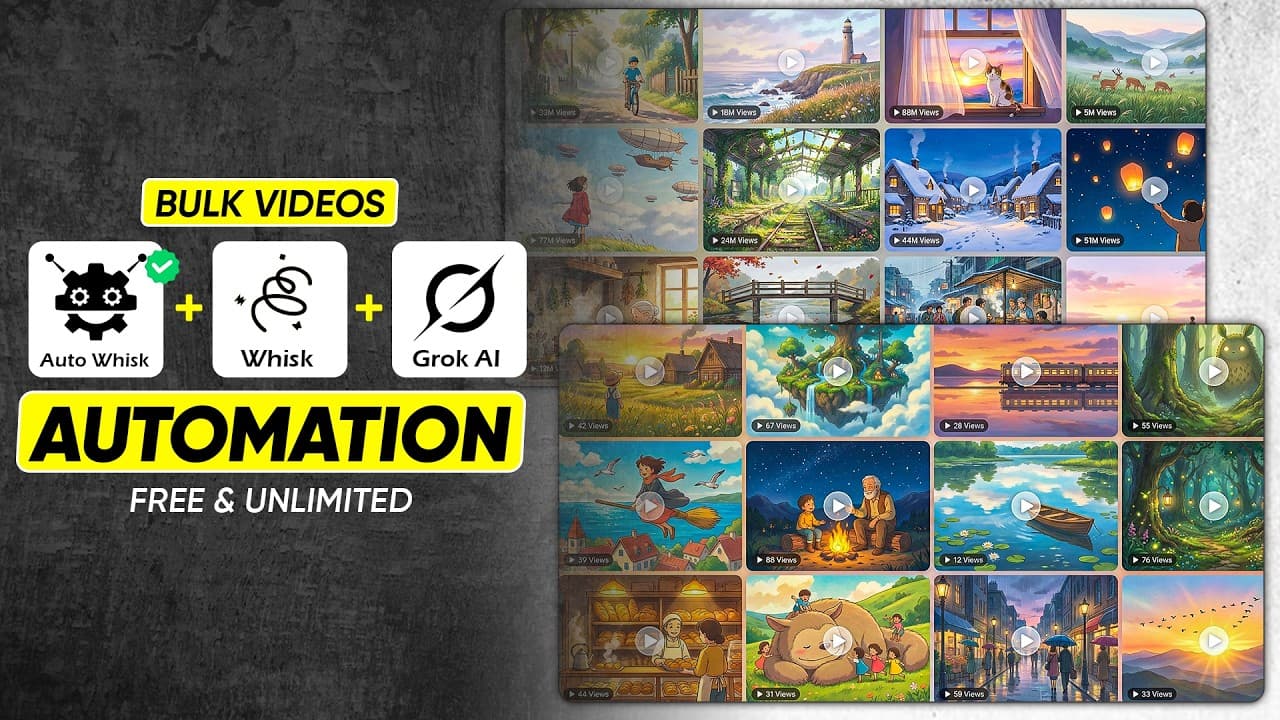
Automate scene-image production by placing one prompt on each line in Auto Whisk, then letting it submit the prompts to Google Whisk and download the results automatically. Character and style references can improve consistency, while Google AI Studio provides narration and an editor combines the numbered visuals, voice-over, transitions, and optional image-to-video clips.
Transcript
Stop scrolling because this one tool breaks every myth you've ever heard about AI automation for video creation. If you think AI automation is expensive, this belief ends right now. There's a system that can generate videos at massive scale with a single click and almost no one is talking about it. And that silence is not accidental because the sys... Read More
Key Insights
- Auto Whisk is a Chrome extension that automates prompt submission inside Google Whisk, allowing creators to generate many scene images sequentially without copying and pasting every prompt by hand.
- Each new line in Auto Whisk is treated as a separate prompt, so every scene description must remain on one line without an internal line break. Larger projects can also be supplied through prompt text file uploads.
- Auto Whisk can work in a fresh Google Whisk project or the project already open in the browser. It submits scene prompts one by one and automatically downloads the resulting images to the user's system.
- Character consistency depends on reference images placed in Whisk's subject boxes. Each important character should be generated separately, added as a subject reference, and enabled before the automated scene-generation run begins.
- A shared style reference helps every scene retain the same visual treatment. The workflow generates one style image, places it in Whisk's style box, and enables that reference alongside the required character subjects.
- Scene numbers and exact script lines should accompany image prompts because those labels reveal which visual belongs with each narration segment. Auto Whisk also organizes downloaded images in a dedicated folder and proper numeric sequence.
- Google AI Studio creates the narration by processing a voice-over-ready script with a selected voice and style instruction. The demonstrated direction requests calm, intimate storytelling, gentle warmth, natural pauses, and gradually deepening emotion.
- Image-to-video conversion is an optional retention-focused step after scene images are complete. The workflow creates a motion prompt for each numbered scene, uploads each source image to Grok Imagine, and replaces static visuals with generated clips during editing.
Install to Summarize YouTube Videos and Get Transcripts
Explore YouTube Video Summarizer or Get YouTube Transcript Extractor
Questions & Answers
Q: How do you automate bulk scene generation with Auto Whisk?
Install the Auto Whisk Chrome extension, open it, choose your preferred language, and select the classic version used in the tutorial. Paste all scene prompts into its interface with one complete prompt on each line. Click start, then choose whether to create a new Google Whisk project or continue in the currently open project. Auto Whisk submits the prompts sequentially and downloads the generated images automatically.
Q: How should prompts be formatted for Auto Whisk?
Place each scene prompt on its own line because Auto Whisk interprets every new line as a separate prompt. Do not insert a line break inside one scene description, since the extension would count the separated text as multiple prompts. For a larger project, the extension also supports uploading a prompt text file, which avoids pasting a long collection of scene descriptions manually.
Q: How can AI characters remain consistent across story scenes?
Generate a separate reference image for each character before running the full scene batch. Add the first character image to a Whisk subject box, uncheck it temporarily while generating the next character, and place the second image in another subject box. Before starting Auto Whisk on the current project, enable every subject checkbox required for the scenes so those character references guide the new images.
Q: How do you apply one visual style to every generated scene?
Create a dedicated style-reference prompt and submit it to Google Whisk to produce an image representing the desired appearance of the entire story. Drag that generated reference into Whisk's style box in the left sidebar. Enable the style reference and the relevant character subject checkboxes, then tell Auto Whisk to run on the current project and regenerate the scene images under those shared references.
Q: How do scene numbers and script lines simplify editing?
Include the scene number and exact corresponding script line with every text-to-image prompt. These labels make it immediately clear which downloaded image belongs with each section of the narration, reducing confusion when the project contains many scenes. Auto Whisk further simplifies organization by creating a dedicated folder and arranging generated images in proper numeric sequence before they are imported into the editor.
Q: How can you create a free AI voice-over for the story?
First, use ChatGPT to rewrite the story as a voice-over-ready script with a friendly, clear tone, natural pauses, rhythm, and emphasis on important words. In Google AI Studio, select single-speaker audio, preview the voices, and choose one. Paste a storytelling style instruction before the script, run the generation, and download the resulting narration for use in the video timeline.
Q: How do you assemble the generated assets into a finished video?
Import the numbered images or generated clips and the voice-over file into a preferred video editor. Place the narration on the timeline, arrange the visuals above it, and adjust each visual so it matches the corresponding spoken section. Add transitions and optional subtle zoom effects. The tutorial suggests a 13-frame flash transition in Filmora or a 0.5-second transition in CapCut, then exporting the completed project.
Q: How can static AI images be converted into video clips?
Use ChatGPT to create an image-to-video prompt for every scene, including its scene number and exact script line for organization. Upload the first scene image to Grok Imagine, paste the matching motion prompt, and generate the clip. Repeat this process for all remaining scenes. Once the clips are ready, place them in the editor and synchronize them with the voice-over using the same workflow applied to static images.
Summary & Key Takeaways
-
Auto Whisk automates the repetitive process of generating scene images in Google Whisk. Install the Chrome extension, select the classic version, paste one complete prompt per line, and start a new or existing project. The extension processes each scene sequentially, downloads the generated images, and stores them in numbered order.
-
Consistent story visuals require separate references for recurring characters and the overall artistic style. Generate each character image, place it in a Whisk subject box, add a generated style reference to the style box, and enable the relevant checkboxes. Auto Whisk can then regenerate every scene within that configured project.
-
The completed workflow combines automated images with narration from Google AI Studio and manual timeline editing. Import the visuals and voice-over, synchronize each scene, add transitions and optional zooms, then export. For additional movement, create scene-specific image-to-video prompts and generate clips in Grok Imagine before repeating the editing process.
Read in Other Languages (beta)
Share This Summary 📚
Summarize YouTube Videos and Get Video Transcripts with 1-Click
Try YouTube Summary with ChatGPT & Claude or YouTube Transcript Generator
Explore More Summaries from zapiwala ai 📚

Summarize YouTube Videos and Get Video Transcripts with 1-Click
Try YouTube Summary with ChatGPT & Claude or YouTube Transcript Generator