How to Remove Backgrounds from Videos in Canva
TL;DR
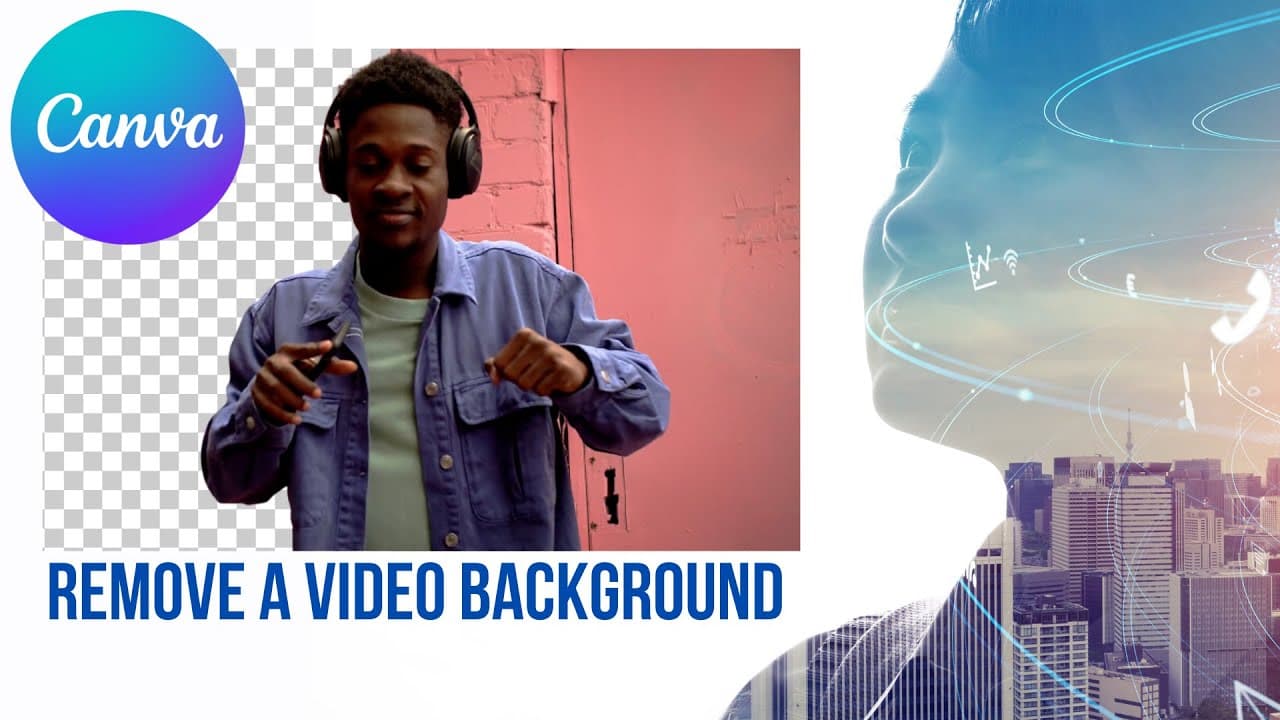
You can remove backgrounds from videos in Canva using the AI-powered background remover feature, which allows you to isolate your subject without the need for a green screen. Simply select the video, choose 'edit video,' and then select 'background remover' to achieve a clean composition. This feature is ideal for short clips, although it may struggle with complex movements.
Transcript
so we saw a little bit about how to remove a background from a photo now let's see how to remove a background from a video using some of the features of canva so not everyone knows this but you can actually create a video in canva this is a design that has been upgraded quite a bit over the last few months and and I'm guessing that we'll see more u... Read More
Key Insights
- 🎮 Canva now offers video editing features, including the ability to remove the background from a video.
- 🕵️ The background remover feature in Canva's video editor is AI-driven, automatically detecting and removing the background of the subject.
- 👤 Users can create visually compelling videos by placing the subject in the foreground and incorporating different backgrounds.
- 💚 The background remover feature eliminates the need for a green screen setup, making it more accessible for users to create professional-looking videos.
- 🍰 Canva's background remover feature is particularly beneficial for short presentations or videos that require a brief and impactful message.
- 😀 While the feature generally performs well, it may face challenges with complex movements or colors.
- 🎮 Canva's background remover feature enhances video editing capabilities and offers a convenient solution for content creators.
Install to Summarize YouTube Videos and Get Transcripts
Explore YouTube Video Summarizer or Get YouTube Transcript Extractor
Questions & Answers
Q: How can Canva users remove the background from a video?
Canva users can remove the background from a video by selecting the "background remover" option in the video editing menu. The AI in Canva will automatically detect the subject and remove the background.
Q: Do users need a green screen to remove the background in Canva?
No, Canva's background remover feature eliminates the need for a green screen. Users can film themselves or others in front of any background and still be able to remove it in Canva.
Q: What is the time limit for videos that can be processed with the background remover feature?
The background remover feature in Canva is limited to videos that are 90 seconds or shorter in duration.
Q: Is the background removal feature always perfect in Canva?
The background removal feature in Canva is generally accurate, but it may struggle with certain complex movements or colors. Users may notice some slight imperfections, but overall, it is a useful tool.
Summary & Key Takeaways
-
Canva has upgraded its design features to include video editing capabilities.
-
Users can remove the background from a video by selecting the "background remover" option in the video editing menu.
-
The AI in Canva automatically detects the subject of the video and removes the background, allowing for creative video compositions.
Read in Other Languages (beta)
Share This Summary 📚
Summarize YouTube Videos and Get Video Transcripts with 1-Click
Try YouTube Summary with ChatGPT & Claude or YouTube Transcript Generator
Explore More Summaries from EdTech Hustle 📚





Summarize YouTube Videos and Get Video Transcripts with 1-Click
Try YouTube Summary with ChatGPT & Claude or YouTube Transcript Generator