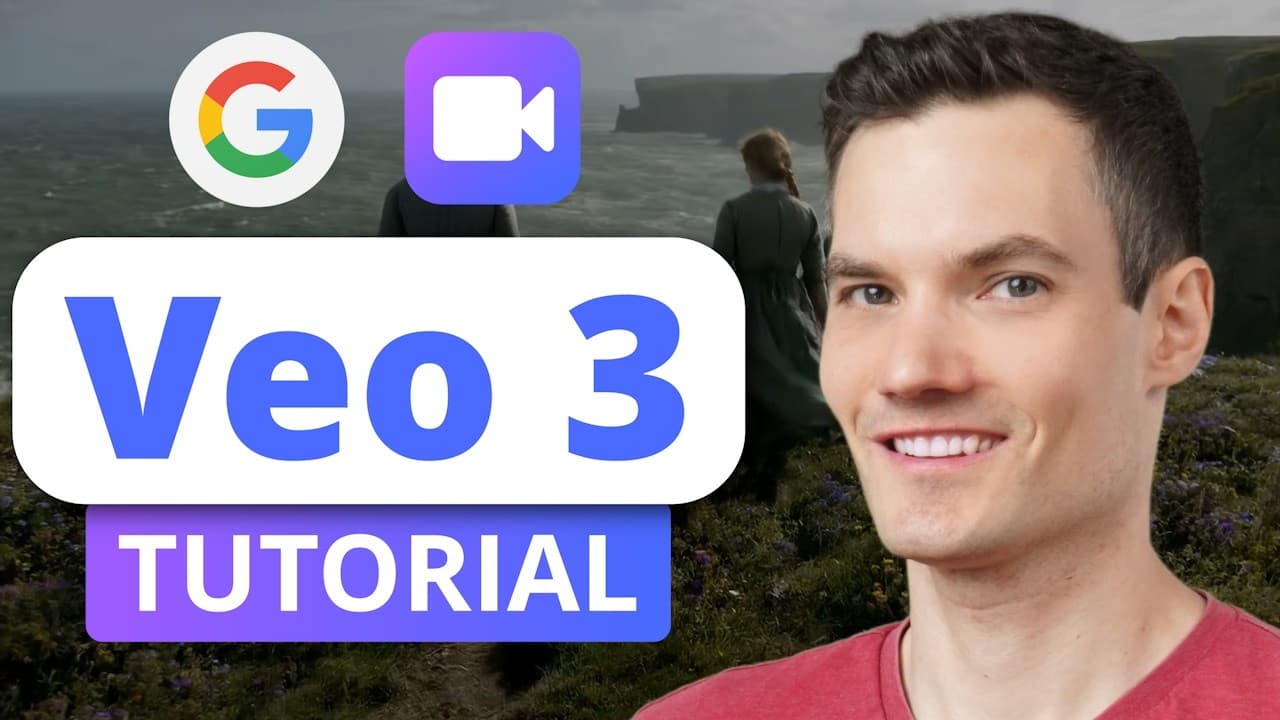
How to Create Cinematic AI Videos with Google Veo 3
TL;DR
Create a cinematic AI video by selecting the video tool in Gemini, then writing a detailed prompt that specifies the subject, setting, camera movement, lighting, focus, atmosphere, music, and any narration. Veo 3 generates synchronized visuals and audio, while Gemini can refine weak prompts before generation. Finished videos can be downloaded as MP4 files or revisited through recent chats.
Transcript
What if you could turn this into reality just by typing a sentence? Hi, I'm Kevin, and Google just released Veo3, an AI video generator that turns your imagination into cinematic quality videos using nothing more than a simple prompt. In this video, I'll walk you through exactly how to use Veo3, how to write better prompts and how to get the mo... Read More
Key Insights
- Google Veo 3 is a DeepMind AI model that turns text prompts into cinematic videos. It interprets production elements such as camera movement, lighting, and composition, which helps generated scenes appear more polished and natural than a prompt containing only a basic subject description.
- Veo 3 generates audio alongside video. A single prompt can request background music, ambient sound effects, and voice narration, allowing the resulting clip to combine visual storytelling and sound without requiring those elements to be created separately in the demonstrated workflow.
- Veo 3 is accessed through the Gemini chat interface after signing into a Google account with an eligible paid plan. The tutorial states that both presented plans include Veo 3 access and can be tried free for the first month.
- A strong Veo 3 prompt describes the subject, action, location, lighting, focus, atmosphere, and desired audio. Camera treatment, music, and visual effects such as rising steam can also be specified, giving the model clearer guidance about the intended cinematic result.
- Specific narration is added by placing the exact spoken text in quotation marks within the prompt and identifying it as narration. Veo 3 can then generate a voice that delivers those lines as part of the finished video's automatically created audio.
- Generated results can contain visual imperfections even when they closely follow the prompt. In the cookie example, some chocolate chips appeared completely melted, showing that users should preview each result and assess specific details before deciding that a video is finished.
- Gemini can improve an uncertain or underdeveloped video idea by drafting a more descriptive prompt. Its suggested prompt can include camera angles, lighting, background music, and pacing, after which the user can copy it into the video prompt field and adjust it.
- Finished Veo 3 videos can be downloaded by hovering over the generated clip and selecting the download icon in its top-right corner. The result is saved as an MP4 file, while earlier generated videos remain accessible through the chats listed under Recent in Gemini.
Install to Summarize YouTube Videos and Get Transcripts
Explore YouTube Video Summarizer or Get YouTube Transcript Extractor
Questions & Answers
Q: How do you create a video with Google Veo 3?
Sign up for a plan that includes Veo 3, open Gemini, and sign in with your Google account. In the Gemini prompt area, select the tool labeled Video to activate Veo 3. Enter a text prompt describing the scene you want, submit it, and preview the generated result. Once satisfied, hover over the video and select the download icon to save it as an MP4 file.
Q: What details should a Google Veo 3 prompt include?
A useful Veo 3 prompt should identify the main subject and action, then describe where the scene occurs and how it should look and sound. Relevant details can include camera movement, camera angles, lighting, composition, focus, pacing, atmospheric effects, background music, and ambient sound. The cookie example also specifies a cozy sunlit kitchen, warm lighting, slow motion, and rising steam.
Q: How do you add narration to a Veo 3 video?
Add narration by including the exact words you want spoken in quotation marks as part of the video prompt. Clearly identify that quoted passage as narration so Veo 3 understands its purpose. When the prompt is submitted, the generated clip can include a voice delivering those lines together with the visuals and other audio, such as music or ambient effects.
Q: How can Gemini help write better Veo 3 prompts?
Ask Gemini to turn your basic concept into a cinematic video prompt before activating generation. In the tutorial, Gemini expands an idea about bakers making the world's largest cookie by suggesting details such as camera angles, lighting, background music, and pacing. You can copy the suggested version into the prompt field, review alternative suggestions, and edit the wording to match your intended style.
Q: How do you download a finished Veo 3 video?
After the generated video appears in Gemini, preview it and decide whether the result meets your needs. To download it, hover over the video and locate the download icon in the top-right corner of the clip. Select that icon, and Gemini downloads the generated video to your computer as an MP4 file that can be used wherever you want.
Q: How do you find videos previously generated with Veo 3?
Open the Gemini interface and look at the left side of the screen under Recent. This area lists earlier chats associated with your account. Select the conversation in which a particular video was generated, and the related video will appear inside that chat. This makes previous creations accessible without requiring you to generate the same scene again.
Q: Does Google Veo 3 generate sound with its videos?
Yes, Veo 3 can create audio automatically as part of a generated video. The supported audio elements demonstrated in the tutorial include background music, ambient sound effects, and voice narration. If you want a character or narrator to say specific words, include those words in quotation marks and identify them as narration within the prompt before submitting it.
Q: Why should you review a Veo 3 video before downloading it?
Generated videos may follow the overall prompt closely while still containing unwanted visual details. In the tutorial's freshly baked cookie example, the setting and cinematic presentation were impressive, but some chocolate chips appeared completely melted on top of a cookie. Previewing the clip lets you notice such imperfections and decide whether the output is satisfactory before downloading and using the MP4 file.
Summary & Key Takeaways
-
Google Veo 3 is an AI video generation model built by DeepMind and accessed through the Gemini chat interface. It creates cinematic video from text while interpreting production details such as camera movement, lighting, and composition. It can also generate background music, ambient sound effects, and spoken narration as part of the result.
-
The creation process begins by enabling the video tool in Gemini and entering a descriptive prompt. Strong prompts identify the subject and action, then define the location, lighting, focus, atmospheric effects, camera treatment, music, and pacing. Providing more relevant detail generally helps the generated video align more closely with the intended scene.
-
Gemini can help users develop stronger Veo 3 prompts inside the same chat interface. It can suggest camera angles, lighting, background music, pacing, and other cinematic details for an initial idea. After generation, users can download the finished video as an MP4 or reopen previous creations from their recent Gemini chats.
Read in Other Languages (beta)
Share This Summary 📚
Summarize YouTube Videos and Get Video Transcripts with 1-Click
Try YouTube Summary with ChatGPT & Claude or YouTube Transcript Generator
Explore More Summaries from Kevin Stratvert 📚



Summarize YouTube Videos and Get Video Transcripts with 1-Click
Try YouTube Summary with ChatGPT & Claude or YouTube Transcript Generator