How to Build a JavaScript Calculator in 15 Minutes
TL;DR
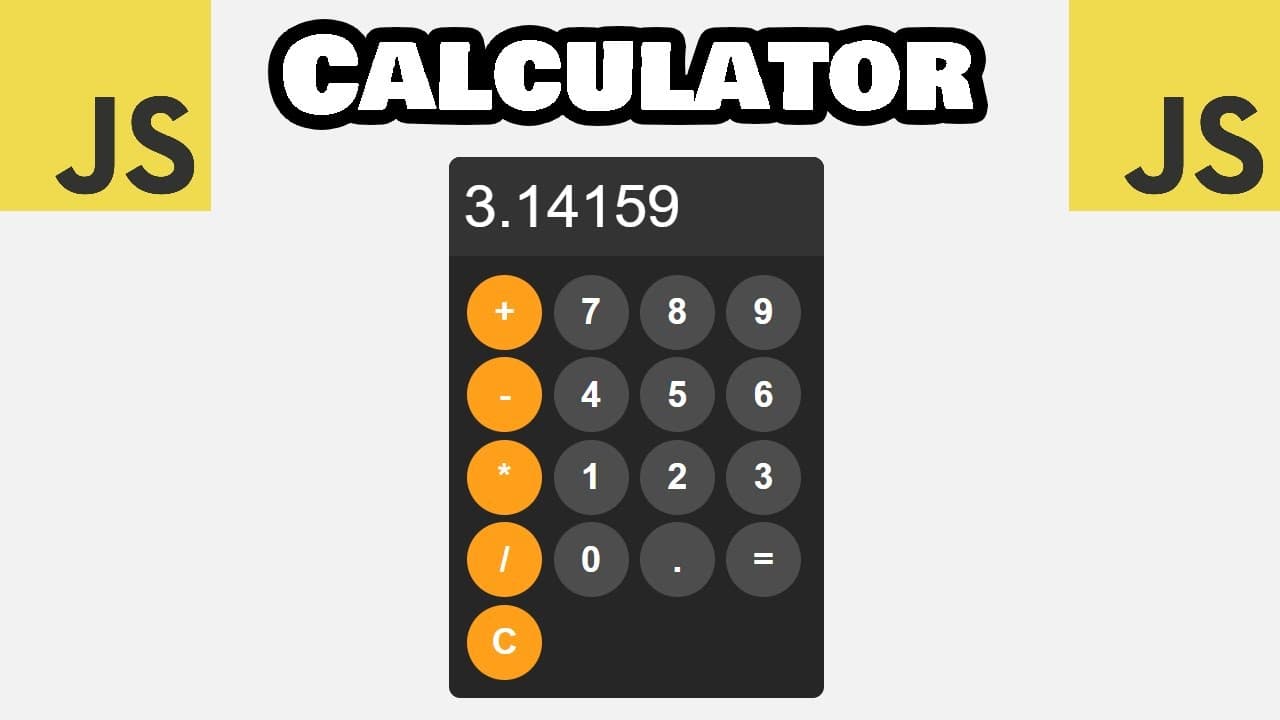
A JavaScript calculator can be built in 15 minutes by combining a read-only HTML display, a four-column button grid, and functions that append, clear, and evaluate expressions. The interface uses 100-pixel circular buttons, while try-and-catch replaces invalid calculations with an error message. Read on for the complete structure, styling logic, interaction flow, and limits of the demonstrated eval() approach.
Transcript
hey what's going on everybody in today's video we're going to create a calculator program using HTML CSS and JavaScript so let's get started all right let's do this thing everybody we have a lot of buttons to create but we'll need a container I will create a div element the div element will have an ID of calculator within this div element we'll cre... Read More
Key Insights
- Read-only input controls entry: The display uses the read-only property so users cannot type arbitrary text directly into the calculator. Every visible character must instead come from a calculator button. This keeps interaction tied to the defined digits, decimal point, and arithmetic operators while still allowing the input element to present the developing expression and final result.
- Three functions divide responsibilities: The interaction model separates character entry, clearing, and calculation into append-to-display, clear-display, and calculate. Each button calls only the function relevant to its purpose. This division keeps the behavior understandable: ordinary keys extend the expression, C removes it, and equals attempts to turn the complete expression into a result.
- Button arguments represent characters: Digit and operator buttons call append-to-display through onclick and pass their corresponding character as an argument. Multiplication passes an asterisk, division passes a forward slash, and the decimal control passes a dot. The function appends that argument to the display value, allowing a complete arithmetic expression to be assembled one selection at a time.
- Four equal columns organize controls: The keys container uses grid-template-columns with repeat and four one-fractional-unit tracks. Because every track receives the same fractional share, the controls are distributed evenly across the available width. The presenter chooses four columns specifically to keep the arithmetic operators on the left, while the gap and padding preserve separation around the buttons.
- Equal dimensions create circles: Each button is exactly 100 pixels wide and 100 pixels high. A 50-pixel border radius equals half of those dimensions, producing a circular shape rather than merely softened corners. Removing the border leaves the dark background, bold white label, and large three-rem type to define the control visually.
- Layered lightness communicates interaction: Standard buttons begin with 30 percent lightness. Their hover state increases that value to 40 percent, and their active state raises it to 50 percent so a click produces a brief flash. The pointer cursor adds another cue that the circles are interactive rather than decorative elements.
- Operator styling adds distinction: Arithmetic controls receive a separate class and orange coloring so they are visibly different from number buttons. Their hover and active rules also increase lightness, paralleling the feedback used for standard controls. This preserves a consistent interaction pattern while making addition, subtraction, multiplication, and division easier to distinguish within the grid.
- Hidden overflow protects the frame: The calculator has a maximum width of 500 pixels and sets overflow to hidden. The presenter notes that this is mostly relevant to the display when an equation becomes very long. Combined with the calculator's 15-pixel border radius, the rule prevents overflowing display content from breaking the smooth outer shape.
- Viewport height enables true centering: Flexbox alone supplies the alignment controls, but vertical centering also requires usable body height. Setting the body to 100 viewport height units gives align-items the full window height to work with. Justify-content then centers horizontally, producing a calculator positioned in the middle along both axes.
- Display styling prioritizes expressions: The display occupies 100 percent of the calculator width and uses five-rem text, substantially larger than the three-rem button labels. Its 20 pixels of padding create breathing room, while left alignment follows the direction in which the expression grows. A borderless, dark background integrates it with the surrounding calculator shell.
- Clearing resets the value directly: Clear-display does not remove individual characters or recalculate the expression. It assigns an empty string to the retrieved display element's value. That single replacement makes the visible expression disappear and returns the interface to a state where the user can begin entering another sequence through the available controls.
- Error handling contains failed evaluation: Calculate places eval() inside a try-and-catch block because an incomplete expression can produce a syntax error. If evaluation succeeds, the result replaces the expression in the display. If it fails, the display changes to an error message, giving the user a visible failure state that can be removed with clear. The approach remains learning-focused because eval() presents a production security risk.
Install to Summarize YouTube Videos and Get Transcripts
Explore YouTube Video Summarizer or Get YouTube Transcript Extractor
Questions & Answers
Q: How do you build a JavaScript calculator in 15 minutes?
Create a calculator div containing a read-only display input and a nested keys div. Add controls for digits, the decimal point, four arithmetic operators, equals, and clear, then connect them through onclick attributes. Style the keys as a four-column grid and define append-to-display, clear-display, and calculate functions. These pieces provide expression entry, reset behavior, evaluation, and visible error handling.
Q: How should the calculator HTML be structured?
Use a div with the ID calculator as the outer container. Place a read-only input with the ID display inside it so expressions and answers remain visible without accepting typed text. Add a nested div with the ID keys and place every button inside that element. Assign ordinary input buttons to append-to-display, equals to calculate, and capital C to clear-display.
Q: How do you create four equal columns of calculator buttons?
Set the keys element's display property to grid. Define grid-template-columns with the repeat function, requesting four columns with one fractional unit each. The fractional units make the tracks share the available space evenly, while a 10-pixel gap separates the controls. Add 25 pixels of padding around the grid to keep the buttons away from its edges.
Q: How do you make the calculator buttons circular?
Give every button a width and height of 100 pixels so both dimensions are equal. Set border-radius to 50 pixels, which is half of either dimension and therefore forms a circle. Remove the border and apply a dark background with large, bold white text. A pointer cursor plus hover and active lightness changes makes the circular controls visibly interactive.
Q: How are numbers and operators added to the display?
Each digit, decimal, or operator button calls append-to-display through its onclick attribute. The button passes its character, such as plus, asterisk, forward slash, or a digit, as the function argument. The function adds that character to the current display value instead of replacing the existing expression. Repeated selections therefore build the complete expression in the order entered.
Q: How does the clear button reset the calculator?
The capital C button calls clear-display when selected. That function accesses the value of the display element already retrieved by JavaScript. It assigns an empty string to that value, immediately removing the visible expression or error message. The user can then start a new sequence with the calculator buttons.
Q: How does the calculator evaluate an expression and handle errors?
The calculate function reads the expression currently stored in the display value. Inside a try block, it passes that string to eval() and assigns the returned result to the same display. If an incomplete or invalid expression causes an error, the catch block replaces the display value with an error message. This prevents the failed calculation from remaining as an uncaught error.
Q: Why should eval() be limited to learning here?
The demonstrated calculate function uses eval() because it can process the arithmetic expression assembled in the display. This makes the small example direct: the entered expression is passed in, and the returned answer replaces it. A try-and-catch block addresses invalid syntax, such as an incomplete expression. However, the provided description warns that eval() presents a security risk and should not be used for production code.
Summary & Key Takeaways
-
Building the HTML structure: The calculator begins with a div identified as calculator. Inside it, a read-only input identified as display shows numbers and expressions without allowing direct text entry. A nested div identified as keys contains every control. Buttons cover digits, a decimal point, addition, subtraction, multiplication, division, equals, and clear. Inline onclick attributes connect the input buttons to append-to-display, equals to calculate, and the capital C button to clear-display.
-
Arranging the calculator keys: The keys container becomes a CSS Grid with four columns created through the repeat function. Each column receives one fractional unit, distributing the available space evenly. A 10-pixel gap separates the rows and controls, while 25 pixels of padding surrounds the key collection. The four-column choice keeps the operators on the left side. This structure turns the long sequence of HTML buttons into an orderly calculator layout.
-
Styling the interface elements: Every button receives a width and height of 100 pixels, plus a 50-pixel border radius that makes it circular. Borders are removed, the background is darkened to 30 percent lightness, and the text becomes white, bold, and three rem in size. The calculator itself uses Arial with a sans-serif backup, a darker background, 15-pixel rounded corners, a maximum width of 500 pixels, and hidden overflow.
-
Positioning and visual feedback: The display expands to the full calculator width and receives 20 pixels of padding, five-rem text, left alignment, no border, and a slightly lighter dark background. The body loses its default margin and uses Flexbox for centering. Justify-content handles horizontal placement, while align-items and a height of 100 viewport units provide vertical placement. Hover and active states raise button lightness to show pointing and clicking.
-
Adding the JavaScript behavior: JavaScript retrieves the display through its element ID and defines three focused operations. Append-to-display adds the selected digit, decimal, or operator to the existing value. Clear-display replaces that value with an empty string. Calculate sends the displayed expression to eval() and writes the returned result back to the display. A try-and-catch block handles incomplete or invalid expressions by showing an error, although eval() is recommended only for learning because of its production security risk.
Read in Other Languages (beta)
Share This Summary 📚
Summarize YouTube Videos and Get Video Transcripts with 1-Click
Try YouTube Summary with ChatGPT & Claude or YouTube Transcript Generator
Explore More Summaries from Bro Code 📚



Summarize YouTube Videos and Get Video Transcripts with 1-Click
Try YouTube Summary with ChatGPT & Claude or YouTube Transcript Generator