How to Build Apps with Augment Code in VS Code
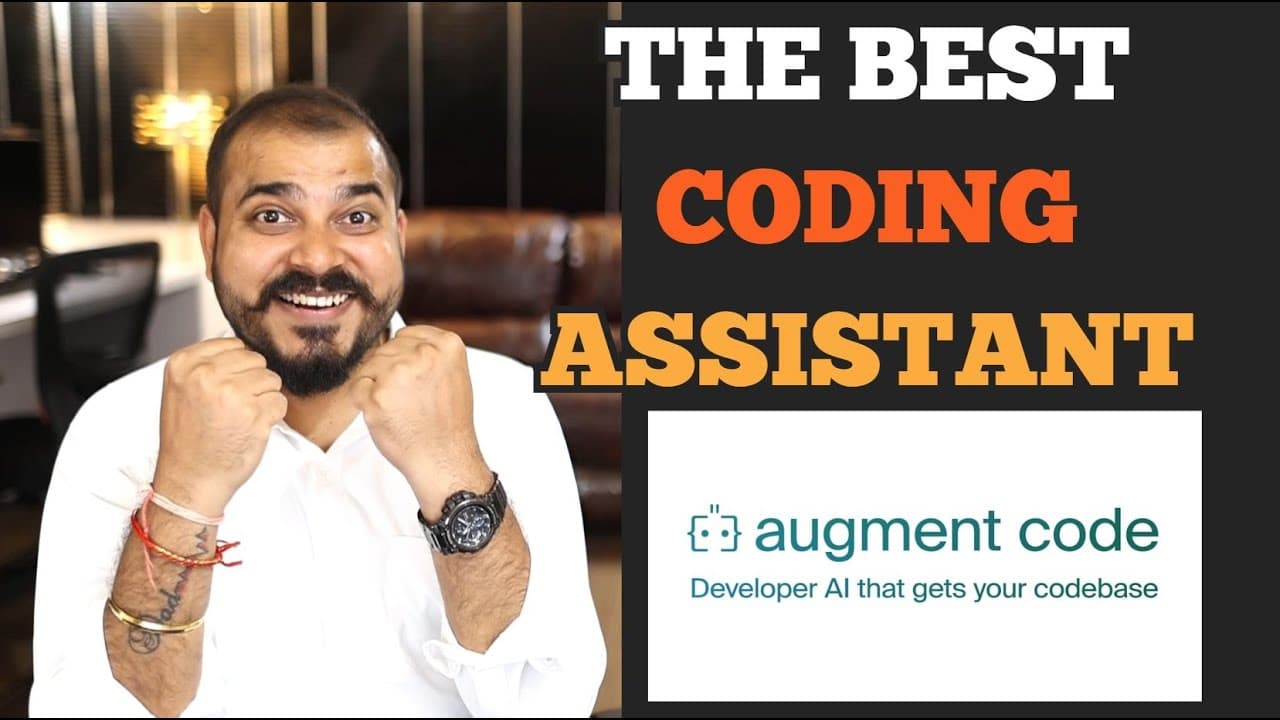
TL;DR
Install the Augment Code extension in VS Code, open Augment Chat, select Agent mode, and describe the application and files you want created. In the demonstration, the agent generates a Streamlit chatbot, a Python file, and requirements.txt for a locally installed DeepSeek R1 1.5 billion model running through Ollama, after which the dependencies are installed and the application is launched.
Transcript
Hello all, my name is Krishna and welcome to my YouTube channel. So guys, today in this specific video, we are going to discuss about this amazing platform which is called as argument code. And if you don't know about augment code, it is an AI powered uh developer platform designed to help software engineers understand, debug, navigate large code b... Read More
Key Insights
- Augment Code is an AI-powered developer platform designed to help software engineers understand, debug, navigate, and modify large codebases more efficiently through completion, chat, editing, codebase indexing, and agent-based development features.
- The platform is positioned for experienced developers who work with large codebases and repeat similar engineering tasks. It is described as compatible with VS Code, JetBrains, Vim, GitHub, and Slack, allowing its assistance to fit into several established development workflows.
- Augment Agent can answer questions about existing code, recommend refactoring approaches, add features to selected code, coordinate changes spanning multiple files, and generate test cases. These capabilities are intended to support both code comprehension and direct implementation work.
- Codebase indexing gives Augment Code workspace context so it can respond to questions about the project. In the demonstration, an indexing progress indicator appears while the presenter prepares an otherwise empty workspace for a new chatbot application.
- Agent mode requires approval for some tools, while Agent Auto is described as automatically running the available tools. The presenter chooses Agent mode and later reviews generated changes before selecting the option to keep all of them.
- A natural-language prompt can specify the application, framework, local model, and desired files. The demonstrated prompt requests a basic Streamlit chatbot using a local DeepSeek model through Ollama, plus a separate requirements.txt file and a Python source file.
- The generated project includes dependencies for Streamlit, LangChain, LangChain Community, and Ollama-related functionality. Augment Code also creates the Python chatbot application, incorporates the requested DeepSeek model name, adds interface styling, and explains the resulting code and changes.
- The generated chatbot runs after its dependencies are installed and the Python file is renamed to app.py. The presenter launches it with the Streamlit command, sees the DeepSeek Code Companion interface, submits a greeting, and observes local processing through Ollama.
Install to Summarize YouTube Videos and Get Transcripts
Explore YouTube Video Summarizer or Get YouTube Transcript Extractor
Questions & Answers
Q: What is Augment Code used for?
Augment Code is used to help software engineers understand, navigate, debug, and edit codebases. Its available capabilities include AI-assisted completion, chat, code editing, codebase indexing, refactoring advice, feature implementation across one or several files, and test generation. The platform is presented primarily for experienced developers working with large codebases and recurring development tasks.
Q: How do you install Augment Code in VS Code?
Open the Extensions view in VS Code, search for Augment Code, identify the extension associated with Augmentcode.com, and select the installation option. After installation and sign-in, Augment becomes available in the lower-right area of the editor. Opening it displays Augment Chat, where you can choose an operating mode and submit instructions about your project.
Q: What is the difference between Agent and Agent Auto in Augment Code?
Agent mode performs development tasks but asks for approval before using some tools or accepting certain changes. Agent Auto is described as automatically running all available tools. In the demonstration, Agent mode is selected, and the generated file changes remain visible for review. The presenter then chooses the keep-all option to accept the proposed project files and modifications.
Q: How does Augment Code understand an existing codebase?
Augment Code indexes the codebase to build context about the workspace. An indexing progress indicator is shown in the VS Code interface during the demonstration. According to the presenter, this process allows developers to ask questions about their code and receive relevant answers. The same context supports debugging, navigation, refactoring guidance, feature additions, and changes that span multiple files.
Q: How can Augment Code create a Streamlit chatbot?
Give the agent a natural-language prompt describing the chatbot, the framework, the model environment, and the files you need. The presenter requests a basic Streamlit chatbot that uses a locally installed DeepSeek model through Ollama, along with a separate requirements.txt file and a Python file. Augment plans the task, generates both files, displays its changes, and explains the resulting implementation.
Q: Which model and local runtime are used in the chatbot demonstration?
The demonstration uses a DeepSeek R1 1.5 billion model that was already installed locally through Ollama. The presenter first runs the model from a command prompt and sends it a greeting to confirm that it responds. Augment Code is then instructed to build the Streamlit chatbot around that local model, and the generated Python code includes the requested model name.
Q: What files and dependencies does Augment Code generate for the chatbot?
Augment Code generates a separate requirements.txt file and a Python application file. The displayed dependency list includes Streamlit, LangChain, LangChain Community, and Ollama-related functionality. The Python file contains the chatbot implementation, the DeepSeek model configuration, and interface styling. The presenter reviews the generated content, keeps all proposed changes, and later renames the Python file to app.py.
Q: How do you run the chatbot generated by Augment Code?
Install the generated dependencies by running pip install with the requirements.txt file. After the installation completes, ensure the generated Python application is named app.py, as done in the demonstration. Then run it with the Streamlit command shown by the presenter. The application opens a DeepSeek Code Companion interface, accepts a greeting, and processes the request using the local Ollama-hosted model.
Summary & Key Takeaways
-
Augment Code is presented as an AI-powered developer platform for understanding, navigating, debugging, and editing large codebases. Its features include code completion, chat, code editing, codebase indexing, and an AI agent. The platform supports VS Code, JetBrains, Vim, GitHub, and Slack, with more than 100 native and MCP tool integrations.
-
The demonstration begins with an empty workspace and the Augment Code extension installed in VS Code. Augment Chat appears in the lower-right area of the editor. The presenter selects Agent mode, while codebase indexing runs in the background so the assistant can answer questions and perform tasks using the workspace’s code and context.
-
A prompt asks Augment Code to create a basic Streamlit chatbot using a locally installed DeepSeek model through Ollama. The agent plans the work, generates requirements.txt and a Python application, and shows proposed changes for approval. After installing the dependencies, the presenter renames the Python file to app.py and launches it with Streamlit.
Read in Other Languages (beta)
Share This Summary 📚
Summarize YouTube Videos and Get Video Transcripts with 1-Click
Try YouTube Summary with ChatGPT & Claude or YouTube Transcript Generator
Explore More Summaries from Krish Naik 📚

Summarize YouTube Videos and Get Video Transcripts with 1-Click
Try YouTube Summary with ChatGPT & Claude or YouTube Transcript Generator