How to Create Figures from LabChart Data on Mac
TL;DR
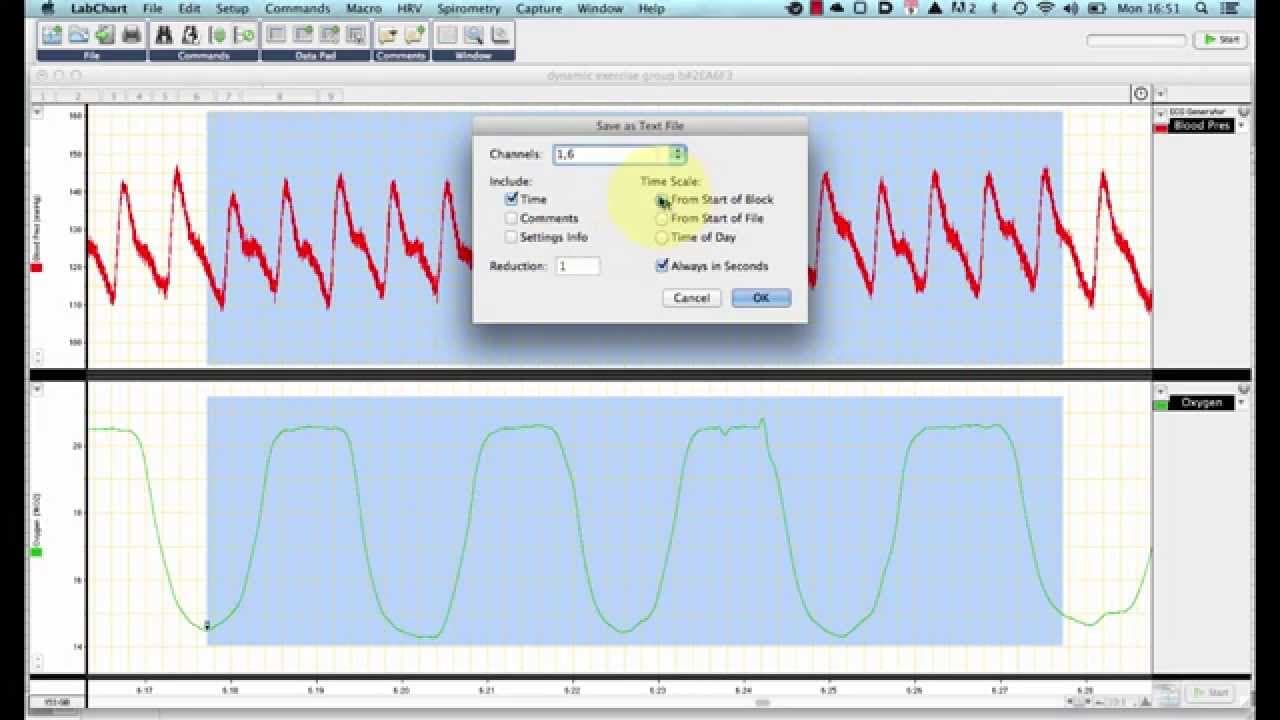
To create figures from LabChart data on Mac, export your selected data as a text file, then import it into Excel. Organize the data into columns and create scatter graphs for visualization, ensuring to label axes and adjust appearance for clarity before including them in lab reports.
Transcript
hello this is a tutorial looking at the creation of a figure for a paper or for a lab report using the raw data from lab chart for mac of course this will also work in lab chart for pc but since lab chart for pc users can copy the image from the zoom window and then annotate and edit elsewhere whereas those who use the mac can't i thought i'd just ... Read More
Key Insights
- 🍓 The tutorial focuses on creating figures for lab reports using raw data from LabChart on Mac.
- 👻 Exporting data from LabChart into Excel allows for further analysis and visualization.
- 🧘 The tutorial provides step-by-step instructions for exporting, importing, organizing, and editing the data.
- 🏷️ Adjustments, such as resizing, aligning, and adding labels, can be made to the graphs to resemble lab chart recordings.
Install to Summarize YouTube Videos and Get Transcripts
Explore YouTube Video Summarizer or Get YouTube Transcript Extractor
Questions & Answers
Q: What is the first step to export raw data from LabChart on Mac?
To export raw data, select the desired data on the screen, go to the file menu, choose "Save Selection," select the format as "Chart Data," and save the file.
Q: How can I import the exported data into Excel?
Open Excel, go to the file menu, choose "Import," select the exported text file, specify that it is tab delimited, and proceed through the import wizard steps.
Q: How can I edit the graphs to resemble lab chart recordings?
After creating the scatter graphs, adjust the starting time of the data, add axis labels, resize and align the graphs, increase font size, remove graph outlines, and add grid lines for a similar appearance.
Q: How can I include the annotated raw data trace in a lab report?
Copy the image from Excel, open Word, choose "Paste Special" as a PDF, and then the clear and annotated image can be inserted into the report.
Summary & Key Takeaways
-
This tutorial explains how to export raw data from LabChart on Mac and import it into Excel for analysis and visualization.
-
The process involves saving the selected data as a text file, importing it into Excel, and organizing the data columns.
-
The tutorial guides you through the steps of creating scatter graphs for blood pressure and oxygen percentage and editing them to resemble lab chart recordings.
Read in Other Languages (beta)
Share This Summary 📚
Summarize YouTube Videos and Get Video Transcripts with 1-Click
Try YouTube Summary with ChatGPT & Claude or YouTube Transcript Generator
Explore More Summaries from Dory Video 📚




Summarize YouTube Videos and Get Video Transcripts with 1-Click
Try YouTube Summary with ChatGPT & Claude or YouTube Transcript Generator