Low End Tech - Install Ubuntu on Raspberry Pi 2
TL;DR
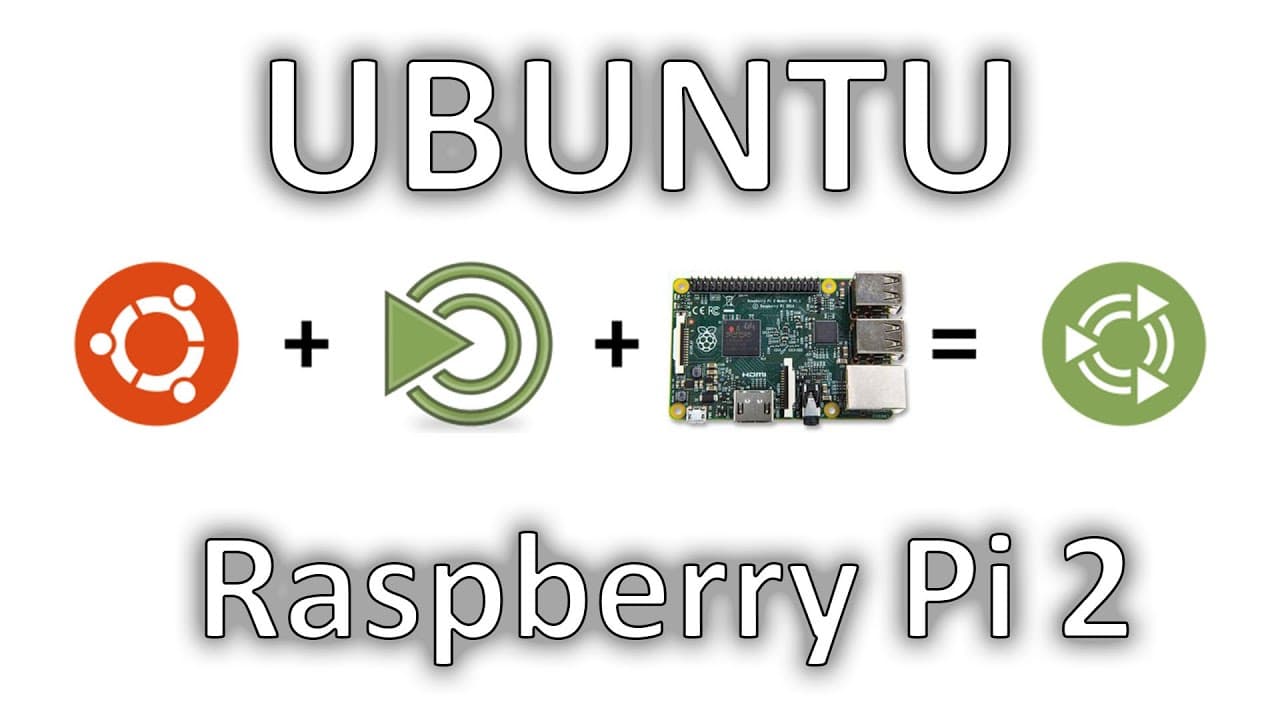
Don from Nova Spirit demonstrates installing Ubuntu Mate on a Raspberry Pi.
Transcript
hey guys what's going on it's Don here from Nova spirit and today we are back with another episode of low and Tech now what we're going to be discussing today is operating systems if you've seen previous episodes of what I've been doing with Raspberry Pi our goto operating system as the rasbian that's because on the raspberry pi b they used the arm... Read More
Key Insights
- 🐎 Ubuntu Mate offers an optimized version of Ubuntu designed specifically for Raspberry Pi, enhancing overall speed and usability.
- ☠️ The installation process involves extracting the downloaded image and utilizing Wind 32 Disk Imager to prepare the SD card correctly for the operating system.
- 🗃️ Resizing the file system post-installation is crucial for maximizing storage capacity on the Raspberry Pi’s SD card.
- 😑 Ubuntu Mate’s GUI and pre-installed software provide an improved user interface and functionality compared to the standard Ubuntu version on Raspberry Pi.
- 😒 The use of newer kernels in optimized versions like Ubuntu Mate contributes significantly to the responsiveness and efficiency of the operating system.
- 🎮 Video playback performance is significantly enhanced with OMX Player, showcasing the importance of hardware-accelerated media playback on limited hardware like Raspberry Pi.
- 👋 Testing and user feedback are essential for establishing the best operating system for specific applications on Raspberry Pi.
Install to Summarize YouTube Videos and Get Transcripts
Explore YouTube Video Summarizer or Get YouTube Transcript Extractor
Questions & Answers
Q: What are the advantages of using Ubuntu Mate over the official Ubuntu version for Raspberry Pi?
Ubuntu Mate is specifically optimized for Raspberry Pi, which provides a smoother user experience out of the box. Unlike the official version, it includes pre-installed software and is compatible with a newer kernel, resulting in better performance and responsiveness suitable for the hardware.
Q: Can you explain how to resize the file system after installing Ubuntu Mate?
After installing Ubuntu Mate, you should resize the file system to make use of the full SD card space. This involves using the command sudo fdisk /dev/mmcblk0 to modify the partitions. After deleting and recreating the second partition, reboot and execute sudo resize2fs /dev/mmcblk0p2 to expand the file system to utilize the maximum available space.
Q: How does the multimedia performance of Ubuntu Mate compare to other operating systems on Raspberry Pi?
Ubuntu Mate demonstrates superior multimedia performance, especially with the OMX Player, which leverages hardware acceleration for video playback, resulting in full-screen, smooth video output. This contrasts with VLC media player, which struggles under certain conditions on Raspberry Pi, indicating that software optimization plays a crucial role in multimedia performance.
Q: What steps should I follow to download and install Ubuntu Mate on my Raspberry Pi?
First, download the Ubuntu Mate image from the official website or using BitTorrent for efficiency. Then, use Wind 32 Disk Imager to write the downloaded ISO to your SD card. After writing, insert the SD card into your Raspberry Pi and boot it up, following the on-screen instructions to complete the setup.
Summary & Key Takeaways
-
The video showcases the process of installing Ubuntu Mate, an optimized version of Ubuntu, on a Raspberry Pi, enhancing its usability and performance compared to the official version.
-
Don walks viewers through the required software, including Wind 32 Disk Imager and how to configure the SD card for the installation, emphasizing the importance of resizing the file system post-installation.
-
The performance of Ubuntu Mate on the Raspberry Pi is highlighted, showcasing its responsiveness and improved multimedia capabilities, particularly when using video players like OMX Player.
Read in Other Languages (beta)
Share This Summary 📚
Summarize YouTube Videos and Get Video Transcripts with 1-Click
Try YouTube Summary with ChatGPT & Claude or YouTube Transcript Generator
Explore More Summaries from Novaspirit Tech 📚





Summarize YouTube Videos and Get Video Transcripts with 1-Click
Try YouTube Summary with ChatGPT & Claude or YouTube Transcript Generator