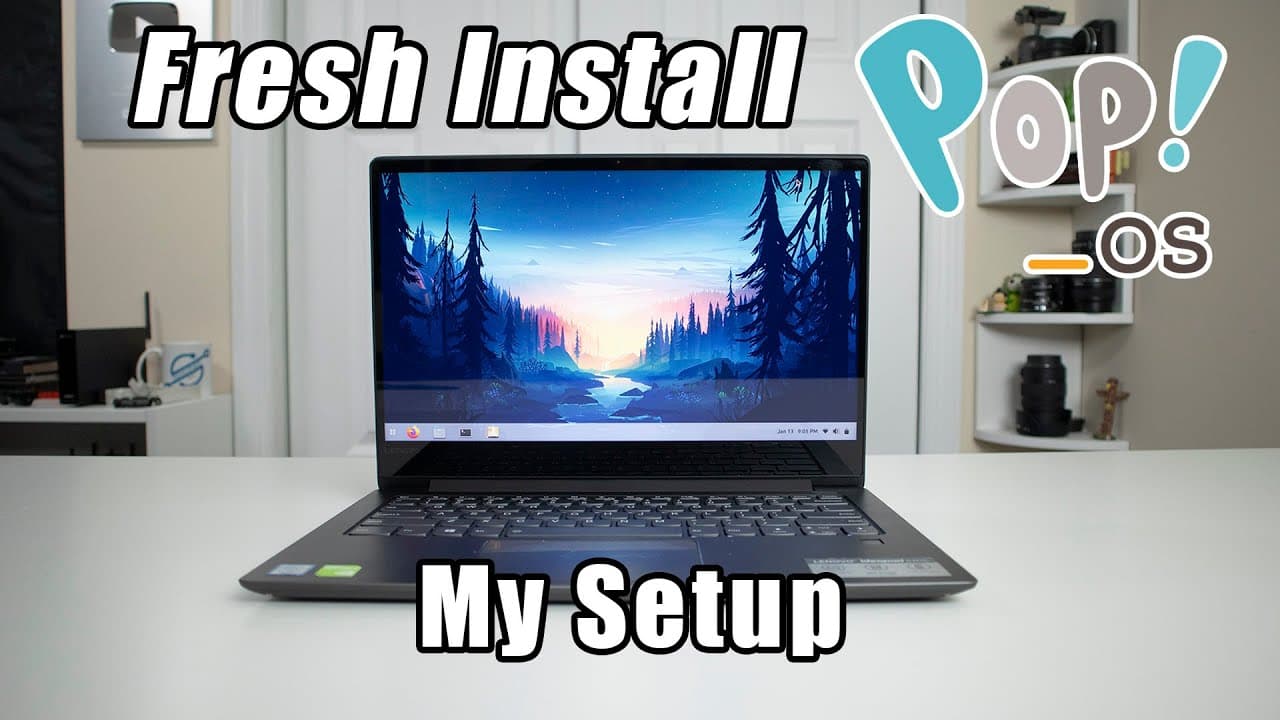
My Linux Setup Using POP OS and Gnome Fresh Install!
TL;DR
A step-by-step guide to configuring a Linux desktop using Pop OS.
Transcript
hey guys what's going on it's down here from Nova spirit Tech and today's video is gonna be a little bit different if you guys are long-term viewers you probably know I do a little bit of raw videos back in the day where it's minimal editing and just I'm putting something out there now in this video I'm gonna show you guys how I setup my Linux comp... Read More
Key Insights
- 😚 A fresh installation of Pop OS provides a clean slate for users to customize their Linux desktop environment according to personal preferences.
- ❓ Utilizing GNOME Tweak and browser extensions significantly enhances the customization options available in GNOME.
- ❓ The presenter stresses the importance of familiar navigation methods, incorporating features that mimic the Windows operating system.
- 🖐️ The selection of themes and wallpapers plays a crucial role in user satisfaction and engagement within the desktop environment.
- ⏰ Customizing the appearance of desktop elements, such as clock styles and icon placements, can vastly improve usability and visual appeal.
- 👤 Extensions serve as a vital component in transforming GNOME into a more user-centric experience, focusing on integrating functionality users are accustomed to.
- 🥺 Personalization of the Linux desktop can lead to increased productivity, allowing users to work more efficiently in an environment tailored to their habits.
Install to Summarize YouTube Videos and Get Transcripts
Explore YouTube Video Summarizer or Get YouTube Transcript Extractor
Questions & Answers
Q: Why did the presenter choose Pop OS for this setup?
The presenter opted for Pop OS because it provides a user-friendly experience with GNOME by default and aligns well with their needs for customization. The choice of this distribution is backed by its performance features and extensive community support, making it ideal for users looking for a stable and modern Linux experience.
Q: What is the primary customization tool mentioned in the video?
The primary customization tool highlighted is GNOME Tweak. This application unlocks various configuration options for the desktop environment, including themes and extensions, allowing users to tailor their interface to resemble more familiar systems such as Windows. The presenter demonstrates its utility in enhancing the overall user experience.
Q: How does the presenter modify the menu and panel positioning?
To modify the menu and panel positioning, the presenter installs the Arc Menu and the Dash to Panel extensions, allowing them to move the top panel to the bottom of the screen. This customization mimics a Windows-like start menu, enhancing user familiarity and usability according to their preferences for workflow efficiency.
Q: What modifications were made to the desktop appearance?
The presenter makes several modifications, including changing themes, icons, and wallpapers. They install a specific theme (Tokyonight) and a custom wallpaper from Wallpaper Flare to enhance the visual aesthetics of the desktop. The presenter also adjusts the clock display color to ensure better visibility against the new background.
Q: Are there any specific extensions that improve functionality mentioned in the video?
Yes, the presenter mentions extensions like Top Icons Plus, which brings icons back to the top panel without cluttering the interface. This extension effectively integrates notifications from applications such as Steam, allowing for a more organized and efficient workflow on the desktop.
Summary & Key Takeaways
-
The video details the process of setting up a Linux desktop environment, specifically using Pop OS with GNOME, starting from a fresh install on a Lenovo laptop.
-
Key steps include system updates, installation of essential tweaks and extensions to customize the desktop's appearance and functionality, mirroring a more familiar Windows-like experience.
-
The creator emphasizes their preference for a bottom panel and a more efficient menu system, also sharing tips on installing themes and wallpapers for improved aesthetics.
Read in Other Languages (beta)
Share This Summary 📚
Summarize YouTube Videos and Get Video Transcripts with 1-Click
Try YouTube Summary with ChatGPT & Claude or YouTube Transcript Generator
Explore More Summaries from Novaspirit Tech 📚
Summarize YouTube Videos and Get Video Transcripts with 1-Click
Try YouTube Summary with ChatGPT & Claude or YouTube Transcript Generator