How to Fix Screen Rotation on Pico Laptop Running Linux
TL;DR
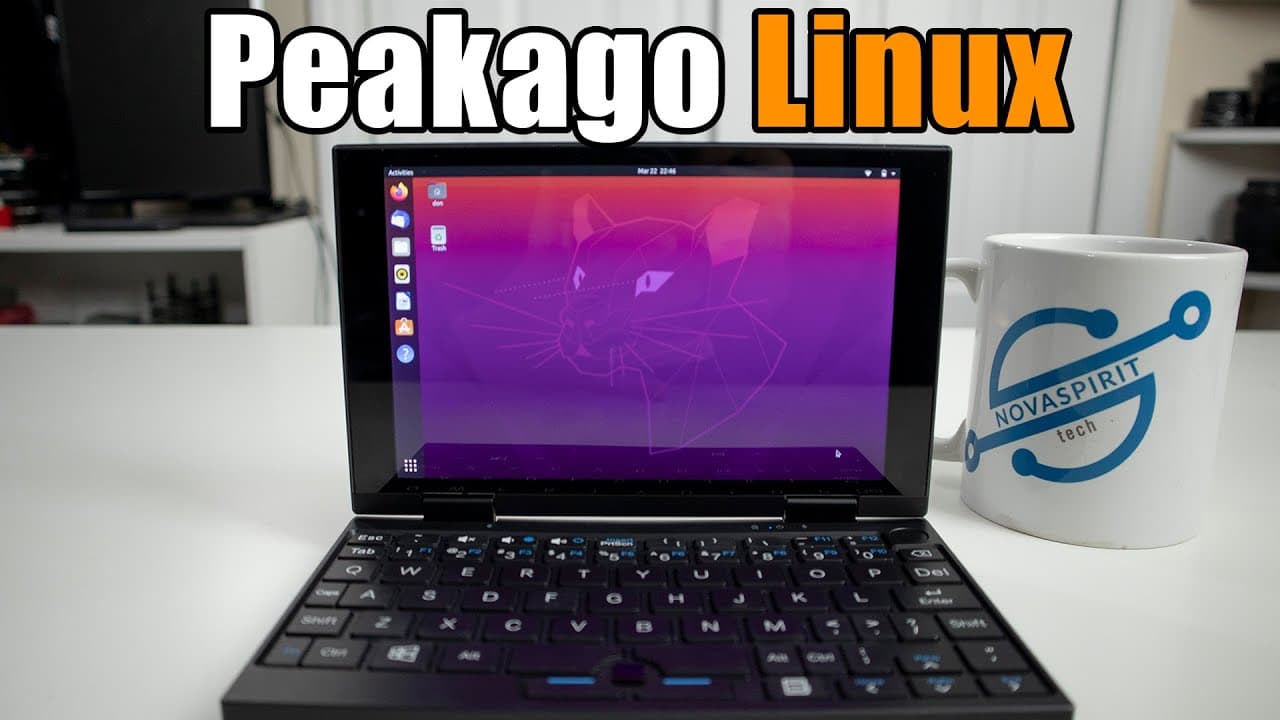
To fix screen rotation on a Pico laptop running Linux, ensure you are using the latest kernel version (5.4) and create a new hardware database file in the system. By entering specific terminal commands to configure the iio sensors, you can achieve the correct screen orientation after installation, allowing for smooth functionality and performance.
Transcript
hey guys what's going on it's dawn here from Nova spirit tech and welcome back to my channel and today we are gonna be installing Linux into our Pico laptop two-in-one tablet thing so let's get started now a couple of months ago I reviewed this unit and it was based off Windows now they come pre shipped with Windows and with this guy having a games... Read More
Key Insights
- 🛀 The Pico laptop initially showed performance issues with Windows OS, prompting the shift to Linux for improved functionality.
- 🪛 Driver updates are crucial for the effective operation of external devices and should be prioritized during installations.
- 🧘 Terminal commands and hardware database edits can effectively resolve unique device challenges, such as screen rotation.
- 👶 Utilizing the most recent kernel versions can significantly enhance device compatibility with newer software.
- 👤 Proper orientation and user interface adjustments are necessary for devices transitioning to different operating modes.
- 💻 Screen tearing and fluidity can vary widely between different window managers, impacting overall satisfaction.
- 😒 Extended functionality like SD card access and audio control is vital for versatile use in various applications.
Install to Summarize YouTube Videos and Get Transcripts
Explore YouTube Video Summarizer or Get YouTube Transcript Extractor
Questions & Answers
Q: What were the major issues faced during the initial Linux installation?
During the first attempt to install Linux on the Pico laptop, significant problems arose including an unresponsive mouse, non-working sound card, and incorrect screen rotation. The mouse's functionality was paramount, as it hindered any further progress in navigating the operating system. These issues were primarily due to outdated drivers and lack of updates available at that time.
Q: What steps were taken to resolve the mouse functionality issue?
The mouse issue was specifically addressed by updating the drivers as noted in the release notes of Pop OS 20.04. The creator emphasized the importance of using the latest kernel version (5.4) that included the necessary driver updates for the device, which ultimately allowed the mouse to function correctly on the system.
Q: How did the creator manage the screen rotation problem during installation?
To handle the screen rotation issue, the creator used a temporary fix by turning the device upside down and locking the rotation while typing commands. They subsequently explored terminal commands and the iio sensors to modify the screen orientation settings, creating a hardware database that corrected the display orientations.
Q: Why does the creator recommend using Wayland over X11?
The creator prefers Wayland over X11 due to improved performance in screen fluidity and rotation response. They experienced some screen tearing with X11, which was not present with Wayland, resulting in a smoother overall user experience, especially when using functions like screen rotation.
Q: What final setup is reported in the video?
The creator found the final setup with Pop OS 20.04 and kernel 5.4 to function well. All hardware components, including the mouse, keyboard, audio, and touchscreen, operated correctly. They also noted success in using the SD card with other devices. Other features like audio controls and shortcuts also worked without issues.
Q: What potential future development was mentioned concerning the tablet mode?
The creator discussed a limitation regarding the tablet mode, where the keyboard would remain active even when the screen was rotated backward. They expressed interest in creating a Python script to disable the keyboard in tablet mode—an endeavor they suggested could be a project for viewers with relevant programming experience.
Summary & Key Takeaways
-
The video details the step-by-step installation of Linux on a Pico laptop, initially shipped with Windows, which faced sluggish performance due to outdated drivers and software.
-
Key challenges included non-functional mouse, sound, and screen rotation, all of which were resolved through updates and specific terminal commands.
-
The final setup operates smoothly with Pop OS 20.04 and kernel 5.4, though the creator suggests using Wayland instead of X11 for better performance.
Read in Other Languages (beta)
Share This Summary 📚
Summarize YouTube Videos and Get Video Transcripts with 1-Click
Try YouTube Summary with ChatGPT & Claude or YouTube Transcript Generator
Explore More Summaries from Novaspirit Tech 📚




Summarize YouTube Videos and Get Video Transcripts with 1-Click
Try YouTube Summary with ChatGPT & Claude or YouTube Transcript Generator