How to Connect a WhatsApp AI Agent to n8n
TL;DR
Create a Meta business app, connect its app ID and secret to the n8n WhatsApp Trigger, then configure a second credential with an access token and WhatsApp Business Account ID for outgoing messages. Pass each incoming message body to an AI Agent and map the agent output into the WhatsApp Business Cloud send-message node to enable automated conversations.
Transcript
Today I'm going to show you guys the quickest and easiest way to set up any end with WhatsApp so that when someone messages our business account, we can have an AI agent on the back end responding to them, booking in a meeting, whatever we want them to do. So right now you can see I have a WhatsApp trigger and if I click into this, you can see that... Read More
Key Insights
- The WhatsApp Trigger credential requires the Meta app ID and app secret, entered in n8n as the client ID and secret. A successful configuration produces a green confirmation message stating that the connection was tested successfully.
- A Meta business app must use the Business app type for this WhatsApp setup. The app type cannot be changed after creation, so the correct type must be selected before confirming the app details and creating it.
- The Meta account must be confirmed before a new app ID can be created. The tutorial encounters this requirement and completes confirmation by adding either a mobile number or a credit card before continuing with app creation.
- Outgoing WhatsApp messages require different credentials from incoming trigger messages. The WhatsApp Business Cloud send-message node uses an access token and WhatsApp Business Account ID instead of the app ID and app secret required by the trigger.
- The WhatsApp API setup provides a test sender number for initial testing. A recipient phone number must also be entered, including its country code, before the workflow can send a test message to the intended WhatsApp account.
- The AI Agent receives messages by mapping the WhatsApp trigger's message body field into its user-message input. This dynamic field replaces fixed text, allowing the agent to process whatever a person sends to the connected WhatsApp number.
- The send-message node returns useful AI responses by mapping the agent's output variable into the outgoing text body. A fixed value such as "test" can verify delivery first, but it must be replaced to support an actual conversation.
- Paid AI model usage creates a cost exposure when the WhatsApp number accepts unrestricted messages. Every message can consume credits through services such as OpenRouter, OpenAI, or Anthropic, so repeated or spammed messages may increase the account owner's costs.
Install to Summarize YouTube Videos and Get Transcripts
Explore YouTube Video Summarizer or Get YouTube Transcript Extractor
Questions & Answers
Q: How do you connect a WhatsApp Trigger to n8n?
Create a business app in the Meta business portal and select the Business app type so WhatsApp can be configured. Open the app's basic settings, copy the app ID and app secret, and enter them into the n8n WhatsApp Trigger credential as the client ID and secret. Save the credential and confirm that n8n reports the connection was tested successfully.
Q: What credentials does the n8n WhatsApp Trigger require?
The n8n WhatsApp Trigger requires a client ID and secret. For this setup, the Meta app ID is used as the client ID, while the Meta app secret is used as the secret. Both values are available from the app's basic settings after a Business app has been created and WhatsApp setup has been started.
Q: Why are two WhatsApp credentials needed in n8n?
Two credentials are needed because the incoming trigger and outgoing messaging node use different authentication details. The WhatsApp Trigger uses the app ID and app secret as its client ID and secret. The WhatsApp Business Cloud send-message node instead requires a generated access token and the WhatsApp Business Account ID shown in the app's WhatsApp API setup.
Q: How do you create the credential for sending WhatsApp messages?
Open WhatsApp API setup inside the Meta app, configure the provided test number, and enter a recipient phone number. Generate an access token, review the requested WhatsApp account and conversation permissions, and save the connection. Copy the generated token and WhatsApp Business Account ID into the new n8n WhatsApp Business Cloud credential, then save it and verify the successful connection message.
Q: How does an n8n AI Agent receive a WhatsApp message?
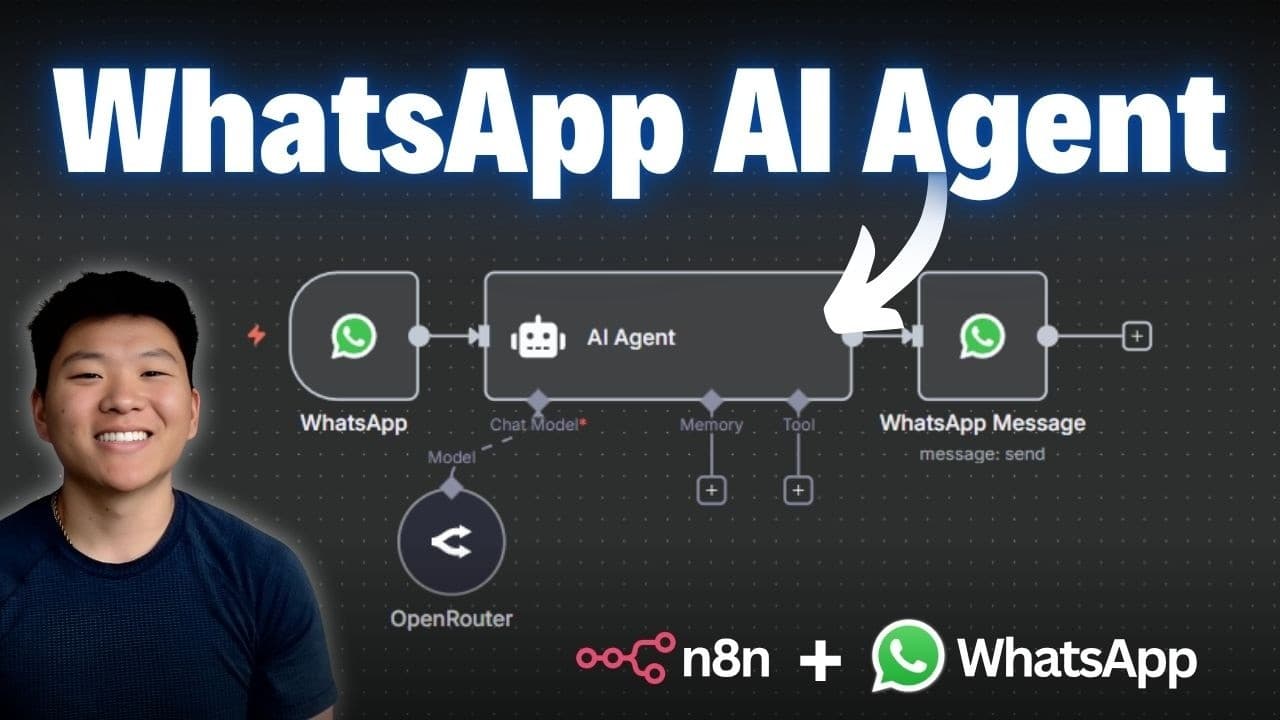
Connect the WhatsApp Trigger to an AI Agent and attach an AI chat model to give the agent a model for processing messages. In the agent settings, define the user message manually and map the trigger's message body field into that input. The agent will then receive the actual text sent by the WhatsApp user instead of a fixed prompt.
Q: How do you send the AI Agent response back through WhatsApp?
Add a WhatsApp Business Cloud node after the AI Agent and select the send-message operation. Configure the sender phone number and recipient number, then map the AI Agent's output variable into the outgoing text body. Replacing a fixed test message with this output allows the response generated by the agent to be delivered to the user in WhatsApp.
Q: How do you test an inactive n8n WhatsApp workflow?
Click execute workflow so the WhatsApp Trigger begins listening, then send a message to the test number from the configured recipient account. The trigger should capture the message, pass its body to the agent, and continue to the send-message node. Because the workflow is inactive during testing, execute workflow must be clicked again for each listening session.
Q: What should you consider before making a WhatsApp AI agent public?
Messages processed by a paid model can consume credits every time someone contacts the WhatsApp number. The tutorial specifically warns that repeated messages or spam can make the account owner responsible for the resulting model costs. After testing, the provided number can be replaced with a business phone number, and memory, tools, or CRM connections can be added to the agent.
Summary & Key Takeaways
-
The setup begins in the Meta business portal, where an account must be confirmed and a business app created under the appropriate business portfolio. Selecting the Business app type enables WhatsApp. The resulting app ID and app secret become the client ID and secret used by the n8n WhatsApp Trigger credential.
-
Outgoing replies require a separate credential from the trigger. In the app's WhatsApp API setup, a test sender number and recipient number are configured before generating an access token. That token and the displayed WhatsApp Business Account ID are entered into a new credential for the n8n WhatsApp Business Cloud node.
-
The completed workflow connects a WhatsApp Trigger to an AI Agent, an AI chat model, and a send-message node. The incoming message body becomes the agent's user message, while the agent output becomes the outgoing text. Memory, tools, CRM connections, and a business phone number can be added later.
Read in Other Languages (beta)
Share This Summary 📚
Summarize YouTube Videos and Get Video Transcripts with 1-Click
Try YouTube Summary with ChatGPT & Claude or YouTube Transcript Generator
Explore More Summaries from Nate Herk | AI Automation 📚

Summarize YouTube Videos and Get Video Transcripts with 1-Click
Try YouTube Summary with ChatGPT & Claude or YouTube Transcript Generator