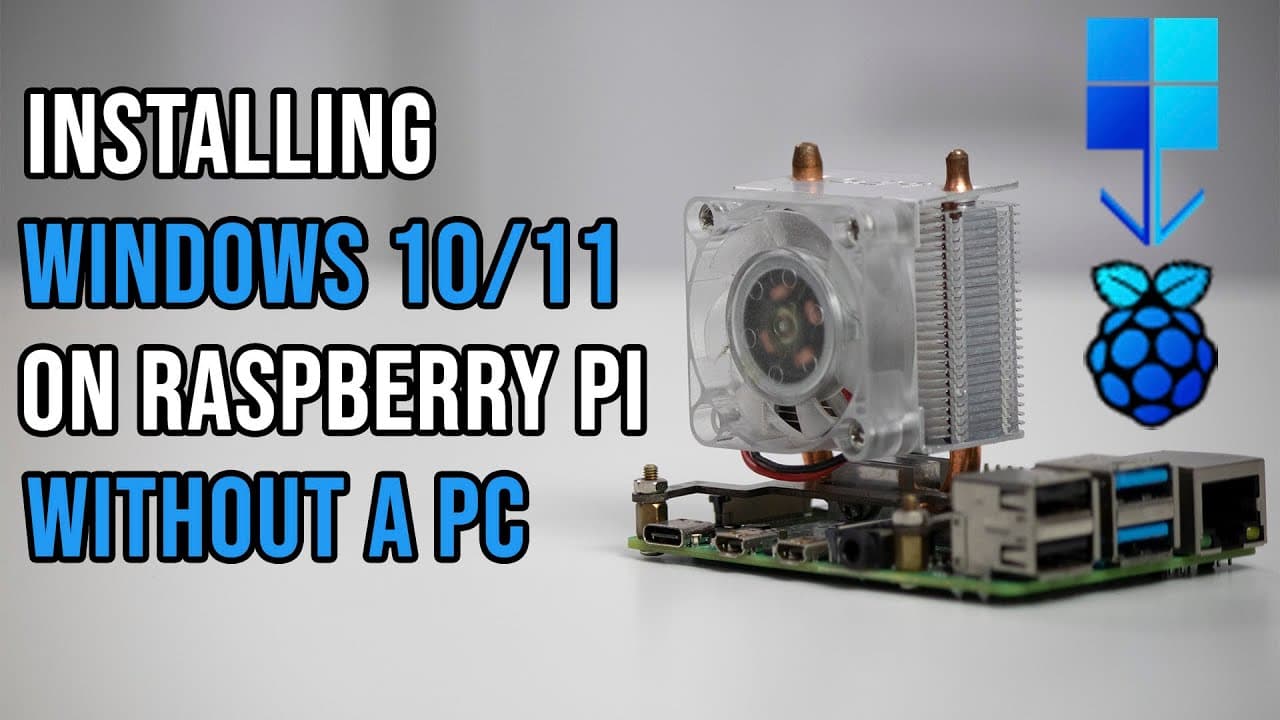
How to Install Windows 10/11 on Raspberry Pi Without a PC
TL;DR
You can easily install Windows 10 or Windows 11 on your Raspberry Pi 4 without needing a PC by using a simple script created by Botspot. This process requires at least a 32GB storage solution and takes about two hours, after which you can reboot and complete the Windows setup.
Transcript
hey guys what is going on don here from nova spur tech and welcome back to the channel and today i'm going to be showing you guys a little script that allows you to install windows 10 or windows 11 onto your raspberry pi 4 without the use of a pc so let's get started now there's a couple of things i wanted to update you guys about on the channel an... Read More
Key Insights
- 😘 The ability to install Windows on a Raspberry Pi democratizes access to Windows-based applications for a broader audience, especially in low-cost computing scenarios.
- 👍 Botspot brings proven experience to the table, enhancing user trust in the script's functionality.
- 👤 The installation process, though lengthy, is largely automated, reducing the technical barrier for many users.
- 😆 Ethernet connectivity is recommended for optimal use, as Wi-Fi functionality may be more challenging to set up.
- 🧑💻 Users can utilize Raspberry Pi's versatility to explore further tech projects or systems beyond casual usage.
- 👾 The community surrounding projects like these often provides additional support through platforms such as Discord, creating a space for troubleshooting and collaboration.
- ♓ Comparison of the Raspberry Pi's capability for Windows versus traditional systems highlights the fascination with ARM architecture in Windows environments.
Install to Summarize YouTube Videos and Get Transcripts
Explore YouTube Video Summarizer or Get YouTube Transcript Extractor
Questions & Answers
Q: How does the installation script work for Windows 10/11 on Raspberry Pi?
The installation script is designed to operate independently on the Raspberry Pi without needing a separate PC. Users can download the script from Botspot's GitHub page, which automates the process of downloading Windows images and setting them up on the device, making it user-friendly for those less familiar with installation processes.
Q: What resources are required to successfully install Windows on Raspberry Pi?
To successfully install Windows 10 or 11 on a Raspberry Pi, a minimum of a 32GB SD card is recommended for the base OS. Additionally, users need a second storage medium, such as a USB hard drive or another SD card, to house the actual Windows installation files.
Q: How long does the installation process typically take?
The installation process for Windows 10 or 11 on a Raspberry Pi can take around two hours. Following the download and extraction of files, users will be prompted to reboot their device and complete the final setup of Windows, which may take an additional 15 minutes.
Q: What are some practical applications for running Windows on a Raspberry Pi?
Running Windows on a Raspberry Pi can serve multiple purposes, such as setting it up as a remote desktop server or experimenting with light applications. Users might also explore hosting small servers, like a Minecraft server, due to the flexibility it offers in lightweight computing tasks.
Q: Is it possible to run Windows on Raspberry Pi 2 and 3?
While the script technically allows installation on Raspberry Pi 2 and 3, it is strongly advised to use a Raspberry Pi 4. The performance on the earlier models may be insufficient for a smooth user experience, given the hardware limitations compared to Raspberry Pi 4.
Summary & Key Takeaways
-
Users can install Windows 10 or 11 directly on Raspberry Pi 4 using a simple script, without needing a PC, enhancing accessibility for non-technical users.
-
The creator of the script, Botspot, has previously developed Pi Apps, showcasing his expertise and commitment to Raspberry Pi users.
-
The installation process requires a minimum of 32GB storage and takes approximately two hours, after which users can reboot and set up Windows.
Read in Other Languages (beta)
Share This Summary 📚
Summarize YouTube Videos and Get Video Transcripts with 1-Click
Try YouTube Summary with ChatGPT & Claude or YouTube Transcript Generator
Explore More Summaries from Novaspirit Tech 📚





Summarize YouTube Videos and Get Video Transcripts with 1-Click
Try YouTube Summary with ChatGPT & Claude or YouTube Transcript Generator